Guides › AI
Connect Claude, ChatGPT or another AI app to FloorFeed
Add FloorFeed to your AI app and ask about floors, sales, wallets and mints in plain words. Allow your account if you like, and let it prepare trades that you sign yourself.
What it is
FloorFeed is a connector (an MCP server) for Claude, ChatGPT, Cursor and other AI apps. Add it once, and your AI can answer from FloorFeed's live data: what's trending on a network, how a collection's floor moved, its last sales, how a wallet has done after fees, the top traders, Floor Calls and what's minting now.
If you allow it, your AI can also read your own account: your wallets, NFTs, what they'd really sell for, your offers, alerts, Floor Calls and activity. It can never sign or send anything. With Prepare trades on, it can write a trade as a request: a floorfeed.io link that you open, check and sign in your own wallet, or reject.
Where to find it
On FloorFeed: Settings → AI. It has the connector address, every app and link you connected, and what each may do.
floorfeed.io/mcp has the steps for each AI app, every tool, and what the connector can't do. Your AI app sends you to FloorFeed's sign-in page (floorfeed.io/connect-ai) when you add it, and each trade it prepares is a link to floorfeed.io/ai-request/….
Step by step
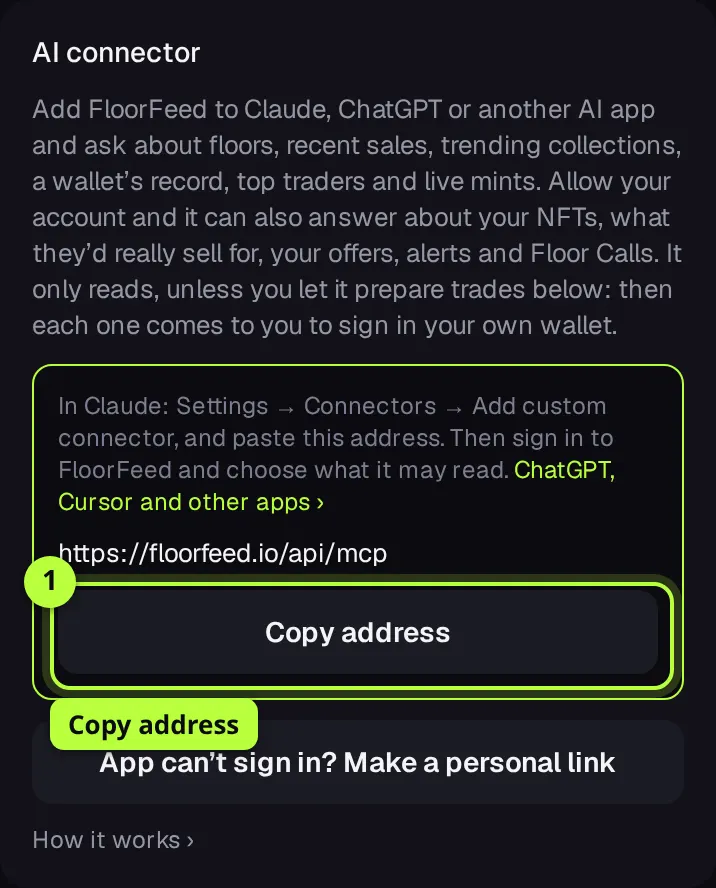
Copy the connector address
On FloorFeed, open Settings → AI. Under AI connector, tap Copy address. The address is https://floorfeed.io/api/mcp.
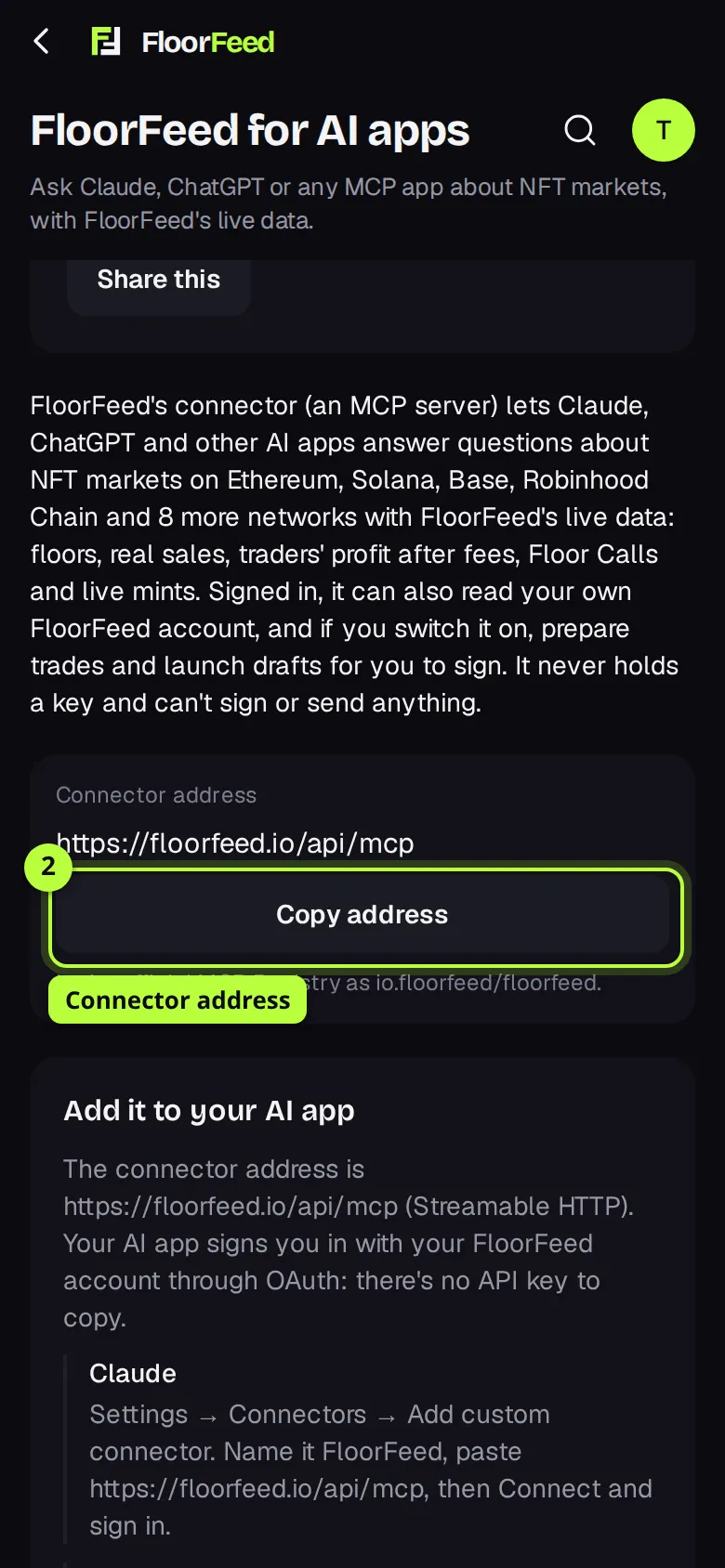
Add it in your AI app
In Claude: Settings → Connectors → Add custom connector. Name it FloorFeed and paste the address. Other apps have a similar "add connector" or "MCP server" setting. Tap ChatGPT, Cursor and other apps › in Settings → AI (or open floorfeed.io/mcp) for the steps in each.
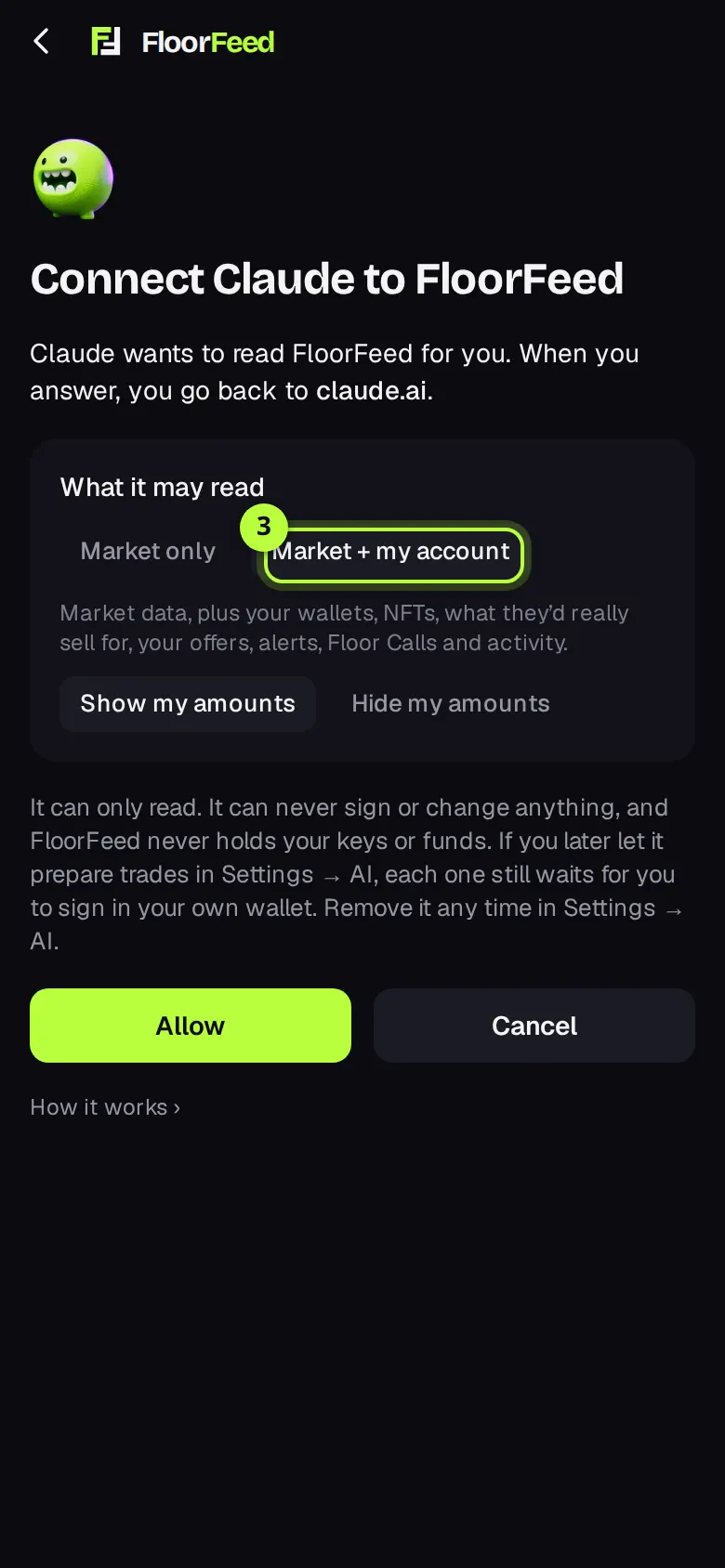
Choose what it may read
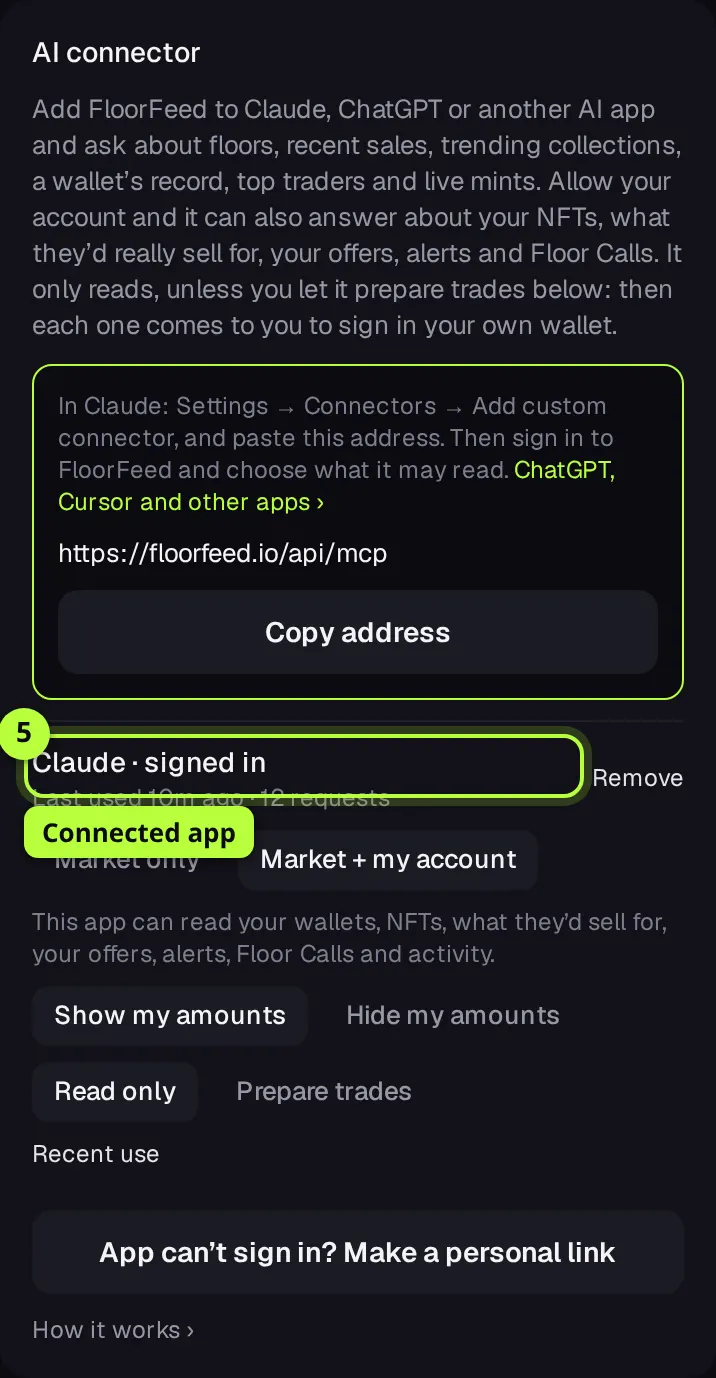
Your AI app opens FloorFeed's sign-in. Sign in if you aren't. The page says which app is asking and where you go back to. Under What it may read, pick Market only, or Market + my account to let it answer about your wallets and NFTs too. With your account, pick Show my amounts or Hide my amounts.
Tip: If the page says FloorFeed doesn't know this app, only go on if you just added FloorFeed in that app yourself. Tick I started this from … to allow it.
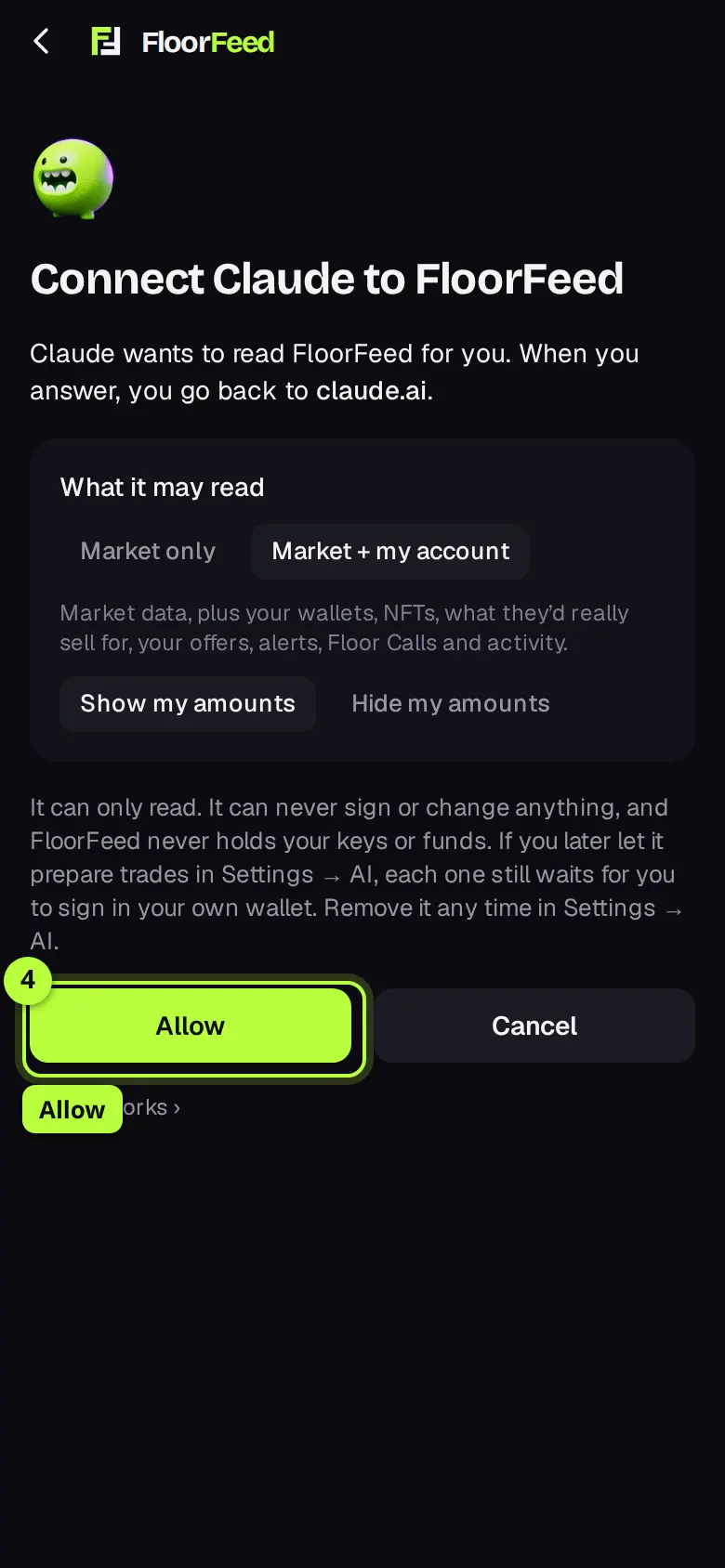
Allow, then ask
Tap Allow. You go back to your AI app, connected. Start a chat and ask, for example "what's trending on Base today?" Your app may ask once before it uses FloorFeed's tools. Cancel goes back without connecting.
Check it in Settings → AI
The app is listed by name, for example Claude · signed in, with when it was last used. Change what it may read here at any time: Market only or Market + my account, and Show my amounts or Hide my amounts. Recent use lists its last 20 questions (which tool and when, never the answers).
Let it prepare trades (optional)
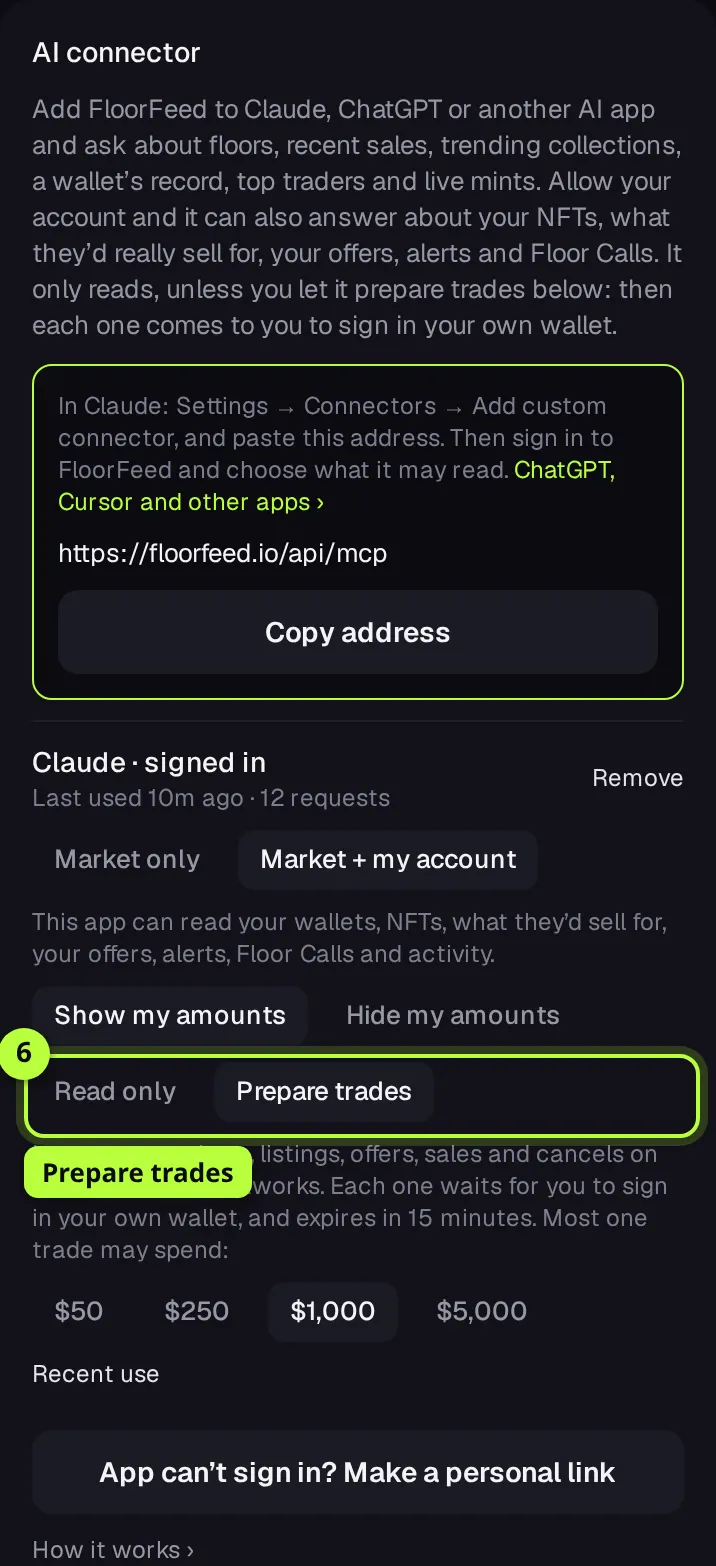
With Market + my account picked, tap Prepare trades. Then pick the most one trade may spend: $50, $250, $1,000 or $5,000 ($250 to start). Read only turns it off again.
Open the request your AI made
Ask your AI for a trade, for example "buy the cheapest Pudgy Penguin for at most 4.1 ETH". It answers with a floorfeed.io/ai-request link. Open it: it shows who prepared it, the collection and network, the most you pay (or the least you receive), the floor when asked and the wallet that signs. Tap Review and sign, or Reject.
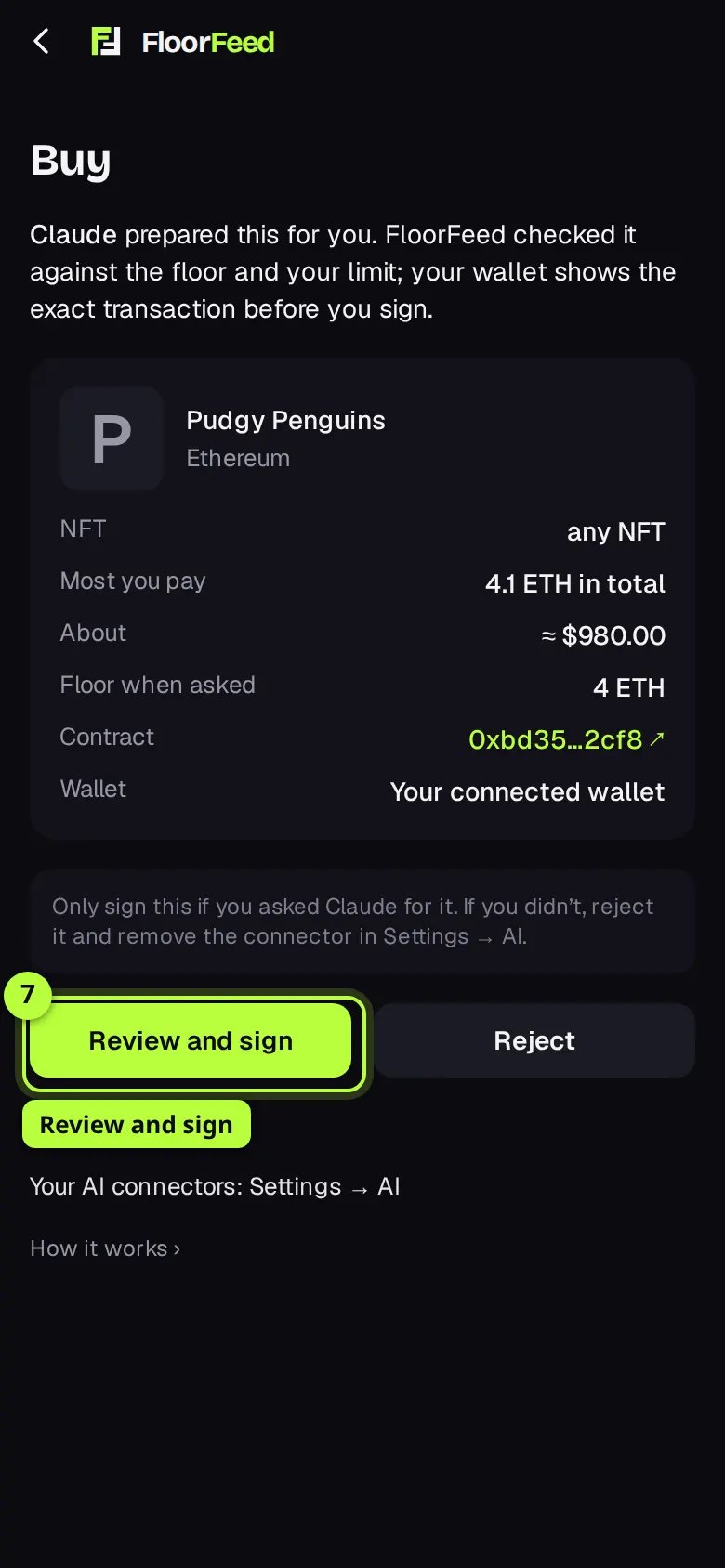
Tip: Only sign a request you asked for. If one shows up that you didn't, reject it and remove that app in Settings → AI.
Check the trade and sign it
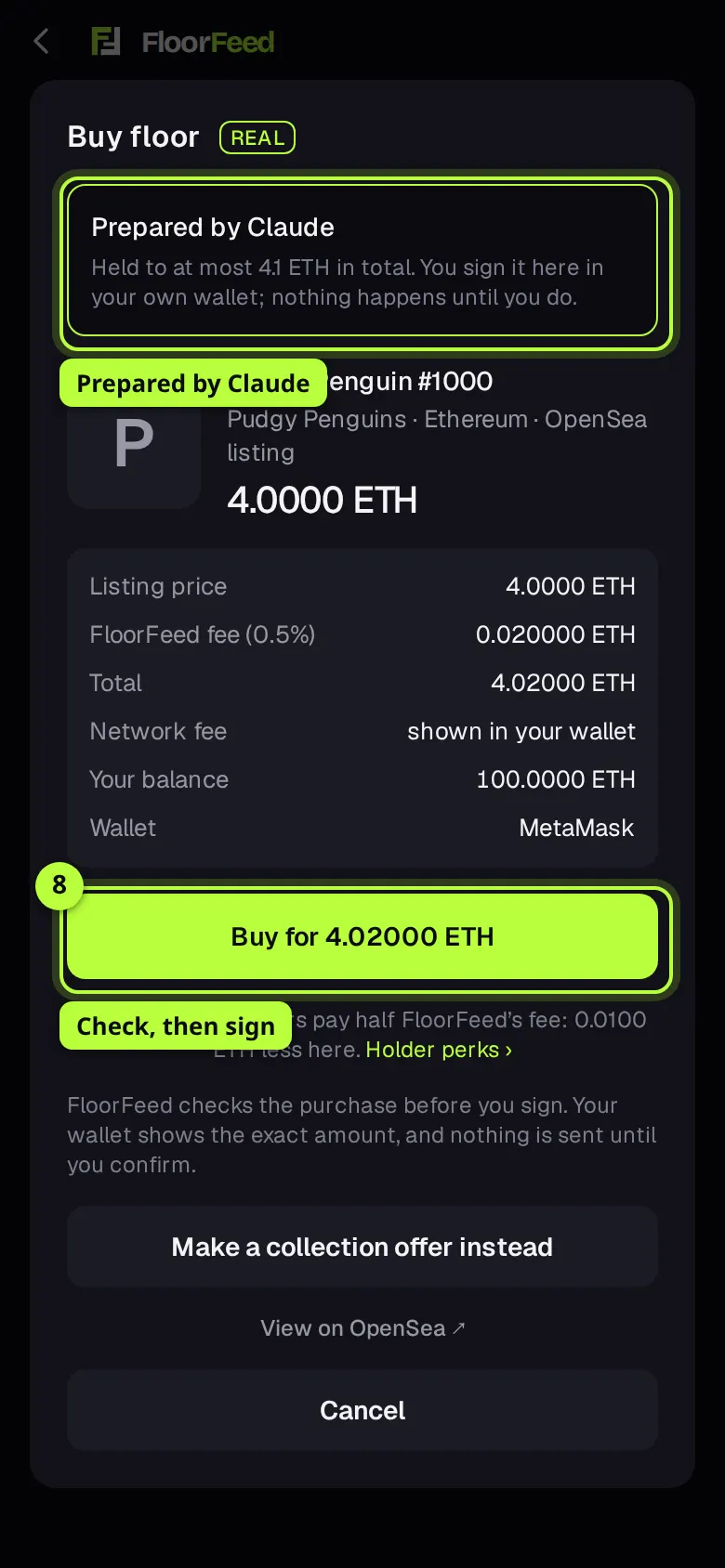
The usual buy, sell, list or offer sheet opens, with Prepared by Claude at the top and the limit it's held to. Check the price and fees, then confirm (for a buy, Buy for …) and sign in your wallet. If the price moved past the limit, the sheet says so and there's nothing to sign.
Remove an app
In Settings → AI, tap Remove next to the app (or link). It's signed out at once, and anything it prepared that you haven't signed is withdrawn.
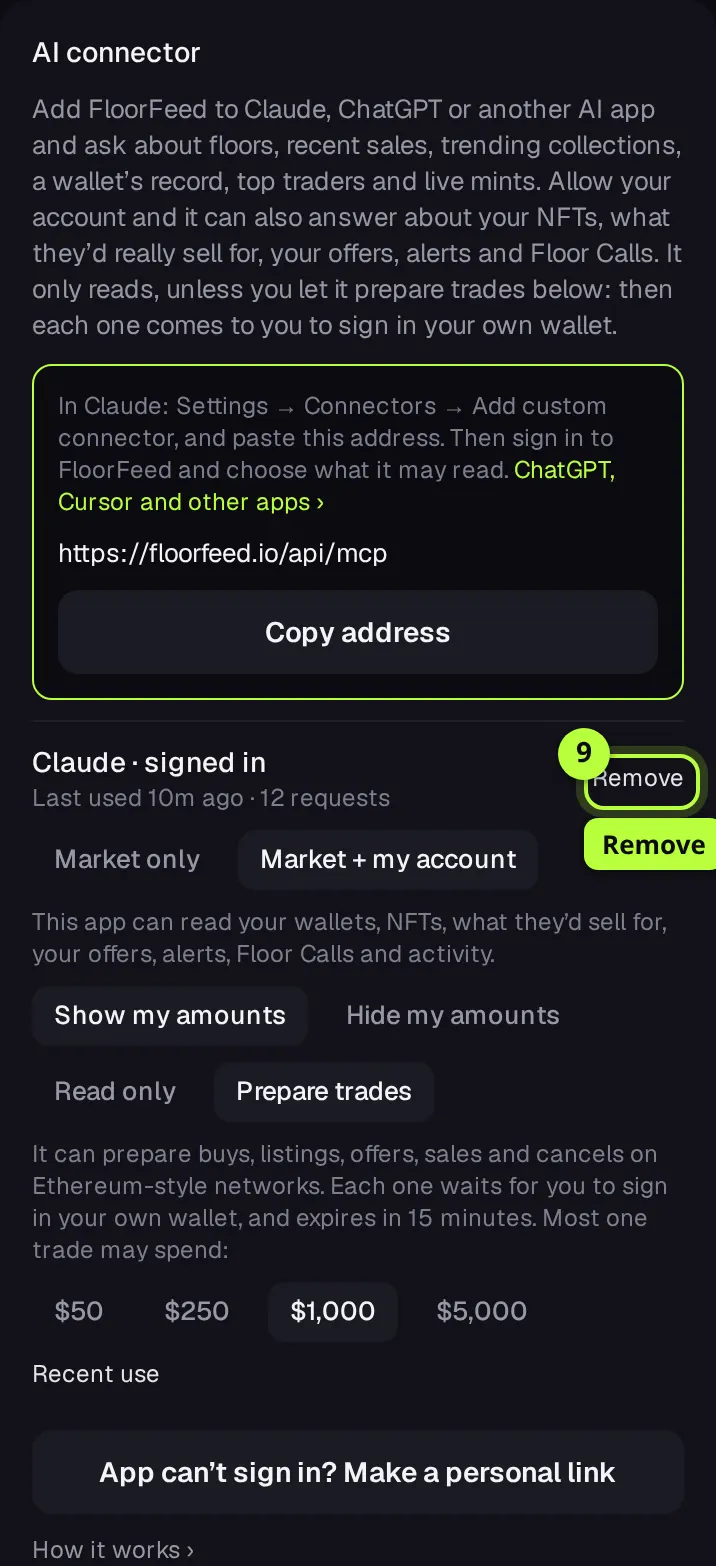
If your AI app can't sign in: a personal link
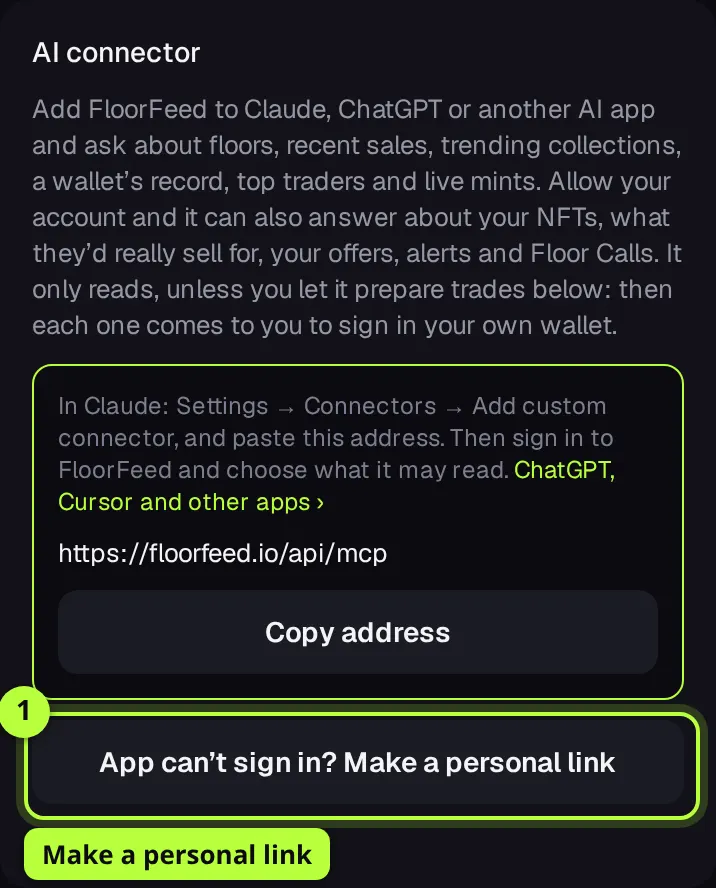
Some apps can't open FloorFeed's sign-in. Use a personal link as the connector address instead.
Make a personal link
In Settings → AI, tap App can't sign in? Make a personal link. A new link reads market data only; change it below the link like an app.
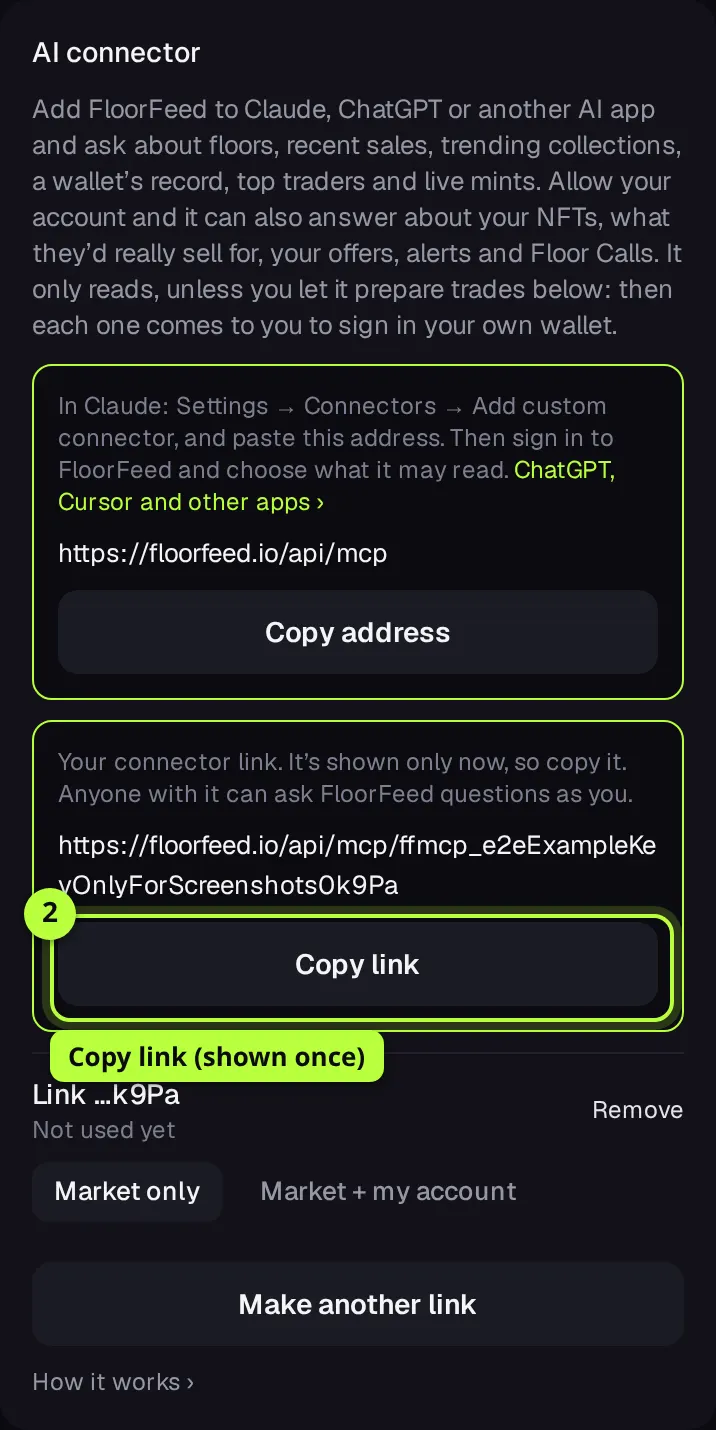
Copy it now
Tap Copy link and paste it in your AI app as the connector address. It's shown only this once; after that Settings shows only its last 4 characters, as Link …k9Pa. Anyone with the link can ask FloorFeed questions as you, so keep it private.
Options
- Market only
- Floors, recent sales, trending collections, any wallet's public record, top traders, Floor Calls, live mints and collections launched on FloorFeed.
- Market + my account
- Also the my_ tools: your linked wallets, the NFTs you hold, what they'd really sell for, your open offers, alerts, Floor Calls, recent activity and launches.
- Hide my amounts
- Account answers keep counts and names but leave out values. Your AI says so instead of guessing.
- Prepare trades
- Off until you turn it on, and only with your account allowed. Your AI can then prepare a buy, a listing, an offer, a sale into the best offer, a cancel, or a mint from a drop in FloorFeed's Mint hub. Each is a request you sign or reject.
- Most one trade may spend
- $50, $250, $1,000 or $5,000 per request. Buys and offers over it are refused before they reach you.
- Recent use
- Each app and link lists its last 20 questions, so a link someone else is using stands out. Its latest trade requests are listed too, with their status.
Fees and limits
- The connector
- Free. Questions, sign-in and links cost nothing.
- Ethereum, Base and the other EVM networks
- Signing a trade your AI prepared: the same fees as doing it yourself. For a buy: Price, plus OpenSea's fee and the creator's royalty where the listing asks for one, plus network gas. FloorFeed adds 0.5% on top of the price. Every line is on the buy sheet before you sign.
- Solana
- Your AI can read Solana collections, but it can't prepare trades there yet. It points you to the collection's page instead.
- 10 connected apps and 3 personal links per account.
- Up to 30 questions a minute and 1,000 a day per app or link. What your NFTs would sell for: 20 times a day.
- Trade requests: Ethereum, Base, Robinhood Chain and the other Ethereum-style networks FloorFeed trades on. Not Solana yet.
- Each request expires after 15 minutes and can be signed or rejected once. Up to 5 wait at a time, and an app or link can make 20 a day.
- Price checks: a floor buy more than 25% over the floor (one particular NFT: 3×), a listing more than 20% under it, a sale under 70% of it, or a collection offer over it is refused. Listings last 1 to 30 days; collection offers are for 1 to 10 NFTs.
- A listing, sale or cancel must be signed by the wallet that holds the NFT or made the order. Only you can open your requests.
- The sign-in page waits 15 minutes. After that, start again from your AI app.
Troubleshooting
- It says "This sign-in request has expired."
- The sign-in page waits 15 minutes. Start again from your AI app: add the connector again, or use its sign-in option.
- It says I can connect 10 AI apps.
- You have 10 already. Remove one in Settings → AI, then try again.
- My AI says amounts are hidden.
- The app or link is set to Hide my amounts. Switch it to Show my amounts in Settings → AI.
- My AI says a trade is over my limit.
- It's over the most one trade may spend. Pick a higher amount in Settings → AI, or ask for a smaller trade.
- The request says Expired.
- Requests last 15 minutes. Nothing was sent. Ask your AI again if you still want it.
- The sheet says the price is over the limit.
- The listing got more expensive (or the offer dropped) since your AI asked. Nothing is sent. Ask again with a new price if you still want it.
Questions
- Can my AI spend my money?
- No. The connector holds no keys and can't sign. A trade happens only when you open its link and sign it in your own wallet.
- Which AI apps work?
- Any app that takes MCP connectors: Claude, ChatGPT, Claude Code, Cursor and more. floorfeed.io/mcp has the steps for each.
- Does FloorFeed see my chats?
- No. It sees which tool your app called and when, which is what Recent use shows. Never your words or the answers.
- How do I stop it?
- Remove the app or link in Settings → AI. It stops at once, and anything unsigned is withdrawn.
Related
- Launch your own collection (a drop) on the launchpad
- Buy and sweep the floor: by count or by budget
- Making offers: on a collection, a trait or one NFT
- Soulbound badges and Moments: issue, claim and show them
- Link your other wallets
Checked against FloorFeed on 2026-11-08.