How FloorFeed works
The basics
The feed, the badges, profit after fees, alerts and finding collections.
What FloorFeed is
Launch it. Trade it. Feed the floor. FloorFeed is a non-custodial, multi-chain NFT launchpad and live market. Its feed shows NFT trades from wallets with a track record: we read every sale in the collections we track, match each wallet's buys to its later sales, and score traders on what they actually made.
Use it to see who is buying right now, judge whether they're any good, and follow the ones who keep winning. When you want to act on a trade, you can practice with simulated money or trade for real with your own wallet. Once you're signed in or have a wallet connected, Real is the default; the Practice | Real switch is on the Portfolio tab.
Finding your way around
The menu follows what you came to do: browse, win, make, and what's yours. On a computer it's the bar across the top: Feed and Markets, then the lime Win group (Feeding Frenzy, Chef's Pick and Chef's Kiss), then Mint, Create, Portfolio and More. On a phone it's the five tabs along the bottom: Feed, Markets, Win (in the middle), Mint and Portfolio. A lime dot means something is open to win right now.
- Feed and Markets
- Browsing and trading. The Feed is live buys, flips and Floor Calls. Markets lists every collection; a collection's page has its listings, offers, order book and sweep. Cards (tokenized trading cards) and Leaders (traders ranked by profit after fees) are tabs in Radar, the panel on the left of every page on a computer, and the first two items under More. On a phone, Cards is the Cards tab at the top of Markets, and Leaders is a card on Win.
- Feeding Frenzy, Chef's Pick and Chef's Kiss
- The Win group, FloorFeed's headline features, in the middle of the bar on a computer. Feeding Frenzy (floorfeed.io/frenzy) is every open Frenzy, where you win NFTs with free bites, and Start a Frenzy to give your own away. Chef's Pick (/pick) is the collection of the week and why it was picked. Chef's Kiss is that pick's free Frenzy, the Chef's Kiss Frenzy: it goes straight to it while it's on, so one tap takes you to your free bite. On a narrow window they're shortened to Frenzy, Pick and Kiss, or shown as their pictures (the Chomper, the chef's hat and the heart). On a phone, the Win tab opens on the same three, and the top of the Feed, Markets, Mint and Portfolio has one lime button: Kiss while the Chef's Kiss Frenzy is open, Pick between picks.
- Mint
- Minting someone else's drop: what's live, what's coming and what just ended, with collections launched on FloorFeed at the top. Launch your own › at the top goes to Create.
- Win
- Everything to win, join or compete in, at floorfeed.io/play (it used to be called Play): the Win tab on a phone, More → Win page on a computer. It opens on Feeding Frenzy, Chef's Pick and Chef's Kiss with what's on in each, then the Feeding Frenzy card (Start a Feeding Frenzy, and the open Frenzy with its countdown), then Leaders, Floor Calls and your Feeder Score, Quests and streaks, My trophy case and Wallet Roast.
- Create
- Making your own: Create a collection starts a launch, with Soulbound collection, Moment (event badge) and Feeding Frenzy under it, and Your collections for your drafts and live ones. On a phone, open it from Launch your own › on Mint, or from Create in your account menu.
- Portfolio
- What you hold: your NFTs, listings, offers and soulbound badges, and the Practice | Real switch.
- More
- On a computer, seven pages in two groups: Leaders, Cards and the Win page (Floor Calls, Wallet Roast and Quests are cards there), then What's new (a lime dot while there's news you haven't seen), Help & guides (the feature guides, with How it works and Support at the top), Connect an AI and About FloorFeed. About FloorFeed (floorfeed.io/about) has the rest: For traders, For projects, For data & tech, Official collections, and NFTs on Robinhood Chain, Base and Polygon. On a narrower window, the search box becomes the magnifier next to the bell.
- Your account menu
- Your picture at the top right. Yours first: Profile, My trophy case, Invite friends, History, Offers, On the House (gifts by link, once it's open to your account) and Settings and security, and on a computer Display size. Then Developers ↗, What's new, Help and support, and About FloorFeed. On a phone it also has Create, How it works and Feature guides, since there's no bar across the top.
Tip: Nothing changed address: Win is still floorfeed.io/play. A card shows only while its feature is open, so if Quests and streaks isn't on Win, it isn't open to your account yet.
Reading the feed
- Buy
- A wallet bought an NFT. Notable buys come with a short AI take on the wallet and the price.
- Flip
- A wallet sold an NFT it bought earlier. The number is its profit or loss after fees.
- Sweep
- One wallet bought 3 or more from the same collection within 15 minutes.
- Cluster
- 3 or more different wallets bought the same collection within 6 hours.
- Floor call
- A member says a floor goes over or under a price by a date. The pill is the caller's Feeder Score: how accurate their calls are.
Buys and Flips are the trade tabs (Calls shows Floor Calls; see "Floor Calls in the feed"). Buys holds Buy, Sweep and Cluster cards, and each ends in Buy floor (practice or real, depending on your mode) with Offer beside it on Ethereum and its networks. Flips holds Flip cards, which end in "See <collection>": a flip is a sale, so the link opens the collection, where Buy floor is one tap away.
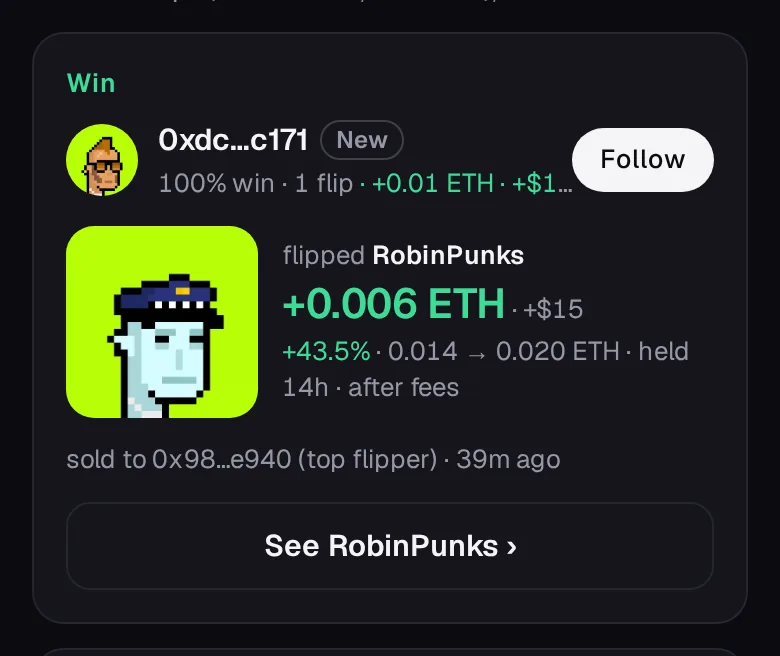
On Buys, Top ranks the last 72 hours by who bought, how much and how recently (at most one card in three is a cluster), and Latest is every buy as it lands. On Flips, All is every flip and Profitable is +2% or more after fees. A Flip card shows the token numbers it sold (#7360); several tokens sold in one transaction make one card ("flipped 7 × …") with the totals. Filter by chain, switch to Following to see only the wallets you follow, and Hide bots (on by default) leaves out market-making wallets that trade around the clock.
On a computer every filter sits above the feed. On a phone, the order (Top or Latest, All or Profitable) stays on the row under the tabs, and the rest are behind Filters beside it: pick Everyone or Following, a chain, and Hide bots, then tap Apply (Reset puts them back to everyone, all chains, bots hidden). The button shows how many filters are on, and each one shows as a chip under it; tap a chip's ✕ to take that filter off. Scrolling down slides the header away to give the feed the screen; scroll up a little and it comes back. Hide bots is remembered on this browser.
Looking around without an account
Links people share always open without an account: collections, NFTs, drops, airdrops, trades, trophy cases and this guide. So does the Win group in the menu: Feeding Frenzy (every open Frenzy and each Frenzy's page), Chef's Pick, Chef's Kiss and the Win page; taking a bite or starting a Frenzy asks for an account. Through November 13, 2026 we're also testing the feed on the home page, Mint, Markets, wallet pages and the Create page. If one of those shows Create your free FloorFeed account instead, the test has ended.
- Browse from the menu. Join free at the bottom of the page makes your account whenever you're ready.
- Press something that needs an account, such as Follow on a wallet's page, the star on Markets or Buy floor, and the sign-in opens over the page you're on.
- Pages that need an account, such as Portfolio or Settings, show the sign-up instead. Tap Not now, keep looking around to go back to where you were.
- When you finish signing up, you're still on the page you came from.
Tip: Trading, minting, offers, Floor Calls, follows, saves, alerts and reminders all take a free account, and so does your own Portfolio. FloorFeed never holds your keys or your funds either way. "Making your account" lists the ways to sign up.
Making your account: email, Google, X, Discord or a wallet
A FloorFeed account is free. You can make it with an email address (we send you a one-time code, there's no password), with a Google, X or Discord login, or by signing in with a wallet you already use, such as MetaMask, Rabby or Coinbase Wallet. Every way gets the same account, with its own FloorFeed wallets on Ethereum and Solana.
- Tap Create free account (or Join free at the bottom of an open page).
- Pick how to sign in. For email, type your address, then the 6-digit code from the email. For a wallet, tap Continue with a wallet, pick yours and sign the message it shows: signing it costs nothing and moves no funds.
- FloorFeed runs a quick human check while it sets up your account.
- Tick I'm 18 or older and I agree to the Terms of Use and the Privacy Policy: FloorFeed is for people 18 and over, whichever way you signed in.
- Choose your account name. That's it. If you signed up from a Feeding Frenzy or a Moment page, the name waits until you open another page.
- Straight from a Frenzy or a Moment
- A Feeding Frenzy page and a Moment's claim page have their own email box. Type your email, tick I'm 18 or older and I agree to the Terms of Use and the Privacy Policy, tap Email me a code, and type the 6-digit code from the email. FloorFeed checks the account and takes your free bite or claims the Moment by itself, into the wallet your new account comes with. Use Google, X, Discord or a wallet under the box for the other ways in.
- Same email, one account
- If you made your account with Google and later sign in with an email code to the same address, you land in the same account. Gmail dots and +tags count as the same inbox.
- Wallet-only accounts
- A wallet on its own makes an account, brand-new wallets included. One wallet makes one account, and the human check and the daily limit of new accounts per network still apply. Launch mints and airdrop sign-ups still need an email or a Google, X or Discord login.
- Throwaway email addresses
- Temporary inbox services aren't accepted. Use an address you keep.
- Members mints and airdrops
- Members phases of a launch still need an email or social login on the account, even if you signed in with a wallet: add one in Settings → Sign-in and recovery. Airdrop sign-ups take a wallet sign-in too, one sign-up per wallet.
- No email on the account
- Everything still works. Support replies show up in the app, on the Support page, instead of by email.
Tip: Signing in with a wallet only proves the wallet is yours. FloorFeed never holds your keys or your funds, and nothing is ever sent without you signing it.
Trader badges
- Top Flipper
- 15+ completed flips, a win rate around 68% or better, and in profit overall.
- Proven
- 5+ completed flips, a win rate around 60% or better, and in profit overall.
- New
- Fewer than 2 completed flips we've seen. Not enough history to judge yet.
- Market maker
- Most trades run through AMM pools (Solana) or nearly every buy is an accepted bid (Ethereum). These are liquidity bots, so they're hidden from rankings by default.
Win rates are smoothed so a wallet with 2 lucky flips doesn't outrank one with 40. Badges only count trades in the collections FloorFeed tracks.
On Leaders, wallets also get trading-style badges from their flips in the time window you're viewing:
- Wins in a row
- 3 or more profitable flips in a row, counting back from the latest.
- Specialist
- 70% or more of its flips (5+) in one collection, for example Mad Lads specialist.
- Sharpshooter
- 10+ flips with a win rate of 80% or better.
- Fast flipper
- 5+ flips, holding each for 6 hours or less on average.
- Diamond hands
- Holds a week or longer on average before selling.
- High volume
- 100 or more flips in the window.
Leaders ranks by total P&L: completed flips in the window plus the NFTs a wallet still holds, valued at what they'd likely sell for now (the estimated bid). Wallets need 5+ flips to be ranked; you can switch to 3+ or 10+. Rising shows wallets that climbed 2+ places since last week and made money this week; New shows wallets that weren't on last week's board. There's one board per coin, since profits in SOL, ETH or HYPE can't be added up; Robinhood has its own board of Robinhood Chain's collections in ETH, and Robinhood (USDG) holds the few that sell in USDG, like Floor Feeders.
Profit is after fees
Every P&L on FloorFeed counts what the wallet really paid and received: marketplace fees and creator royalties come off each flip. For Solana we read the amounts from the transaction itself; when we can't, we use the marketplace's 2% fee plus the collection's royalty. On Ethereum and other chains the seller pays the collection's required OpenSea fees. Gas isn't counted.
Request a collection
FloorFeed tracks each network's busiest collections by itself, plus any collection someone opens from search. On Base and Robinhood Chain you can also ask for one by its contract: Request a collection (floorfeed.io/request-collection, or Request a collection › under a Markets search that finds nothing).
- Open Request a collection and pick the network: Robinhood Chain or Base.
- Paste the collection's contract address (0x…) or its OpenSea link (opensea.io/collection/…, or a link to one of its NFTs).
- Press Request (sign in first: requests need an account).
- If FloorFeed can read it, it's tracked at once: press Open it ›. Its floor, sales and holders fill in over the next few minutes. If not, the message says the team will look at it.
Limits: Base and Robinhood Chain only, five requests a day. FloorFeed reads collections through OpenSea, so it tracks one at once only when OpenSea lists the contract on that network and prices it in the network's coin (ETH); anything else waits for the team. A requested collection stays tracked while people open it (7 days after the last visit), and for as long as its creator has claimed its page.
Claim your collection's page
If you made a collection on Base or Robinhood Chain, you can claim its FloorFeed page. A claimed page shows Creator verified, signed by the contract's owner, with a short note and your links (website, X, Discord). It stays tracked while it's yours. You prove it by signing a free message with the wallet the contract names as its owner: no transaction, nothing moves.
- Open your collection's page on FloorFeed. Under its header, press Is this your collection? Claim this page ›.
- Sign in (the claim goes on your FloorFeed account).
- The page says which wallet counts: the contract's owner (or, if the contract has no owner, the wallet that created it). Connect that wallet. Another one gets "That isn't the owner": switch accounts in your wallet.
- Press Sign to claim and sign the message in your wallet. It names the collection, the network, the contract, your wallet and your FloorFeed account. Only sign it on floorfeed.io.
- Claimed. Press Edit note and links on the page to add a note (280 characters) and your website, X handle and Discord invite.
Tip: FloorFeed reads the owner from the contract itself, when you ask for the message and again when you sign, so a wallet that sells or transfers the contract can't finish a claim, and a claim lapses when its wallet stops being the owner. A page claimed by the owner can't be taken by another account.
Limits: Base and Robinhood Chain only, collections FloorFeed tracks (request yours first if it isn't). The owner is the contract's owner() (Ownable); a contract with none, or one renounced to 0x0, takes the wallet that sent the transaction that created it. Smart wallets (a Safe, Coinbase Smart Wallet) work once deployed. A contract with neither an owner nor a creator FloorFeed can find can't be claimed by signing: write to support from the creator's account. FloorFeed checks who signed, not what the note says; links on a claimed page leave FloorFeed.
NFTs on Robinhood Chain, Base and Polygon
One page per network gathers what's happening there: NFTs on Robinhood Chain (floorfeed.io/nfts/robinhood), NFTs on Base (floorfeed.io/nfts/base) and NFTs on Polygon (floorfeed.io/nfts/polygon). Anyone can open them, signed in or not. Each page has three lists and a few links.
- Live mints
- The drops minting on that network right now, from the Mint tab's list, with price and how many are minted. Tap one to open its mint page.
- Top collections
- The network's collections with the most 7-day volume, each with its floor and volume in its own coin. Tap one to open its collection page.
- Top traders
- The wallets with the most real profit in the last 30 days on that network, in ETH, after marketplace fees and creator royalties, with their number of flips. Market makers are hidden and a wallet needs at least 5 flips to be listed. Tap one to open its wallet page.
- Open More → About FloorFeed (or About FloorFeed in the account menu) and pick NFTs on Robinhood Chain, NFTs on Base or NFTs on Polygon, or go to floorfeed.io/nfts/robinhood, floorfeed.io/nfts/base or floorfeed.io/nfts/polygon.
- Read the three lists, and tap a mint, a collection or a trader to open it.
- Use All collections to see every collection on that network on Markets, Mint on this network for the Mint tab, or Request a collection if one is missing.
Tip: These pages cover Base, Robinhood Chain and Polygon only. The traders list is the 30-day board in ETH (Polygon's WETH counts as ETH), and the lists refresh about once a minute.
For NFT projects: a free giveaway, site and sales bot
For projects (floorfeed.io/partners, or More → About FloorFeed → For projects) is for the team behind an NFT collection. Free, and set up with you: a Feeding Frenzy giveaway or allowlist draw (Chainlink VRF picks the winners on chain, non-custodial; live on Base, Arbitrum, Ronin and Robinhood Chain), a one-page site at yourname.floorfeed.io, FloorFeed's Discord sales bot, and Moments for your events.
- Open floorfeed.io/partners. Under Ask for your kit, type your Project name, pick the Network, paste your Collection's OpenSea link or contract address, and add your X handle and Discord invite if you like.
- Under How we reach you, type an email or your X, Discord or Telegram name. Tick what you'd like (Giveaway, Allowlist draw, Community site, Discord sales bot, Moments for events), add anything else under Anything else, and tap Send request.
- Within a day we reply where you asked, with your site's address, the bot's invite link and a Feeding Frenzy link with your settings filled in (allowlist spots included if you asked for them).
- Open the Frenzy link while signed in, pick the prize from your own wallet under 1. The prizes, check every setting and tap Create Frenzy. That's the only thing you sign; FloorFeed never holds your NFTs.
- Add the bot with its invite link, then type /track in your sales channel and pick your collection.
- Your site
- Made from your OpenSea page: art, banner, description, links, floor, holders and 7-day volume, a Bite free in the Frenzy button while one with your collection is open, and your Moments. Plain and fast, no wallet connect. Tell us what to change; your collection stays tracked on FloorFeed while the site is up.
- Costs
- Nothing from FloorFeed. A free Frenzy has no fee; you pay only the network gas to create it, and FloorFeed pays the gas for the draw and the deliveries.
- Limits
- Ethereum-style networks only (no Solana yet). Feeding Frenzy runs where its contract is live; the page says which networks. A collection OpenSea hasn't indexed yet can't have a site until it has. At most 3 requests an hour from one connection.
Tip: The reply comes from FloorFeed's own accounts (@FloorFeed on X, [email protected]) to the contact you gave. FloorFeed never asks you to sign anything outside floorfeed.io or to send it NFTs.
For data & tech companies: credits for the services FloorFeed runs on
For data & tech (floorfeed.io/partners/tech, or For data & tech at the top of For projects) is for companies whose APIs, nodes, wallets or marketplaces FloorFeed is built with, or could be. It lists every service FloorFeed uses today under Built with, by what it does for us, and FloorFeed's audience in round numbers (networks, collections tracked, sales read and visits in the last 30 days, accounts). The numbers are totals, rounded down, and refreshed about once an hour.
- Open floorfeed.io/partners/tech (on For projects, tap For data & tech at the top).
- Read What a partner gets: a Built with credit where your data shows, a mention in our guides and developer docs, a launch post on X and Farcaster, a case study and production feedback.
- Tap Email [email protected] and tell us what you'd offer (credits, a higher plan or rate limit, co-promotion) and what you'd like in return. We reply from that address.
- Built with
- A credit, not a partnership: it lists who FloorFeed uses, and listing a company doesn't mean it endorses FloorFeed. A company is called a partner only once it has agreed to be.
- Limits
- No form on this page; it's email only. The numbers never include anything about one person: no wallets, emails or accounts.
Official FloorFeed collections
FloorFeed makes three NFT collections: Floor Feeders on Robinhood Chain, the Floor Feeders Base Pass on Base and Raving Apes on Base. Official collections (floorfeed.io/official, or About FloorFeed → Official collections: in More on a computer, in the account menu everywhere) lists each with its art, its network and its contract, linked to the explorer, plus its OpenSea and FloorFeed pages. Their collection pages on FloorFeed also carry an "Official FloorFeed collection" banner with the contract, and their own sites (floorfeeders.floorfeed.io, floorfeedersbasepass.floorfeed.io) end with the same list under Official, with each collection's OpenSea, Basescan or Blockscout, and FloorFeed links.
- Open floorfeed.io/official (or More → About FloorFeed → Official collections; on a phone, About FloorFeed is in the account menu).
- Find the collection by name and compare its contract with the one on the page you're about to buy or mint from (on OpenSea, the contract is under the collection's details).
- If they differ, it's a copy: don't buy or mint it. Report it to the marketplace and tell us on X or Discord.
Tip: We never DM you. A collection or mint that isn't listed on Official collections isn't ours, whatever its name and art. Copies can reuse our name and pictures, but never our contracts.
Holder perks at the button
Two FloorFeed collections cut FloorFeed's own fee, read on chain from the wallet that signs. Every confirm button shows what applies, right under it, worked out from the same numbers as the fee itself.
- Floor Feeders (Robinhood Chain)
- Half off FloorFeed's fee on every network: buys and sweeps, sales into offers, Feed it, swaps and transfers between networks. Under the button: "50% off FloorFeed's fee · Floor Feeders holder · saved …".
- Chompers (the Floor Feeders Base Pass on Base)
- No FloorFeed fee on trades on Base, and on swaps and transfers from or to Base. Under the button: "Fee-free on Base · Chompers (Base Pass) holder · saved …". Holding both, the better one applies.
- No perk yet?
- The line under the button says what a holder would pay less on that exact trade, with Holder perks › to read more. Nothing changes until the NFT is in the wallet you sign with (a wallet linked in Settings → Your wallets doesn't count for trading fees; it has to be the one signing).
- Open a buy, sweep, sell, Feed it, swap or transfer as usual.
- Look under the confirm button: a lime line means a perk applied and shows what it saved; a grey line shows what a holder would save.
- Confirm. The fee row above the button and your wallet show the same discounted amount.
Tip: Perks cut FloorFeed's own fee only. Marketplace fees, creator royalties, gas and launchpad mint fees stay the same, and Solana trades have no FloorFeed fee to cut, so mint, launch and Solana buttons say so instead.
Celebrations: confetti, medal reveals and sound
When you earn something on FloorFeed, the page celebrates, and the bigger the moment the bigger the show. It works on floorfeed.io and the Floor League and Badges sites in any browser.
- Common
- Bronze badges, Moment claims, a game's badges you claim from a link, and your Floor League picks: a note slides in at the top with the badge's picture, its name and how many members have it, and a burst of confetti comes out of the button you pressed. It closes by itself after 4 seconds.
- Rare
- Silver and gold badges (12 and 26-week streaks, Fed the Floor, Launched, 5 and 25 friends), and Weekly winner trophies: the page dims, the medal flips in, and confetti and gold coins burst out of it. Tap Nice, tap outside it or press Esc to close. A Floor League matchup win or a clinched playoff spot gets the note at the top with the same big burst.
- Legendary
- 52-week streaks and the Season champion trophy: sparks pull into the middle of the screen, the medal spins in out of a flash with lime and violet rays behind it, then confetti, cannons from both corners and a shower of Chompers and coins.
- Trades
- A buy, sale, listing or mint that confirms gets a small burst and the success card, never a big reveal, however large the trade.
- Open Settings and scroll to Trading. The Celebrations card is under Default mode.
- Celebrations turns them all off or on. Off means off: no confetti, no medal reveal, no sound and no vibration, only a quiet note at the top saying what you earned (and nothing extra after a trade). Big reveals off shows rare and legendary badges as the small note at the top instead of over the page. Sound plays a short synth cue with each one; it starts off. Big success card is the card after a trade.
- Under Preview, tap Common, Rare or Legendary to see each one now. Nothing is claimed.
- Signed in, your choices follow you to every device; signed out, they stay on this device.
- Once each
- Each badge, trophy, pick or win celebrates once on a device, so reloading the page doesn't play it again.
- Reduced motion
- If your device is set to reduce motion, you get a still version by default, whatever these switches say: the note appears without sliding, and the medal shows face-on with a soft glow and no spin, confetti or shake.
- Limits
- In the browser only for now; the iPhone and Android apps show the usual text. Phones get fewer pieces of confetti so the page stays smooth. Vibration works only where the browser allows it (Android Chrome).
See amounts in your currency, or everything in ETH
FloorFeed can show amounts in US dollars (the default), euros, British pounds, Canadian dollars, Australian dollars, Japanese yen or South Korean won, or everything in ETH. It only changes how amounts read. You always see and sign the exact coin amount.
- Open Settings and go to Display. Under Display currency, pick one. Or tap the currency next to Token on the switch (USD ▾ ⇄ Token) on your portfolio or at the foot of the page.
- Use the rest of the switch to lead with the token or with your currency.
- Signed in, your choice follows you to every device. Signed out, it stays on this device.
- Confirm sheets
- On every buy, sell, list, offer, mint, send and swap, the coin amount stays the main figure, whatever you picked. Anything else appears only as an estimate, like ≈ €1,210. Prices you type stay in the coin.
- ETH mode
- ETH and WETH amounts are exact. Other coins are converted through their dollar prices and marked ≈. A coin with no price stays in that coin, never zero.
- Profit and loss
- Worked out in dollars, then shown at today's rate and marked ≈, so it can differ from what it was worth in your currency on the day.
- Charts
- They follow your setting at today's price and today's rate, and the caption says so. The shape of the chart doesn't change.
- Rates
- The European Central Bank's daily reference rates, through Frankfurter, updated once a working day. If the rates aren't available, FloorFeed shows dollars and says so.
- Still in dollars
- Plans, ad prices and limits set in dollars, such as the Under $10 filter on the Mint tab, invite earnings and spending caps for AI. So is what other sites and share cards show: share cards, alerts, emails, the MCP connector and FloorFeed's public pages for search engines.
Tip: If your browser's region uses one of these currencies, FloorFeed may offer it once at the top of the page. It never switches by itself.
What's new and promos
What's new lists what changed on FloorFeed, newest first. You don't need an account to read it.
- On the Feed, tap the What's new line at the top. It shows the newest entry, and a dot when something came out since your last visit on this device.
- From any other page: on a computer, open More in the header and pick What's new. On a phone, tap your account picture and pick What's new.
- Tap Promos at the top of the page to see every promo running now and the ones coming up. The tab is hidden when none are running. A promo with an end date or a countdown also shows above the updates.
Tip: The dot is kept on this device, so a phone and a computer each keep their own. Only the newest 120 updates are listed.
Follow wallets and get alerts
Tap Follow on any trader. Their buys and sales go to your Alerts inbox (the bell), and sales show the profit after fees. By default they come as one hourly digest with every trade in it; pick Every trade for a wallet under Alerts → Smart-money alerts to get each one as it happens. Turn on notifications to get a ping in your browser.
Followed Solana wallets are watched in real time, usually within seconds. Everything else updates every 3 minutes or so. On iPhone, add FloorFeed to your Home Screen first; Safari only allows notifications for installed web apps.
Smart-money alerts
Alerts about the traders who actually make money, in a form you can keep up with. Open Alerts (the bell) and tap Settings on the Smart-money alerts card at the top.
- Wallets you follow
- Hourly (the default): one digest an hour listing what each followed wallet bought and sold, with profit after fees. Every trade: an alert each time, up to 12 an hour; past that, the rest wait for the digest. All hourly and All every trade change every follow at once.
- A top trader buys
- On: any Top flipper (or, with Proven and up, any Proven wallet) buying an NFT, even wallets you don't follow. Pick a price to start from (Any price, $100+, $500+, $2k+, $10k+) and a network. Off by default.
- 3+ top traders buy the same collection
- On: an alert when that many different Proven or Top flipper wallets buy one collection within 60 minutes of each other (pick 2+ to 5+ traders). One alert per collection every 6 hours. Off by default.
Each of the two rules has In the hourly digest or Right away (the cluster alert starts on Right away, since it's rare), and All networks or one network. Top traders are ranked the same way as everywhere on FloorFeed: profit after marketplace fees and royalties, with wash trades and market-maker wallets left out.
- Every buy in an alert has Copy. It opens that collection's page with the buy ready: in Real mode the buy sheet opens for you to check and sign in your own wallet; in Practice mode it buys the floor with practice money, the same as Copy in the feed.
- Open a digest to see its lines; each one opens the NFT or the collection, and each buy has its own Copy.
- Where alerts go: always your Alerts inbox, and your browser when notifications are on.
- To get them in a Discord channel too: in Discord, open the channel's settings → Integrations → Webhooks → New Webhook → Copy Webhook URL. Paste it under Where alerts go and tap Add Discord channel, then Send test.
- Linked your Discord in Settings? Tap Send to my Discord DMs and FloorFeed's bot messages you (you need to share a server with it, with DMs from server members on).
- Running a Discord server: add FloorFeed's bot (see Sales bots) and type /smartmoney in a channel. It posts there whenever 3 or more top traders buy the same collection within an hour (options: traders, network; stop:True turns it off). It needs Manage Server, and a server has one smart-money channel.
You can add up to 3 places. Each can be tested, paused, resumed or removed from the same card. A webhook that's deleted, or a bot that can't post any more, pauses and says why. A burst of trades never floods a channel: at most 5 alerts go to a place at once, and the rest are in your inbox and the next digest. Alerts show traders by their on-chain name (ENS or .sol) or a short address, never anything else about them.
Tip: Telegram is coming: when it's switched on, Connect Telegram opens FloorFeed's bot, you tap Start, and your alerts go to that chat.
Find collections
- Trending
- Today's trading volume against the collection's usual daily volume.
- Smart money
- Collections that Top Flipper and Proven wallets bought in the last 30 days and still hold.
- Breakouts
- The biggest 24-hour floor gains among collections with real volume. Thin markets can fall as fast as they rise.
- Blue chips
- The collections with the most trading volume over 7 days.
- Minting
- Drops that are minting now or opening soon, each with its own mint page.
On a computer these lists live in the panel on the left. On a phone, the Markets tab lists every collection with its floor, volume and change, and lets you star the ones to watch. Every collection page has floor charts, the cheapest listings with rarity, and its best flippers. The Minting list there shows drops that are live or coming up.
Where the volume is, at the top of Markets (All collections on a phone), splits the last 7 days of real volume (wash trades taken off) across every network FloorFeed tracks, biggest first. The six biggest show at once; Show all lists the rest, down to the ones under 1% such as Tezos. Pick a network's row to see only its collections, busiest by 7-day volume first; the address (floorfeed.io/markets?chain=tezos) opens the same view. Remove its chip above the list to see every network again. It covers the collections FloorFeed tracks, not the whole NFT market.
Floor Calls: call where a floor goes
Think a floor is going up or down? Call it on the collection page and FloorFeed keeps score. No money is involved: it's a public track record.
- Open a collection and tap Make a call, right under the price chart. Or go straight to a price: right-click the chart on a computer, or press and hold it on a phone, then choose Make a call… at that point.
- The form opens with the chart still in view: under the chart on a computer, as a short sheet at the bottom of the screen on a phone. A price you picked on the chart is only filled in as a suggestion, and you can change it. While the form is open, tap the chart to move your target; it's drawn on the chart as your call.
- Pick Over or Under, a target price (at least 5% away from today's floor) and when it's due: 1d, 3d, 7d, 14d or 30d.
- Add why, if you like, and tap Make the call.
Other members' calls are in the Floor calls panel further down the page (on a phone, scroll down; on a computer, it's in the right-hand column). Its Make a call button opens the same form on the chart. If a collection has no chart yet, or you've switched to its table, Make a call still works: type the price. It only goes away when FloorFeed has no floor for the collection, because a call couldn't be scored.
A call hits the first time FloorFeed's floor reaches your target before it's due, and misses if the date comes first. Calls can't be edited or deleted, only withdrawn while open, and a withdrawn call counts as a miss, so nobody can hide the ones going badly. You can have 5 open at once.
A hit only counts if you didn't help it along: if a wallet linked to your account bought or sold in that collection while the call was open, the hit settles as a miss. Only you see why (Your Feeder Score says how many); everyone else sees a plain miss, so it never points at your wallets.
Tip: Your calls build your Feeder Score, ranked on the leaderboard at floorfeed.io/calls once 5 have settled. See "Feeder Score" below.
Feeder Score: how good your calls are
Your Feeder Score is a public number from 0 to 100 for how accurate your Floor Calls are. It counts how often you're right, not how much you call: making more calls at the same hit rate barely moves it.
- Make Floor Calls on collection pages (see Floor Calls above).
- Once 5 have settled (hit, missed or withdrawn), you get a score. Until then your calls show "New caller" and how many you have, like 3/5.
- See yours on Profile, or on the leaderboard: open floorfeed.io/calls (Feeder Score ›, at the top of any collection's Floor calls). Your Feeder Score sits at the top when you're signed in.
- Tap Your calls (or Your caller page on Profile) for your public caller page: your score and every call you've made. Tap any caller's name in the feed or on a collection to open theirs.
- Calls hit (75% of the score)
- Your hit rate, counted down when you have few calls, so a lucky five-for-five scores under twenty-for-twenty.
- Floor moved your way (25%)
- How far the floor actually went in the direction you called, by each call's due date, even if it didn't reach your target. Each call counts up to ±50%, and a few calls are pulled toward zero.
- Recent calls count most
- A call settled 90 days ago counts half as much as one settled today, so a score fades if you stop calling and recent form matters.
- Oracle
- 75 and up.
- Sharp
- 60 to 74.
- Steady
- 45 to 59.
- Cold
- Under 45.
It can't be gamed by hiding losers: calls can't be edited or deleted, a withdrawn call counts as a miss and never gains from where the floor went, and a hit while your own linked wallets traded that collection counts as a miss. Your caller page lists every call, so anyone can check the record. It never shows your wallets, and doesn't say which misses were self-traded.
Tip: FloorFeed can only see wallets linked to your account (Settings → Your wallets). The score is about calls, not trading: no money is involved.
Floor Calls in the feed
Members' Floor Calls have their own tab in the feed, and the best callers' open calls show up among Buys too.
- Open the Feed and tap Calls (next to Flips).
- Pick Which calls: Latest (newest first), Open, Settled (newest results first) or Best callers (open calls from ranked callers, best Feeder Score first).
- Each card shows the collection, the call (Over or Under a price, by a date), a bar for how far the floor has come toward the target, the floor when it was called and now, and the caller with their Feeder Score.
- Tap the collection to open it and make your own call; tap the caller to see their page and every call they've made.
On Buys → Top (Everyone), a Floor Call card from a ranked caller sits after the 3rd and 11th cards, matching the chain filter. Feeder Score leaderboard › on the Calls tab opens the full board.
Live: what's happening right now
The Live rail at the top of the Feed shows what's happening on FloorFeed's markets in the last half hour, as small cards you can swipe through. It updates on its own every 15 seconds, and a card that just arrived has a lime edge. When nothing is live, the rail isn't there.
- Big sale
- A sale worth $2,500 or more, or at least 2× the floor (and over $250), in the last 30 minutes. Opens the NFT.
- Sweep
- One wallet bought 3 or more of a collection in the last 30 minutes. While its last buy is under 10 minutes old the card says "is sweeping" with a green dot. Opens the wallet. Market-making wallets don't count.
- Floor move
- A floor up or down 10% or more in about an hour, on a collection with at least 5 listings (thin floors jump on one delisting). Opens the collection.
- Minting
- A drop minting fast right now: 5 or more mints in 10 minutes. Opens the mint.
- Sweep party
- A sweep party that's running, with how many joined and what they've bought so far. Opens the party.
- Call landed
- A member's Floor Call that hit its target in the last 6 hours. Opens the caller's page.
- League
- A Floor League upset from the last day: a team with at least 2 fewer wins beat the favourite. Opens the league.
- Ate the floor
- An Eat the Floor vault bought (and burned) a floor NFT or a token in the last day, with what it paid or how much. Opens that burn on the Eaten page.
- Open the Feed (Buys or Flips, with Everyone picked). The Live rail is at the top of the list.
- Swipe or scroll the rail sideways to see every card (up to 12, at most 3 of a kind).
- Tap a card to open its page: the NFT, wallet, collection, mint, party, caller or league.
The rail only shows things; it never buys or sells. Any trade you make from the page a card opens is signed in your own wallet, as everywhere on FloorFeed. It covers the collections FloorFeed tracks, and floor moves can lag the market by a minute or two.
FloorFeed on Farcaster
FloorFeed is a Farcaster mini app. A floorfeed.io link shared in a cast shows as a FloorFeed card with a button (Open the Feed, See the calls, See this collection, See the mint, Join the sweep party, or Open in FloorFeed); a fantasy.floorfeed.io link shows Floor League's card with Play Floor League. The button opens that page right inside Farcaster.
- In the Farcaster app, tap the button under a FloorFeed card in a cast.
- FloorFeed opens on that page. Tap Sign in (top right) and sign in the way you usually do; to use your Farcaster wallet, pick it from the wallets listed there.
- To get your alerts as Farcaster notifications, open Settings → Notifications (or Alerts) and tap Turn on notifications on the Farcaster notifications card. Confirm adding FloorFeed in Farcaster and allow notifications.
- Turn off on the same card (here or in any browser) stops them; removing the mini app in Farcaster does too.
- Trade, call or play as usual. Every transaction is signed in your own wallet; FloorFeed never holds your funds or keys.
What you get: price and floor alerts on your watchlist, top-bid alerts, your collection offers outbid or under the floor, sales of NFTs from your own linked wallets, your Floor Calls landing or missing, and quest and streak badges you earn.
Limits: Farcaster allows one notification every 30 seconds, so a burst arrives as one summary, and FloorFeed sends at most 40 a day; everything is still in your Alerts inbox. Trades by wallets you follow stay in the inbox and browser push only. Sign-in is FloorFeed's own (not Sign in with Farcaster).
Floor League
Floor League is FloorFeed's free fantasy game for NFT collections: draft 7 collections with your league, set your lineup each week, and score from what their markets really do. It has its own site, fantasy.floorfeed.io, with the same account as here.
Promos, sponsored spots and advertising
A few spots on FloorFeed's sites show a promo: the Feed, the Mint tab, Markets, the first row of Discover, collection pages, the foot of Portfolio, Floor League's home on fantasy.floorfeed.io, the FloorFeed Badges landing and collections' own sites. A promo tagged From FloorFeed is one of FloorFeed's own products (Floor League, Badges, Moments, Floor Calls, the AI connector, the launchpad, holder perks). One tagged Sponsored was paid for by someone else.
- Hide a promo
- Tap the × on a promo and it stays hidden on that device for 30 days. A sponsor's booked day has no ×: it shows for that day.
- How often
- Each promo shows a few times a day at most, never twice on one screen, and never on pages where you buy, sell, sign or claim. With Reduce motion on, animated art stays still.
- What's counted
- Only how many times each promo was shown and tapped, per day and spot. No account, wallet or IP is attached, and there are no third-party trackers. On collections' own sites, which run no scripts, views are counted when the page is served and a link carries the promo's name for FloorFeed's own campaign stats.
- To book one of the four sponsored spots (Feed, Mint tab, Markets, Discover) for your collection or drop, open Advertise on FloorFeed (floorfeed.io/advertise), pick the spots and days, add your art and pay from your wallet.
- For any other placement, or to promote something that isn't a FloorFeed collection, scroll to Partner placements across FloorFeed on the same page and tap Email [email protected]. FloorFeed reviews every partner by hand before anything goes live.
Not allowed in any promo: scams, copies of other projects, frenzies, lotteries and cash drops where people pay for a chance, and presales, token sales or anything sold as an investment. A booked spot goes live once it's paid: its words are checked automatically, no person reads it first, and FloorFeed takes down and refunds any that break these rules.
Tip: Sponsored isn't advice or an endorsement. FloorFeed never asks you to connect a wallet or type a seed phrase on another site, and promos may not either.
Admins: Admin → Revenue → Promo spots switches each promo and placement on or off, sets weights and dates (UTC), shows views, clicks and click rate (community-site clicks are under Marketing → Campaigns), and adds an approved partner's promo with Add a partner promo. Promos for Floor League, Badges and Moments wait for their switches; Eat the Floor stays off until an admin switches it on, once /eaten has its first burn.
What FloorFeed counts when you visit
FloorFeed counts visits itself, without cookies or third-party trackers, so it knows which pages and sites people use. A visit is a code made from your connection and browser with a key that's thrown away every day, so the same person can't be followed from one day to the next. Nothing is tied to your account, wallet or email.
- What's kept
- The page (claim and invite links' secret part is cut off first), which of FloorFeed's sites it was on (floorfeed.io, badges.floorfeed.io, fantasy.floorfeed.io or a collection's own site), where the visit came from (a link's site or utm tags), the country, the kind of device, and product events like Follow or Buy tapped. Kept 90 days.
- Between FloorFeed's sites
- Going from badges.floorfeed.io or a collection's site to floorfeed.io counts as moving between FloorFeed's own sites, not as a visit from outside.
- Opt out
- Open any FloorFeed page with ?notrack=1 at the end of the address and that browser is never counted again.
Admins: Admin → Marketing → Sites shows each site apart for the range picked at the top (1 hour to 90 days): visitors, page views, sign-ins, sign-ups (new accounts agreeing to the terms) and people active today and in the last 7 days. Landing site to sign-up shows, by the site people landed on that day, how many signed up on any of the sites; Between our sites shows hops such as badges.floorfeed.io → floorfeed.io and the sign-ups that followed. Tap a site's name to see its visitors by day and its top pages. Visits before Nov 8, 2026 have no site and show as unknown/main; collections' own sites run no scripts, so they appear only as where a visit came from.
When something breaks on your screen
If a page crashes or a button fails in a way it shouldn't, your browser sends FloorFeed a short error report so we can fix it, even if you never write to us. Nothing you need to do.
- What's sent
- The error's message and where in FloorFeed's code it happened, the page (claim and invite links' secret part is cut off first), which build of the site you had open, and your browser and system in broad terms (say, Safari 17 on iOS). Anything that looks like a key or token is scrubbed before it's kept.
- Who
- So we can tell one person's problem from everyone's, the report carries your account when you're signed in, or a random id this browser keeps for error reports only. FloorFeed keeps neither: only a one-way code made from it with a key that never leaves our database. With ?notrack=1 there's no browser id either.
- Kept
- Reports are kept 30 days (the counts of each kind of error, 90 days). Errors that come from browser extensions, a dropped connection or a wallet's Cancel are counted but never looked into.
If you also wrote to us from Help → Report a problem around the same time, the two are put together, so you may hear back once it's fixed.
Admins: Admin → Errors lists the tickets. A ticket opens only when an error hits several people in a day (3 people, or 25 hits from more than one; a page crash 2 people; a failed money button 2 people or 4 hits), never from one event, and builds more than 2 releases old don't count. Filtered as noise shows what was kept out and why (extensions, injected scripts, network drops, ResizeObserver, Script error., a wallet's Cancel or a disconnected wallet, browser storage bugs, old builds, code files after a deploy, Content-Security-Policy reports). Tap a ticket for its message, normalised stack, pages, browsers, builds, a 14-day sparkline, linked support tickets and notes; Fixing, Fixed in the next build (or in the live one), Snooze 1 day or 1 week, Mute this kind of error, and Copy for Claude (a bug brief to paste into a session). A fixed ticket closes by itself after 24 hours without the error on the fixed build, and reopens if it comes back there. #ff-ops gets one message per new ticket, at most 5 a day; the rest wait for the 9 AM ET digest of open tickets. A failed money button that hit 3 or more people goes to #ff-critical.
Your soulbound badges
Soulbound NFTs are badges that stay in the wallet they were sent to: they can't be sold, listed, offered on or sent, so FloorFeed keeps them out of your NFT list and your portfolio value. Once you hold one (or issue a soulbound collection), a Soulbound tab appears next to NFTs on Portfolio. Issue badges for your project ↗ at its foot, and Developers in the account menu, open FloorFeed Badges, where you can make your own.
If you'd copied a wallet
A wallet's own profit isn't what you'd make copying it: you see each buy late and can't get their NFT at their price. On any wallet with flips, If you'd copied this wallet works out what you would have made.
- The buy
- The collection's floor 10 minutes after they bought.
- The sale
- Sold into the best offer 10 minutes after they sold, with fees both ways, like a practice trade.
- The window
- Their last 30 days of flips, per 1 coin put into each copy, so a big wallet and a small one compare fairly.
Flips with no floor reading near either moment are left out and counted as not copyable. Use it with Follow: Follow gets you their trades as they happen, this tells you whether chasing them has paid.
Smart money is buying
Buys in the last 24 hours by proven traders: wallets the Feed tags Proven (5+ flips, mostly profitable after marketplace fees and royalties) or Top flipper (15+ flips and a higher win rate). Market makers, wallets that mostly trade with AMM pools or fill their own bids, never count, and neither does a wallet buying from itself.
- On a collection page
- The Smart money is buying panel, under Trade and Floor alerts on the right (below the chart on a phone), lists each proven trader who bought that collection in the last 24 hours: their latest buy, its price against the floor, how long ago, and their record (flips won and profit after fees). Tap a row to open the wallet; right-click it for Follow and the rest. It's only there when at least one proven trader bought.
- On the Feed
- The Smart money is buying row, under Live, shows the collections the most proven traders bought today. Tap a card to open the collection.
- On X
- @FloorFeed posts the strongest of these: when 3 or more proven traders buy the same collection, or one fresh buy by a trader with a long, profitable record (wallet shown as a short address). At most two a day, never the same wallet twice in a week or the same collection twice in 3 days. On Mondays it posts the week's top traders by realized profit.
Wallets show as short addresses (or the name the wallet's owner set on FloorFeed, ENS or .sol). It's all public on-chain trading: buys on Solana show within seconds, other networks every 5 minutes. A record is how a wallet has done, not what it will do next: always do your own research. Desktop: move the panel with Arrange page.
Your 2026 Wrapped
Any wallet with flips has a Wrapped: its year in one card, with profit after fees, flips, how many won, its best flip, the collection it flipped most, and a trader type.
- Open a wallet's page (search the address, or tap any trader) and tap Wrapped, next to Share and Roast under the wallet's numbers.
- The first time, FloorFeed reads that wallet's earlier sales in the background, and the card fills in over a minute or two.
- Tap Share: the link shows the card wherever you post it.
It counts collections FloorFeed tracks. Very busy wallets may only reach back part of the year, and the card says from when.
Wallet Roast: a share card from a wallet's real trades
Paste any wallet and get a card to share: its worst trade, its best trade, a paper-hands receipt, a diamond-hands score and a short roast. It's for fun, not financial advice. No account needed.
- Go to floorfeed.io/roast. Signed in, it opens on your own wallet's card: of the wallets in Settings → Your wallets (and one you've connected), the first with the most finished trades. Signed out, it opens on an example, one of this month's top flippers from the Leaders board.
- To roast another wallet, paste a 0x… or Solana address or an ENS name (name.eth) under Roast another wallet and tap Roast it, or tap one of Your wallets or a top flipper. Every card has the same box under it.
- Other ways in: Portfolio → NFTs → the Wallet Roast card; any wallet's page → Roast (on your own wallet it's there even before your first flip); and right-click (or long-press) any wallet on Leaders, Radar or Markets → Open roast.
- The first look at a wallet reads its earlier sales in the background, and the page fills in over a minute or two.
- Tap Share, then Post on X or Post on Farcaster. The link shows the card wherever you post it.
- The figures
- Every figure comes from FloorFeed's own profit data: this year's finished flips, after marketplace fees and royalties, on the collections FloorFeed tracks. One coin per card, the one the wallet flipped in most this year. Trades elsewhere, and NFTs it still holds, don't count. FloorFeed keeps profit on Solana and its Ethereum-style networks, and the page lists them.
- Paper-hands receipt
- The sale furthest under its collection's floor. It shows when FloorFeed read that floor, because it's a reading, not a live price, and it's the collection's cheapest listing, not the price of that NFT. A floor not read in the last 2 hours isn't used, and sales under 2% of the floor are treated as transfers.
- Diamond-hands score
- 0 to 100 from how long the wallet held what it sold: half from the median hold (30 days earns full marks), 30% from the share held a week or more, 20% from the share held a month or more.
- The roast
- A short AI line about the trades, and only the trades. The AI never writes a figure and never sees an NFT's name or the address: FloorFeed fills those in, and throws away any line that breaks the rules. When the month's AI budget is used up, the card uses a plain line of ours. A wallet with under 3 finished trades isn't roasted, and the page says there's too little history.
- Hide a card
- On a wallet's card, tap Your wallet? Hide this card, and sign the text with that wallet. It's a signature, not a transaction: it costs nothing. Connect the wallet to sign on the page, or sign elsewhere and paste it. The same steps bring it back. The page and its numbers go at once, and the picture leaves FloorFeed within about 10 minutes. A browser that already opened the picture, or a site that copied it for a link preview, may keep its own copy for longer. Smart contract wallets such as a Safe can't sign this way yet: ask Support.
Limits: each card refreshes at most once a day, and one visitor can look up 20 new wallets an hour and 60 a day (your own wallets count too), and a few ENS names a minute. Solana names (.sol) aren't looked up: paste the address. The card shows the address only, never a FloorFeed name or account.
Trader cards and claiming your wallet
Every wallet with finished flips has a trader card at floorfeed.io/trader/<wallet>: its whole record after marketplace fees and royalties, every coin and network together. The link shows the card as a picture wherever you post it. If a wallet is yours, you can claim it: your FloorFeed name, a Verified tick, your X handle and your Feeder Score then show on its record, its card and the Leaders board. Or you can hide it from FloorFeed's lists.
- To share your record: open your wallet's page (Portfolio, or Settings → Your wallets → NFTs) and tap Share my record, then Post on X, Post on Farcaster or Copy link. Anyone's card opens from Leaders: tap a trader, then Trader card.
- Your own record is also on Portfolio (Real), under Your trading record: one card per network you've finished flips on, for each of your wallets. With flips on 2 or more networks (or from 2 or more wallets), an All networks card comes first: profit after fees on every network added up in your display currency, the win rate over every flip, the flips and the number of networks. On a computer, pick All networks or a network from the tabs at the top; on a phone they're rows. Tap Share on any of them to post its card.
- To claim a wallet: link it first in Settings → Your wallets → + Link a wallet (the wallet signs a message to prove it's yours: no gas, no transaction). Wallets that came with your account are already linked.
- Tap Profile beside the wallet in Settings → Your wallets (or Claim profile on its page). Check your Display name, add your X handle if you like, choose Listed or Hidden, and tap Claim wallet.
- To change it later, tap Profile (or Edit profile on the wallet's page or its trader card) again: Save keeps your changes, and Remove claim takes your name and tick off the wallet.
- The figures
- Finished flips (a sale matched to the wallet's last buy of the same NFT) in the collections FloorFeed tracks, after marketplace fees and royalties, with wash trades and market makers handled as on the Leaders board. Each coin's figures stay in that coin; the totals are in dollars at today's price. A coin with no dollar price is left out of the dollar total, and the card says priced coins. NFTs it still holds don't count.
- All networks card
- Every coin's profit turned into dollars at today's price and added up; a coin with no dollar price is left out of the total, and the card says coins with a price. The win rate is every win over every flip, so a network with many flips counts for more. It has no rank, because the Leaders boards are per coin. Shared from more than one wallet, the link names each of those wallets, and a wallet you've hidden keeps the set from being shared.
- Verified tick
- The wallet is linked to the account that claimed it. If it's unlinked, or another account links it, the name and tick come off at once.
- X handle
- Verified (✓, and a link) only when it's the X account you sign in to FloorFeed with. Any other handle shows as not verified, isn't a link, and stays off the card.
- Display name
- Your FloorFeed account name: 3 to 20 letters, numbers, dots, dashes or underscores, one per account. Changing it here changes it everywhere you post.
- Feeder Score
- Shows on a claimed wallet's card once your Floor Calls are ranked (5 settled calls), with a link to your calls.
- Hidden
- Off the Leaders board, Smart money, smart-buy and top-trader posts, the sitemap and search engines, with no trader card. Its trades are public on-chain, so its wallet page still opens from a direct link. It takes up to a minute to reach every list, and a link preview someone already posted can keep its old picture for a while.
Limits: up to 20 claimed wallets per account and 10 changes a minute. Solana wallets can be claimed once they're linked, which needs Solana linking switched on for FloorFeed. To keep your account name off every wallet you haven't claimed too, untick Show <your name> on my wallets in Settings.
Report, block and NSFW art
Anything members write or make on FloorFeed can be reported to the team, you can block a member, and art from collections marked NSFW stays hidden unless you choose to see it. The team looks at every report within 24 hours.
- To report something: tap Report under a thesis or a Floor Call (in the Feed or a collection's Floor calls panel), Report this member on a caller page, Report on a Moment's page, a sweep party or a claimed trader card, Report this collection at the foot of a collection's or a FloorFeed launch's page, or Report this team / Report this league in the Floor League.
- Pick what's wrong with it (Spam or ads, Scam or a fake link, Harassment or bullying, Hate or slurs, Sexual or explicit, Violence or self-harm, Pretending to be someone, or Something else), add a note if it helps, and tap Send report. Only the FloorFeed team sees it.
- To block the member behind it at the same time, tick Also block this member before you send. Or open their caller page and tap Block, then Tap again to block.
- To unblock, open Settings → Content and safety → Blocked members and tap Unblock.
- NSFW art shows as NSFW · Art hidden. Members 18 and over can turn on Show NSFW art in Settings → Content and safety on floorfeed.io.
- What a block does
- You don't see their theses or Floor Calls, and they don't see yours. They aren't told, and blocking doesn't change anything on chain: you can still see their wallets' public trades.
- What happens to a report
- It goes to the team's moderation queue. A post can be hidden, a name or note removed, a collection's art marked NSFW, or the account suspended. A Floor Call note or a sweep party note that 3 different members report is hidden at once until the team looks; theses work the same way.
- Words FloorFeed doesn't allow
- Slurs, hate slogans, sexual slurs and telling someone to hurt themselves are refused when you save a name, a thesis, a Floor Call note, a Moment, a launch, a league or team name, a claimed page or holder news. You'll see a message asking you to reword it. Plain swearing is allowed: report anything else that crosses a line.
- NSFW
- A collection is marked NSFW when OpenSea marks it, or when the team does after a report. Its art is hidden everywhere: lists, the Feed, its page and its NFTs. In the FloorFeed apps it always stays hidden.
- Without an account
- Write to us at floorfeed.io/contact.
Limits: 30 reports a day per account. A report can't be taken back, and you can't report your own posts (edit or delete them instead). In danger, or someone else is? Call your local emergency number first.
Deleting your account
You can delete your FloorFeed account yourself, at any time: your sign-in, the keys to your FloorFeed wallets and what you set up here go for good. What's on a blockchain can't be deleted by anyone, so it stays there.
- Open Settings → Help → Delete account (or floorfeed.io/delete-account) and sign in if you aren't.
- FloorFeed checks your FloorFeed wallets on every network. If one still holds anything (coin worth a cent or more, any token, any NFT), or a wallet couldn't be read, it can't be deleted yet: send them to another wallet, or save its key with Settings → Security → Back up your wallet keys first, then tap Check again.
- Read what goes and what stays, type DELETE, tick I understand this can't be undone, and tap Sign in again to delete.
- You're signed out. Sign in again the same way as before (within 15 minutes), then tap Delete my account now.
- What's deleted
- Your sign-in account and the keys to its FloorFeed wallets, your name and picture, settings, follows, alerts, Floor Calls and record, theses, practice trades, linked wallets, sales bots, AI connector links, collection drafts never deployed, and the reports and blocks you made.
- What stays
- Everything on chain: NFTs and tokens in any wallet, past transactions, collections you deployed and their mints, soulbound badges people hold. Wallets you connected from elsewhere (MetaMask, Phantom…) stay yours, untouched. A few records stay for legal, money or fairness reasons: that you agreed to the Terms, payouts and shares already owed, ad bookings, a Floor League team until its season ends, Feeding Frenzy records, and suspensions.
- Can't be undone
- Signing in again afterwards makes a new, empty account. Anything left in a FloorFeed wallet would be lost, which is why a wallet that still holds something stops the delete.
Limits: suspended accounts and admin accounts can't be deleted from here; write to us from Help → Contact support and we'll do it. You need to sign in again within 15 minutes of starting.
Sales bots for Discord and Telegram
Run a community? Post every sale of a collection to your Discord channel or Telegram chat, with the art, the price, buyer and seller, and a link back. Open the collection and tap its sales bot row to open it (on a phone, scroll down the collection page).
- Discord, with FloorFeed's bot: tap Add the FloorFeed bot to a server, pick your server and tap Authorize. It only asks to see channels, send messages and embed links. No FloorFeed account is needed in Discord.
- In the channel for sales, type /track, pick the collection as you type, and optionally set min_price. The bot answers with the latest sale, and every new one follows.
- /untrack stops one, /tracking lists what the server posts and anything paused. These three need Manage Server. Anyone can use /floor (floor, 24h and 7d change, volume) and /sales (the latest sales). /help lists them.
- Discord, without a bot: open the channel's settings → Integrations → Webhooks → New Webhook, then Copy Webhook URL.
- On FloorFeed, tap Add to a Discord channel and paste it.
- Telegram: add @FloorFeedSalesBot to your channel or group as an admin that can post messages.
- The bot posts the chat's ID in the chat. On FloorFeed, tap Add to a Telegram chat and paste it (or a public channel's @username).
A webhook or Telegram bot sends a test sale right away. Optionally only post sales above a price. Each one can be paused, tested again or removed from the same panel, and you can run up to 5. A Discord server with FloorFeed's bot can track up to 10 collections. If the bot is removed or loses its permissions, or the webhook is deleted, it pauses and says why (for FloorFeed's bot, fix it and run /track again).
Ask an AI about NFTs, with FloorFeed's data
Add FloorFeed to Claude, ChatGPT or another AI app that takes connectors, then ask in plain words: what's trending on Base today, how a collection's floor moved this week, what its last sales were, how a wallet has done after fees, who the top traders are, or what's minting now. Answers come from FloorFeed's live data.
- In Claude: Settings → Connectors → Add custom connector. Name it FloorFeed and paste https://floorfeed.io/api/mcp (Settings → AI on FloorFeed has a Copy address button). Other AI apps have a similar "add connector" or "MCP server" setting: floorfeed.io/mcp has the address with Copy address at the top, the steps for ChatGPT, Claude Code, Cursor and more beside it, and every tool further down.
- Your AI app opens FloorFeed's sign-in. Sign in, choose Market only or Market + my account (and Hide my amounts if you like), then tap Allow. Cancel sends you back without connecting.
- Start a chat and ask. Your AI app may ask once before it uses FloorFeed's tools. Some apps list FloorFeed's tools before you sign in; using one always needs sign-in, so if yours shows it connected without asking, your first question or its sign-in option brings up FloorFeed's sign-in.
- App can't sign in? On FloorFeed, open Settings → AI and tap App can't sign in? Make a personal link. Copy it (it's only shown once) and paste it as the connector address instead.
- The AI that can't take your money
- The connector holds no keys and has no way to sign. With Prepare trades on, your AI can only write a request (a floorfeed.io link) that you review and sign in your own wallet, within the spending cap you picked; turning Prepare trades off or removing the app withdraws anything unsigned at once. A test before every release fails if any tool could send. floorfeed.io/mcp has the details and a card to share.
- Reads, and prepares only if you say so
- It can look up collections, recent sales, discovery lists, a wallet's record and copy score, top traders, Floor Calls, live mints and any collection launched on FloorFeed (its phases, prices and how many are minted). It can't sign or change anything. With Prepare trades switched on (below), it can also put a trade in front of you to sign.
- Your account (optional)
- Choose Market + my account when you sign in (or later, on the app or link in Settings → AI) and it can also answer about your linked wallets, the NFTs you hold, what they'd really sell for right now, your open offers, your alerts, your Floor Calls, your recent activity and your launches (drafts with what's left to do, and how your live collections are minting). Choose Hide my amounts to share counts and names but no values. A new link is Market only.
- Soulbound, FloorFeed Badges and Moments
- It can also read public trophy cases and Moments, and with your account allowed, your games, players, keys (last four characters only), Moments and who claimed them. With Prepare trades on it can make games, badges, awards and Moments and prepare soulbound issues for you to sign. It can't claim for anyone, make a server API key or a webhook, or read a secret. floorfeed.io/mcp has a step-by-step tutorial for each.
- Connected apps
- Each app you allowed is listed by name in Settings → AI, with the same switches. Remove it there and it's signed out at once. You can connect 10 apps.
- Recent use
- Each app and link lists its last 20 questions (which tool and when, never the answers), so you can spot a link someone else is using. Remove it and it stops at once.
- Your link
- Anyone with the link can ask FloorFeed questions as you, so keep it private. Remove it in Settings any time and it stops working at once. You can have 3.
- Limits
- Up to 30 questions a minute and 1,000 a day per app or link; what your NFTs would sell for up to 20 times a day (refreshed every 10 minutes). It covers the collections FloorFeed tracks.
Tip: Ready to trade on an answer? Each one comes with a FloorFeed link: open it and you sign the trade in your own wallet, as always.
Tezos collections
FloorFeed follows Tezos NFTs: the week's busiest collections traded on objkt.com, with their floor, sales, listings, owners and chart, Tezos sales in the Feed, and the NFTs any tz1 wallet holds. With a Tezos wallet linked you can buy, list and make offers on objkt.com from FloorFeed too (Trading on Tezos, below).
- Open Markets and pick Tezos (under All chains on a computer, the Tezos chip on a phone). Prices are in XTZ (tez), with the dollar value beside them.
- Open a collection for its floor, chart, recent sales, cheapest listings and top flippers. Its Trade box has Buy floor and Make an offer on the collection…; View on objkt.com ↗ opens it there.
- Tap a listing or a sale to open the NFT: its picture, traits, owner, listing and sale history, with Buy now and Make an offer.
- Paste a tz1 address into search to open its wallet page: its flips in the Tezos collections FloorFeed tracks and a Tezos NFTs list, valued at their floors. Follow it to see its trades in the Feed.
- In the Feed, pick Tezos under the chain filter to see only Tezos sales.
- Which collections
- The top 60 by a week of objkt.com sales, refreshed daily, each with at least 5 sales to 3 different buyers. Shared contracts that hold many artists' works (hic et nunc, open objkt editions, fxhash) have no single floor, so they aren't listed as collections.
- The floor
- The cheapest live listing in tez on objkt.com whose seller still holds the NFT, read every 10 minutes. Listings in other tokens aren't counted.
- Profit after fees
- A Tezos seller pays objkt.com's fee (5% on its current marketplace, 2.5% on the older one) and the creator's royalty out of the price, so flips and P&L take them off.
- Where the data comes from
- Tezos' public blockchain, through TzKT's free API (Powered by TzKT API, linked under each Tezos panel).
- Not yet
- No practice trades, sweeps or Sweep parties on Tezos, and Tezos isn't in Feeding Frenzy.
Arranging a collection page
On a computer you can put a collection page's parts in the order you use them: the price chart and the tabs, the tabs themselves (Listings, Holders, Sales, Traits, Offers and the rest) and the panels on the right (Trade, Floor alerts, Floor calls, About…).
- Open any collection and press Arrange page, next to Share at the top.
- The Arrange page panel opens at the top of the right column, with three lists: Main column, Tabs and Side panels.
- Drag a row by its handle (⠿) to a new place in its list, or use the up and down arrows beside it. Right-click a row for Move up, Move down and Reset layout. The page changes as you go.
- Press Done when it looks right. The first tab in your order is the one a collection opens on, unless a link asks for another.
- Reset layout puts every list back in the usual order.
Limits: the order is the same for every collection. It's saved to your account when you're signed in, so it follows you to other computers, and to this browser when you're signed out. Phones and narrow windows always use the usual order. The promo spot and admin tools stay at the foot of the right column. A tab or panel added to FloorFeed later shows up in its usual place in your order.
Questions
- Is there a step-by-step guide for a feature?
- Yes: floorfeed.io/guides (More → Help & guides on a computer, Feature guides in the account menu on a phone) has a page for every feature, with a picture of each step, the options, the fees and limits on each network, and fixes for common problems. A feature's How it works › opens its guide.
- Is it free?
- Yes. Browsing, following, alerts and practice trading are free. Real trades pay the usual marketplace fees, royalties and network gas, and transfers between networks pay Relay's fee. FloorFeed adds a small fee of its own on buys and on sales into offers made here, on transfers between networks, and on mints of collections launched on FloorFeed. Every fee is shown before you confirm.
- Holder perk: no FloorFeed fee on Base
- Hold a Floor Feeders Base Pass (the free Chomper mint on Base, whose royalties feed the Floor Feeders vault) in the wallet you trade with, and FloorFeed's own fee is waived on buys and sales into offers on Base, and on swaps and transfers from or to Base. Marketplace fees, royalties and gas still apply. The buy, sell or swap sheet shows "Waived" when it applies.
- Holder perk: half off FloorFeed fees on every chain
- Hold a Floor Feeder (the Robinhood Chain PFP) in the wallet you trade with, and FloorFeed's own fee is cut in half on buys and sales into offers on every network, and on swaps and transfers between networks. With a Base Pass too, Base trades are fee-free. Marketplace fees, royalties, gas and launchpad mint fees still apply. The sheet shows "half off" next to the fee when it applies.
- Invite friends, earn part of their fees
- Account menu → Invite friends has your link (every FloorFeed share button adds it while you're signed in). A friend who opens it and makes a new FloorFeed account counts as yours, and for their first year you earn 25% of FloorFeed's own fee on their real buys, sales and bridges, paid in ETH. Practice trades are free, so they earn nothing.
- Can I launch my own NFTs?
- Yes: open Create and press Create a collection. You need your art and a wallet with a little of the network's coin for the launch fee.
- How do I get a free airdrop?
- Open a creator's airdrop link (floorfeed.io/airdrop/…), sign in (an email, a Google, X or Discord login, or a wallet) and enroll a wallet. If you get a spot, the creator sends the NFT to it: no mint, no fee, no gas. Mint → How it works → Free airdrops has the details.
- Why does a card say "See …" instead of Copy?
- It's a flip card: someone sold. Copy is on buy, sweep and cluster cards. Open the collection to buy its floor.
- I have ETH but the buy says I don't.
- Your ETH is on a different network than the NFT. Tap "Buy with ETH from …": you sign once on the network your ETH is on and the NFT lands in your wallet on the other one, usually for a few cents in fees (refunded if the listing sells first). Mints work the same way, and offers and first listings can bring WETH or gas over in one signature too. Moving the ETH over yourself first still works.
- Where does the data come from?
- Public marketplace data from Magic Eden and OpenSea, Solana transactions via Helius, and coin prices from CoinGecko.
- Which collections are tracked?
- 40 Solana collections plus the busiest collections on each EVM chain, refreshed daily. Over 140 in total.
- Is this financial advice?
- No. FloorFeed shows what wallets did. Past flips don't predict future ones, and NFTs can lose most of their value quickly.
Practice trading
Practice with simulated money at live prices. No wallet, no sign-up.
How practice trading works
Practice mode uses simulated money at live prices. It needs no wallet and no sign-up, and it's what you get until you sign in or connect one. Practice is purple: the buy bar's border, its Buy button and the "Practice" marker next to the price. Your positions are kept on this device; sign in and they move to your account.
- Find a buy you like on the feed's Buys tab and tap Buy floor (the bar says Practice in purple).
- FloorFeed records one NFT bought at that collection's current floor. A line under the button confirms the price you got.
- Open Portfolio to watch the position. Open positions are marked at what you'd get selling now.
- Tap Sell when you're done. The profit or loss is locked in, after fees.
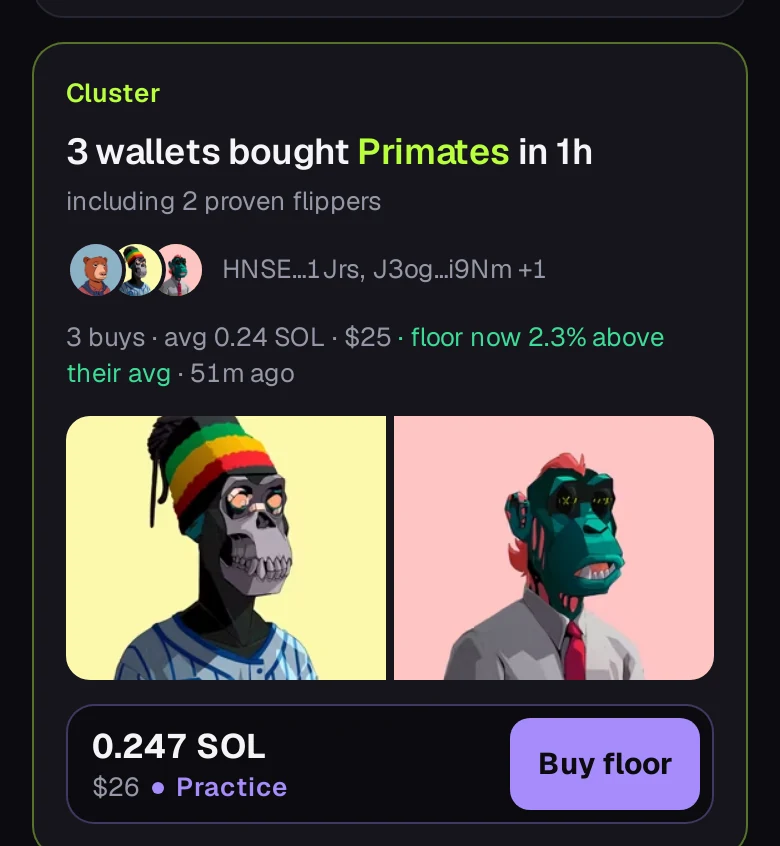
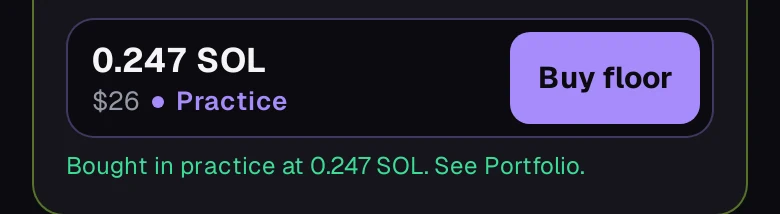
How practice prices and fees are counted
Practice trades are built to come out the way a real trade would, so a practice win means something.
- Buying
- One NFT fills at the collection's floor. On a collection page you can practice-buy ×3, ×5 or ×10 at once: that walks up the live listings, so the 2nd, 3rd and later items cost what they really would.
- Fees on the buy
- The marketplace taker fee and the creator royalty are added on top of the price, like a real purchase.
- Selling
- Sales go to the best offer, which sits below the floor, so a practice sale fills at the floor minus 3%, and the seller's fees come off that.
- Currencies
- Positions stay in the collection's own coin (SOL, ETH, HYPE, RON, APE, MON or POL; Polygon's WETH counts as ETH) and are totalled per coin. Collections priced in anything else are browse-only in practice.
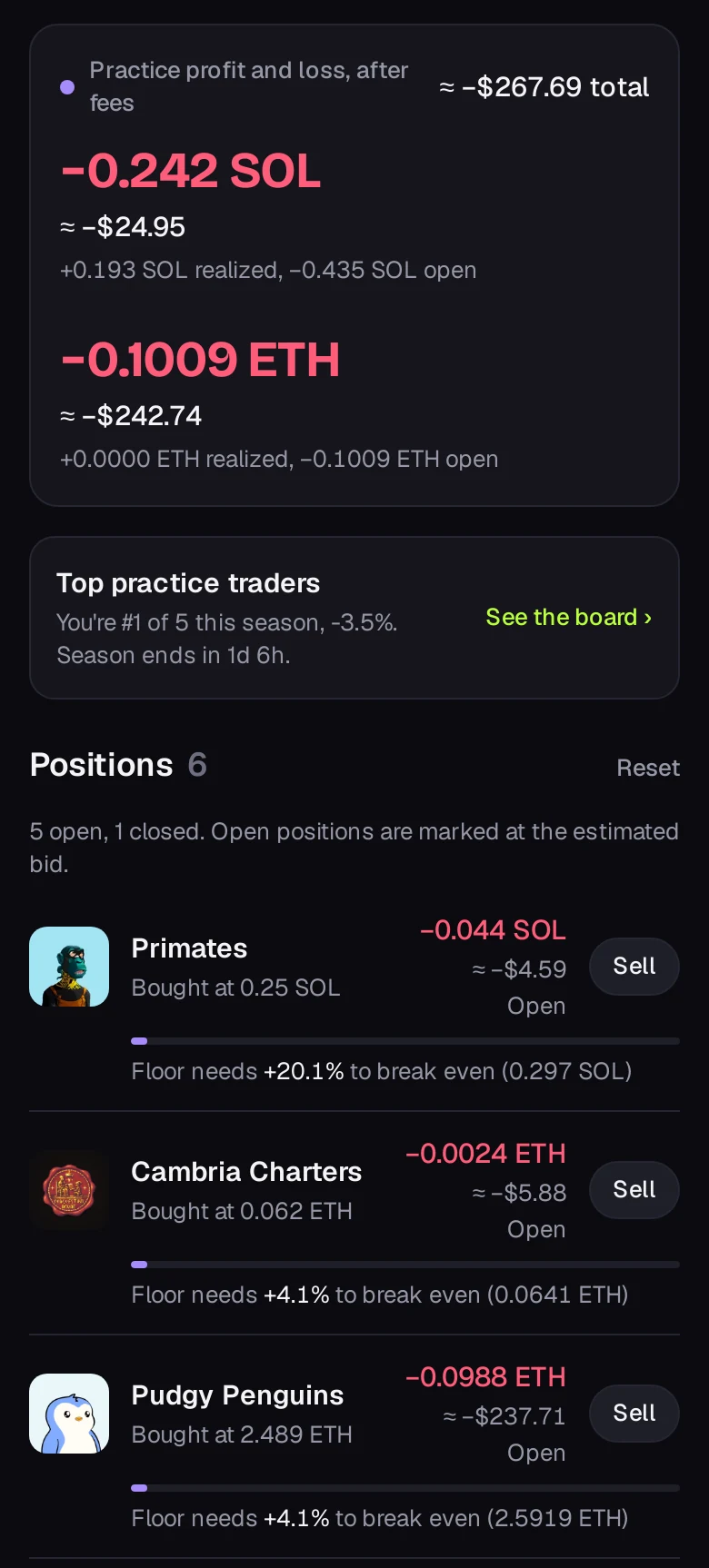
Tip: That small red number right after a buy is normal: fees, plus the gap between the floor and the bid. A practice position has to beat it to show a profit, just like a real one. Each open position shows how far the floor has to rise to break even, with a bar that fills as it gets there.
Reset (on the Positions header) clears every practice position, open and closed, for a fresh start. Practice trading is free and stays free.
Real trading
Your own wallet, real NFTs, and money that moves between networks.
Soulbound collections and FloorFeed Badges
Soulbound tokens can't be sold or sent, which suits memberships, credentials and game achievements. Issue them from your own wallet with Soulbound collection under Create, or award them from your game with FloorFeed Badges, one API call and a free claim for the player. Both are explained on FloorFeed Badges' own site, badges.floorfeed.io.
Moments: free badges for the people who were there
A Moment is an event or community badge: a meetup, a mint party, a Space, a sweep party, a win. You make it with a title, the day and your art, share its link or QR code, and everyone there claims a soulbound badge on Base for free. It stays in their wallet for good, can't be sold or sent, and shows in Portfolio → Soulbound and on their trophy case.
- Open Create and tap Moment (event badge) (or go to floorfeed.io/moments). The page walks you through it in order, with a step marker at the top.
- The first time only, Step 1: name your Moments collection and tap Save name. This names the collection that holds all your Moments, not a Moment. It comes first because a badge can only be claimed from a collection that's on the network.
- Step 2: tap Deploy and sign. Your wallet deploys the collection and owns it, and you pay its network fee, about a cent on Base. The page moves on by itself when it lands; if you close the page or refresh, it picks up where you left off.
- Step 3: tap Turn on claims and sign once more (under a cent). This is the only switch: there's no separate "enable minting", because each badge is minted when someone claims it. New Moment stays locked until this is done, so no link goes out that can't be claimed. After this you skip Steps 1 to 3 for good, and new Moments need no transaction.
- Under New Moment, fill in the title, the day of the event (YYYY-MM-DD) and an optional line, tap Upload the art (a PNG, JPG, GIF or WebP up to 8 MB; it shows right away, or pick your collection under Show on your collection's site to use its cover), and choose when Claims close in (6 hours to 30 days). The art is saved with the Moment when you tap Create Moment: there's nothing else to do for it.
- Optional: Most badges (a cap), a Claim word you say out loud at the event, Holders only (an NFT collection's network and contract; any wallet linked to the attendee's account counts), and Show on your collection's site (it's listed under Moments on your <name>.floorfeed.io site).
- Tap Create Moment. Its page has the claim link, Copy link and a QR code to put on a screen or a table, and Who claimed.
- Attendees open the link (floorfeed.io/m/…). Signed out, they type the claim word if there is one, their email, tick I'm 18 or older and I agree…, tap Email me a code and type the 6-digit code: that makes their account and its wallet, and the claim goes by itself. Signed in, they tap Claim free. The badge arrives in a few minutes with nothing to sign.
- On the Moment's page: +1 day or +1 week gives more time, Save cap changes the cap, New link makes a fresh link and QR code (the old ones stop working), End claims now closes it. Delete removes a Moment nobody claimed; one with claims is ended instead.
- From your game's server
- With a server key (Settings → Developers), your server can make Moments and award them to players who earned them, by player id or email (POST /v1/moments and /v1/moments/{id}/award, or moments.create and moments.award in the SDK). Each player gets a claim link, good for 30 days, and needs no claim word. An award takes a place under the cap, once per player, and a Moment with a holder rule can't be awarded. Do the setup above first, since your own wallet signs it. A publishable key can't make or award Moments. In Who claimed, these show as Awarded from your game until they're claimed.
- From an AI app
- With FloorFeed's AI connector (Settings → AI, with Market + my account and Prepare trades on) you can ask in plain words: set up my Moments collection, make a Moment for this meetup with a claim word, who's claimed so far, add a day, make a new link, end claims. Deploy and Turn on claims stay yours to sign here, and attendees still claim for themselves. floorfeed.io/mcp has the full walkthrough.
- One each
- One badge per FloorFeed account and per wallet, to a wallet linked to that account. Claiming needs an account that finished setting up (an email or social sign-in), so one person can't claim with many throwaway accounts.
- From creating to claimable
- Save name, Deploy, Turn on claims (once each), then Create Moment and share. A Moment's page shows Not ready to share yet, with no link or QR code, while claims are off, and its claim page tells people it isn't open yet. Your Moments collection also shows under Portfolio → Soulbound as Your Moments collection, with your newest Moment's picture: it's the container, and the Moments are inside it.
- Who pays
- You pay the two network fees in the setup, from your own wallet, about a cent in all on Base (if the wallet is short, FloorFeed offers a top-up). The page shows the current figures before you sign. Each claim after that is on the relay, below.
- Free claims
- FloorFeed's badge relay sends each claim and pays its network fee out of your plan's monthly claim gas (Free: $1 a month, about 300 claims; Indie $15; Studio $150). Past it, or while the relay is paused, attendees' own wallets pay a small fee instead, and a claim they cancel waits for them on Finish your claim. When the network's fee is unusually high, a free claim can wait for it to drop (up to a day): the claim page says so and it goes by itself.
- What Turn on claims allows
- It lets FloorFeed approve claims for your Moments in your own Moments collection, and nothing else: it can't move, burn or revoke tokens, and no money is involved. Turn off claims for every Moment on floorfeed.io/moments switches it off on chain (your wallet signs). You own the collection and can still issue, revoke or recover on its soulbound page.
- Fixed after the first claim
- The title, day, text and art are in every badge's metadata, so they can't change once someone has claimed. The claim window, cap, claim word and holder rule can.
- Limits
- Base only for now. Up to 25 Moments open at once and 10 new ones a day; a claim window of up to 90 days; caps up to 100,000; art up to 8 MB, and no SVG files. Each Moment's badge counts toward your plan's monthly badges when it's claimed.
Let your AI prepare trades (you sign them)
Ask your AI to buy a floor NFT, list one of yours, make an offer, sell into the best offer, cancel a listing or offer, or mint from a live drop, and it prepares the trade for you. It can't sign or send anything: FloorFeed holds no key to your wallet. Each trade comes to you as a link, and nothing happens until you sign it in your own wallet.
- Connect your AI app first (see Ask an AI about NFTs) and choose Market + my account.
- In Settings → AI, find the app or link and turn on Prepare trades. Pick the most one trade may spend: $50, $250, $1,000 or $5,000 ($250 to start).
- Ask your AI, for example: "buy the cheapest Pudgy Penguin for at most 10 ETH" or "list my Pudgy #1234 at 12 ETH for a week".
- Your AI gives you a floorfeed.io/ai-request link (and FloorFeed sends a notification if you turned them on). Open it: it shows who asked, the NFT, the network, the limit and which wallet signs.
- Tap Review and sign. The usual buy, sell, list or offer screen opens, held to the request's limit; check it and confirm in your wallet. Or tap Reject.
- Limits it can't go past
- A buy never goes through above the most you agreed to pay (fees included), and a sale never below the least you agreed to receive. If the price moved, the screen says so and nothing is sent.
- Price checks
- Requests far from the floor are refused before they reach you: a floor buy more than 25% over it (one particular NFT: 3×), a listing more than 20% under it, a sale under 70% of it, or a collection offer over it. Buys and offers over your dollar cap are refused too.
- Your wallet only
- Only you can open the link. A listing, sale or cancel must be signed by the wallet that holds the NFT or made the order.
- Once, and soon
- Each request can be signed or rejected once and expires after 15 minutes. Up to 5 can wait at a time, and an app or link can make 20 a day.
- Turning it off
- Turn off Prepare trades, switch to Market only or remove the app or link: whatever it asked for and you haven't signed is withdrawn at once. Each app and link lists its latest requests in Settings → AI.
- Mints
- Your AI can prepare a mint only from a drop that is minting now in FloorFeed's Mint hub (collections launched on FloorFeed and the drops FloorFeed lists), never from a contract or link it found elsewhere. Up to 10 at a time. Review and sign opens the drop's own page held to the request's quantity and its most in total (the price plus a little room for fees); if the mint costs more when you open it, nothing is sent. Allowlist, holder and member phases are checked when you sign.
- Launch drafts
- Describe a collection ("draft a pumpkin PFP on Base: holders of Floor Feeders first at 0.001 ETH, then public at 0.002, 70/30 split with my partner, reveal Sunday 6pm") and your AI writes it as a launch draft with every setting the launch wizard has: network, phases (public, allowlist, FloorFeed members, holders, airdrop claim), payout split, royalty and its wallet, enforced royalties, reveal now, later or at a set time, IPFS or fully on-chain storage, cover, banner and placeholder. An AI app that can read your files (like Claude Code) can also upload the artwork with its traits, fill allowlists and pin the metadata, the wizard's last step. Files go straight to IPFS through one-off upload links, never through the chat. You open the draft (floorfeed.io/create/…), check it, and deploy it from your own wallet; set up Eat the Floor there too. Limits: 20 open drafts, 3,000 uploads and 20 metadata pins a day per app or link.
- Networks
- Ethereum, Base, Robinhood Chain and the other EVM networks FloorFeed trades on (OpenSea). Not Solana yet.
Tip: Only sign a request you asked for. If one shows up that you didn't, reject it and remove that connector in Settings → AI.
Going real: your wallets
Real mode uses your own wallet. Once you sign in or connect a wallet, Real is the default, and every real buy bar is lime green. You can switch back to Practice on the Portfolio tab.
- Connect one you have
- Phantom, Solflare or Backpack for Solana; MetaMask, Rabby, Coinbase Wallet and other browser wallets for Ethereum and its networks.
- Or get one with FloorFeed
- Sign in with any email address, or with Google, X or Discord, and you get a Solana wallet and an Ethereum wallet, secured by Privy. Nothing to install.
If you have both, a connected extension wins. The Portfolio shows the total across your wallets in dollars, each wallet with its balance, and Move and Deposit buttons.
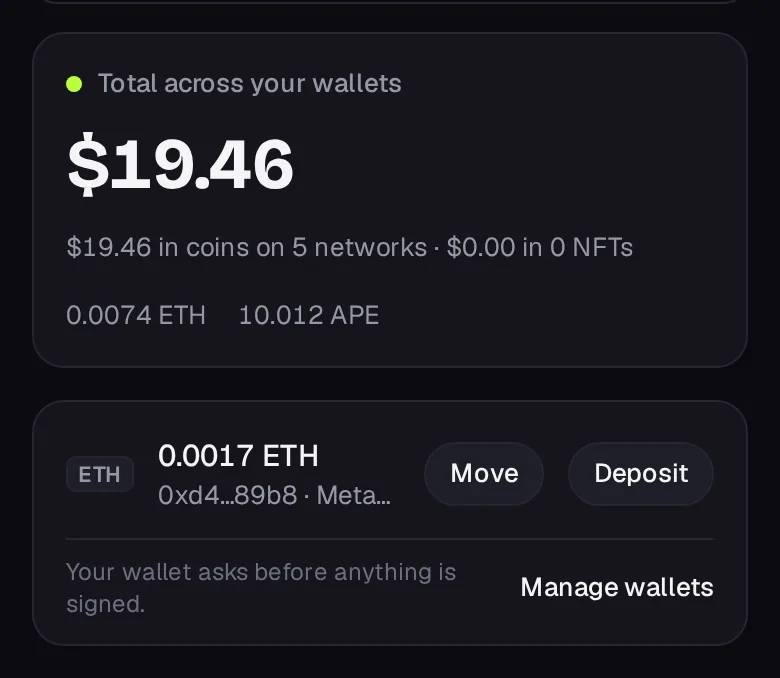
Link your other wallets
Holder checks count only the wallets linked to your FloorFeed account: airdrops for holders, holders mint phases, holder priority, Floor Feeders prices and badges. Your FloorFeed wallets are linked already. If your NFTs sit in MetaMask, Rabby, Coinbase Wallet or another wallet, link it once.
- Open Settings (account menu → Settings and security) and find Your wallets, or tap NFTs in another wallet? Link it to your account in the account menu.
- Tap + Link a wallet. Pick your wallet in the window that opens (or scan the code with a phone wallet).
- Your wallet asks you to sign a message. It proves the wallet is yours: no gas, no transaction, nothing leaves the wallet.
- The wallet shows in the list right away and counts for holder checks within seconds. Open an airdrop or mint page again and it's counted.
On an airdrop that dropped you for not holding, a holders mint phase that says your wallets don't hold enough, or the soulbound Billing card, Link a wallet opens the same window there.
- Unlink
- Tap Unlink, then Tap again to unlink, beside an outside wallet. It stops counting for holder checks. Your FloorFeed wallets come with the account and can't be removed, and the wallet you sign in with can't be removed until you add an email or social login.
- One account per wallet
- A wallet can be on one FloorFeed account at a time. Already linked to another account? Sign in to that one and unlink it there first. Nobody can link a wallet without signing with it.
- Linked isn't connected
- Linking makes a wallet count as yours; it doesn't make FloorFeed trade from it. To mint or trade from MetaMask, connect it: on a mint panel tap Use MetaMask, or in the account menu tap Use a browser wallet instead. Tap Use my FloorFeed wallet to go back.
- Which wallets
- Ethereum wallets (MetaMask, Rabby, Coinbase Wallet, Rainbow, WalletConnect phone wallets) on every Ethereum network FloorFeed reads. Solana wallets once Solana linking is switched on.
One address, many networks
This is the part that trips people up. Your Ethereum wallet has one address, and that address works on every Ethereum-style network FloorFeed supports: Ethereum, Base, Abstract, Ink, Arbitrum, HyperEVM, Ronin, ApeChain, Monad, Robinhood Chain and Polygon. But each network keeps its own balance. ETH on Ethereum can't pay for an NFT on Robinhood Chain until it's moved there.
Each network also has a coin that pays for its NFTs and its gas: ETH on Ethereum, Base, Abstract, Ink, Arbitrum and Robinhood Chain, HYPE on HyperEVM, RON on Ronin, APE on ApeChain and MON on Monad. Polygon is the odd one: its gas is POL, but its NFTs are priced in Polygon's WETH (bridged ETH, a token there), which FloorFeed counts as ETH. Solana is separate again, with its own wallet and SOL.
"Money by network" on the Portfolio lists every network where you hold something, with its coin, any WETH, and the dollar value. Move on any row starts a transfer from there.
Polygon has its own section below: what's tracked there and what can be done with it.
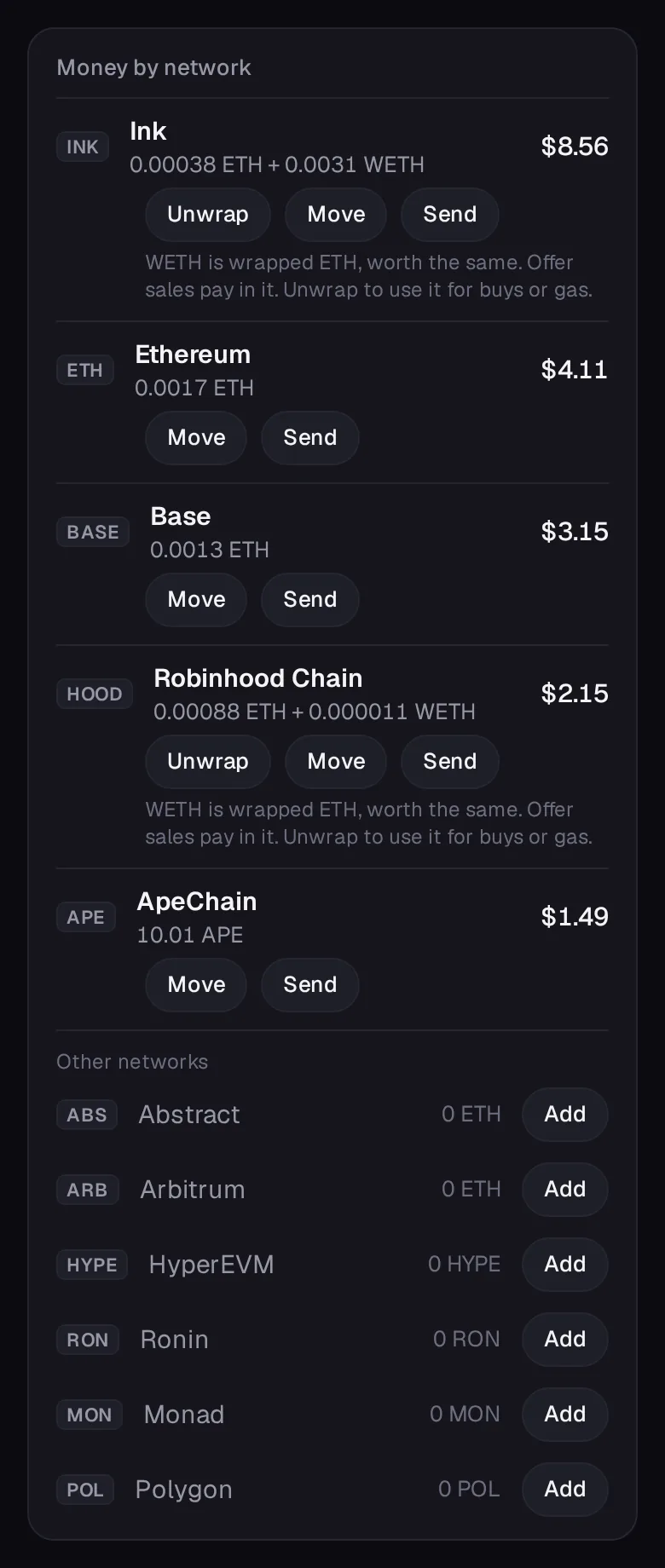
Polygon collections
FloorFeed tracks Polygon's busiest collections: floors, sales, listings, top traders and the chart, the same as on other networks, and you can buy, sweep, make offers and list there. Polygon's market is full of free airdrops and spam, so only collections OpenSea has verified or approved, held by at least 100 wallets, on Polygon alone and without washed volume are added (about 30 at a time).
- Open Markets and pick the Polygon chip, or go to floorfeed.io/nfts/polygon (More → About FloorFeed → NFTs on Polygon) for its top collections, live mints and traders.
- Open a collection. Prices are in WETH, Polygon's bridged ETH, shown as ETH with the dollar value beside it.
- Tap Buy floor (or pick how many to sweep). The first buy asks for a one-time approval of WETH, then the purchase. The network fee is paid in POL, so keep a little POL on Polygon.
- Short of WETH on Polygon? Press Swap & continue: it swaps what you hold, on any network, into exactly the WETH the buy needs. Short of POL for gas? Move or swap some in from Wallets.
- To sell, open the NFT from Your NFTs and tap List or accept an offer, as on any network. Offers you make are in WETH.
- What it costs
- OpenSea's 1% fee and any creator royalty are in the price shown. FloorFeed adds no fee to Polygon buys (it's only taken on buys paid in a network's own coin), and Polygon gas is a fraction of a cent in POL.
- Gas cover
- FloorFeed doesn't advance or sponsor gas on Polygon: you pay the network fee in POL yourself.
- Courtyard
- Courtyard.io cards are on Polygon too, priced in USDC.e. You can buy, sweep and list them here. FloorFeed follows Courtyard's floor and listings only, not its tens of thousands of weekly sales, so it has no sales chart, profit or traders. OpenSea has offers turned off for Courtyard, and a card can't be put up in a Feeding Frenzy: only Courtyard's own partners can be approved to move cards. Redeem a card on courtyard.io.
- Not here
- Unverified Polygon collections aren't added, even from search. A verified one that's missing starts being tracked when you search for it and open it.
Trading on Tezos (objkt.com)
Buy, list, cancel, make offers and sell into offers on objkt.com's marketplace without leaving FloorFeed. It's non-custodial: FloorFeed prepares each operation and checks it on Tezos before you sign, and your own Tezos wallet (Temple, Kukai, Umami or any Beacon wallet) shows it again and signs it. FloorFeed never holds your keys, your XTZ or your NFTs.
- Link your Tezos wallet once: Settings → Your wallets → + Link a Tezos wallet (or the Link a Tezos wallet button in any Tezos trade). Pick your wallet in the window that opens (a phone wallet scans the QR code), then approve the message it shows. It's a signature, not a transaction: no gas, nothing approved.
- To buy: on a Tezos collection, tap Buy floor in the Trade box; on an NFT, tap Buy now. The sheet shows what you pay and who gets it (the seller, the creator's royalty, objkt.com's fee), read off a simulation of the real operation. Tap Buy now · price, then confirm in your wallet.
- To list: open your NFT (Portfolio's Tezos NFTs, or its page) and tap List for sale…. Set a price in XTZ and how long (Until I cancel, 7, 30, 90 or 180 days), check what you'd receive, then tap List for sale and confirm in your wallet. The NFT stays in your wallet.
- To change or end a listing: on the NFT, tap Edit listing… (a new price replaces the old one in the same operation) or Cancel listing. Portfolio → Listings shows every open objkt.com listing of your linked wallets, each with Cancel listing.
- To make an offer: tap Make an offer on an NFT, or Make an offer on the collection… in a collection's Trade box (any NFT of it). Set the amount and how long it's open (1, 7 or 30 days), then confirm in your wallet. The XTZ is held by objkt.com's marketplace contract until the offer is accepted or you cancel it.
- To sell into an offer: on your NFT, tap Sell to best offer · price. The sheet shows exactly what you receive after objkt.com's fee and the royalty; confirm in your wallet.
- After you confirm, the trade screen follows the operation until it's in a block (usually within a minute), with a link to it on TzKT.
- Fees
- The buyer pays the listed price. The seller pays objkt.com's fee (5% on its current marketplace, 2.5% on the oldest) and the creator's royalty out of it. Tezos network fees are about 0.001–0.06 XTZ (a few cents or less); your wallet sets the exact fee. FloorFeed adds no fee.
- objkt.com's referral share
- objkt.com pays a referrer on buys it brings in: 40% of objkt's own fee, or the referral bonus a seller chose when listing. When FloorFeed names itself as referrer the summary says so, with the amount; your price is the same either way.
- What FloorFeed checks
- Every operation goes only to objkt.com's marketplace or to the NFT's own contract, never sends more XTZ than shown, and approves objkt.com to move only that one token. It's simulated on a Tezos node first: one that would fail (the listing just sold, not enough XTZ, the seller no longer holds it) is refused with the reason, and nothing is sent.
- Approvals
- objkt.com's listings don't hold your NFT: listing lets objkt.com's marketplace move that one token when someone buys it. Cancel listing takes that permission back when no other listing of it needs it, and Sell to best offer adds it and removes it again in the same operation.
- Royalties
- A listing pays the royalty the work's own metadata sets. If it has none, FloorFeed uses the one objkt.com set on its earlier listings, but only when it goes to the work's creator; otherwise it won't list it (use objkt.com). An offer whose payout goes to a wallet that isn't the creator or objkt.com is flagged before you accept it.
- Expired offers
- An offer that runs out keeps its XTZ in objkt.com's contract until you cancel it. Portfolio → Offers shows it with Get it back.
- Where it works
- On floorfeed.io in a browser (Temple, Kukai, Umami, or a phone wallet by QR). Not in the App Store or Google Play app yet.
- Not yet
- Sweeps, listings in other tokens than XTZ, English auctions and practice trades on Tezos. objkt.com has them.
Adding money
Tap Deposit on a wallet. There are two ways in:
- Card or Apple Pay
- Buy SOL or ETH through MoonPay, right in FloorFeed. MoonPay handles the payment and any ID checks; the coins land in your wallet.
- From an exchange or another wallet
- Copy the address or scan the QR code and send from Coinbase, Kraken, Phantom, MetaMask or anywhere else. The sheet watches your balance every few seconds and shows "Received" the moment it lands.
Tip: Sending from an exchange? Pick the network you plan to buy on (for example Base rather than Ethereum) and you'll skip the move later. If it lands on the wrong network, that's fine: move it in FloorFeed.
Buying for real
Tap Buy floor on a feed card or a collection page. What happens next depends on the chain.
Holding many of one collection? Portfolio shows them as one card with the count: open it and scroll through all of them. In the Your NFTs panel, tap the collection, then Show 50 more until you've seen them all. Totals always count every NFT, and pictures that are still being read fill in by themselves within about a minute. A wallet with more than 2,000 NFTs on one network shows a note, because its counts and values are then a minimum.
NFTs from collections FloorFeed doesn't follow closely yet are listed at the end, under Not tracked on FloorFeed yet; tap the i beside it for a short reminder. Each is valued at its floor (−3%) when there is one, and they're still yours: tap one to see it on its marketplace, or right-click or long-press it to sell or list it.
However you get an NFT (a buy, a sweep, a mint or a claim), the screen that confirms it and Your NFTs show its own art. Art that's only a video plays there, muted; small icons, Art: Stills, Reduce motion and Data Saver hold its first frame. Tap the art for the full-screen viewer with sound and controls. Art on a site that isn't a marketplace or public storage host waits for that tap, so airdropped tokens can't learn who holds them; until then you see the collection's picture or the initial. A token too new to have art yet fills in by itself within a few minutes, and if nothing can be loaded you see its name and Try again.
On Ethereum and its networks, the whole purchase happens in FloorFeed:
- FloorFeed finds the cheapest OpenSea listing priced in the network's coin and shows the NFT, its price in coin and dollars, and your balance on that network.
- It checks you can cover the price plus gas. Gas is estimated for a real purchase, including the extra data fee on networks like Base and Ink.
- It builds the purchase and runs it against the chain as you, without sending anything. A listing that just sold, or a balance that's short, shows up here instead of failing in your wallet and costing gas.
- Your wallet opens with the exact transaction. Nothing is sent until you confirm.
- The buy appears in Activity and is followed until it confirms. The NFT then shows up under Holdings.
To buy several, pick ×3, ×5, ×10 or type an amount (up to 100) at the top of the sheet, wherever you tapped Buy floor: a feed card, a leader or a collection page. It starts on Floor, and FloorFeed only reads more listings once you pick more than one. The sheet lists each NFT with its price, FloorFeed's fee and the total, and says if the cheapest listing has moved from what the card showed. Tap Sweep and confirm in your wallet: one transaction for all of them, up to what one transaction holds (about 40 on Robinhood Chain, about 55 on Base and most networks). A bigger sweep goes in parts: once the first confirms, tap Sweep the other … for the rest, at their own Total. Any that sell first are skipped and you keep that money, and FloorFeed refuses to build a sweep that costs more than the total you saw. If fewer are listed than you asked for, the sheet says so and buys what's there. To spend up to an amount instead, use By budget on the collection page. Practice mode's Buy floor buys one straight away, with no sheet: practice sweeps are on the collection page.
If you're short on that network, the sheet turns into two steps, Add and Buy, says how much more you need, and offers to move it for you. On networks with their own coin (HYPE, APE, RON, MON) it swaps your ETH or SOL into that coin on the way:
While you're short, the sheet checks your balance by itself: buys, sweeps and offers, on every network and on Solana. It says Checking your balance, with Check now beside it, and the Buy button comes back as soon as the funds land, whether you moved them through FloorFeed or sent them from an exchange or another app. No reload needed. It checks again when you come back from your wallet app or another tab, and pauses after 10 minutes until you do or press Check now. FloorFeed still checks the purchase against the chain before you sign.
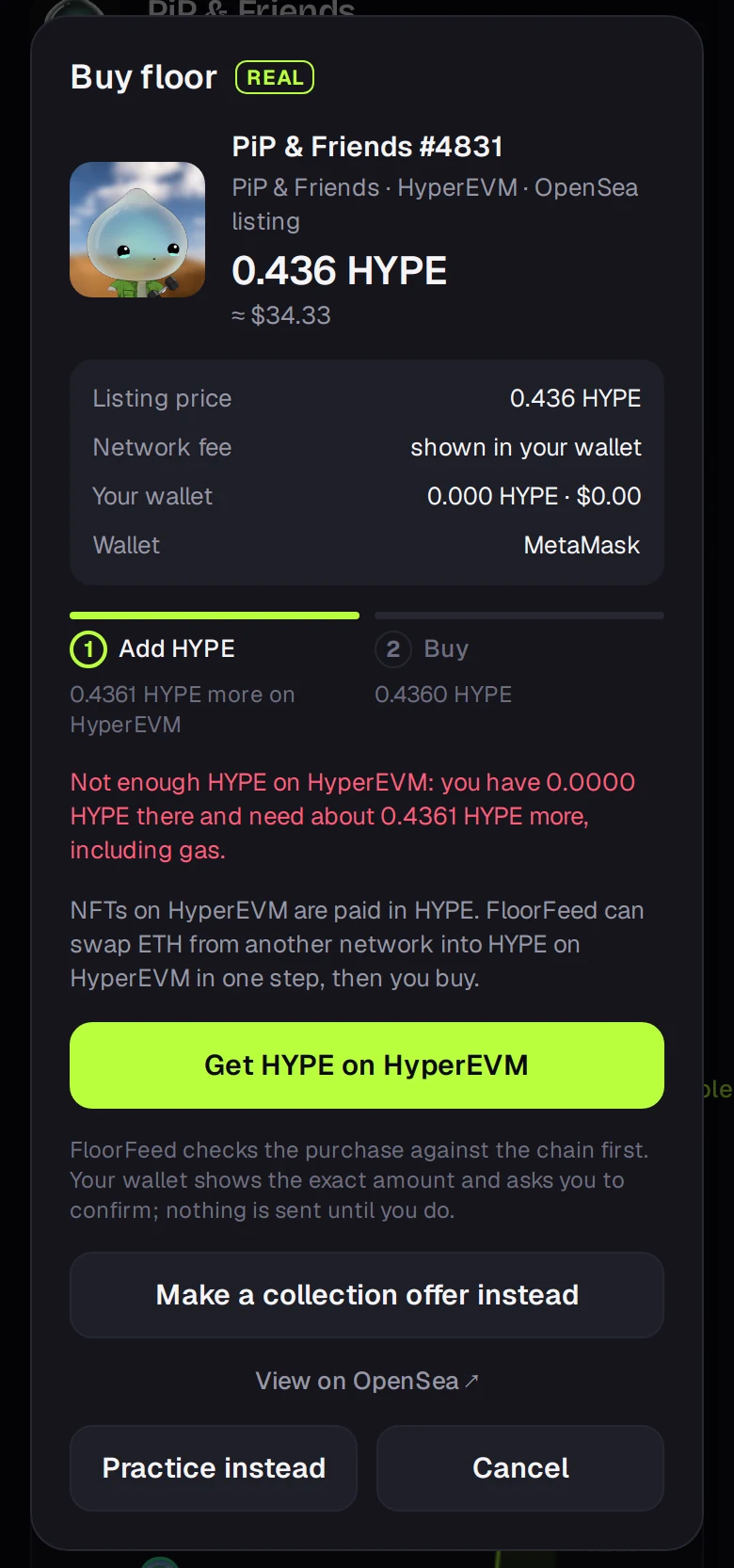
On Solana, the sheet shows the cheapest Magic Eden listing, what it costs and whether your SOL covers it, then the purchase finishes on Magic Eden. If you're short, Deposit opens with the shortfall filled in.
Tip: Listings priced in wrapped coins (WETH and similar) need an extra approval, so FloorFeed only buys listings priced in the network's own coin, except where OpenSea prices a collection's listings in a token (WETH on Polygon, USDG on Robinhood Chain, USDC.e for Courtyard): those are bought with it after a one-time approval. On Solana, real buys are one NFT at a time; sweeps are practice-only there for now.
Sweep parties: sweep a floor together
Pick a time and a goal, and sweep a collection's floor together. Everyone buys from their own wallet: FloorFeed never holds anyone's money. Ethereum and its networks only, since sweeps are.
- Host: on a collection page, tap Sweep parties to open it, then Host a sweep party. Pick a start (15 minutes to 7 days out), a goal and how many you'll buy, then Host the party.
- Share the party link. Others tap Join the party with how many they'll buy.
- When it starts, everyone in it gets a notification. On the party page, tap Sweep (your number) now: your own sweep opens with that number set. Check the price and sign.
- For 15 minutes the party page counts what members bought and how far the floor moved.
Tip: You can leave a party before it starts, and the host can cancel it. A party is a plan, not a promise: each buy is yours to sign or skip.
Streaming a sweep party
Host a sweep party on your stream: an overlay for OBS, your stream on the party page, and a running count your viewers can join from their phones. Everyone still buys from their own wallet, and FloorFeed holds nothing.
- Host the party from the collection's page, then open its party page. Your controls are under Stream this party.
- Overlay: tap Copy overlay link. In OBS, add a Browser source, paste the link, set the size to 1920 by 1080, and turn off Custom CSS if it's filled in. The background is see-through, and it shows the countdown, swept against the goal, the floor move, the latest buyers and a QR code to join. Add ?side=left to the link to put it on the left. Tap Show sample numbers to see it filled in.
- Keep that link to yourself. If it leaks, tap Reset link: the old one stops at once, and you paste the new one into OBS. It can only read, so nobody can change anything with it.
- Watch on the page: paste your Twitch, YouTube or Kick link under Your stream and tap Save. Twitch and Kick take your channel link. For YouTube, use the stream's own link (youtube.com/watch?v=… or youtube.com/live/…), not your channel or an @name.
- If anyone paid you, or gave you anything, to promote this collection, turn on Paid promotion. It shows on the page and the overlay. Once the party is live it can't be turned back off.
- The stream is yours, not FloorFeed's, and only the buttons outside it are FloorFeed's: the page says so to viewers.
- Viewers open the party without an account and can watch the count. To buy, they sign in, join with how many they'll buy, and sign in their own wallet.
- When it ends, the party page has a recap and a card to share.
Swept counts what members' wallets bought in the collection during the party, from FloorFeed's sales record. Each NFT counts once, and sales between the party's own wallets don't count. A buy made in FloorFeed shows as confirmed on chain until the record has it, and only then does it count toward the goal.
Host holds N is read on chain from the wallets linked to the host's account. Nobody can type it in, and it can't be hidden. If a read fails, if you've linked more than 10 wallets, or if the collection isn't a plain ERC-721, it doesn't show at all. Sales are public, so someone watching the number change could work out which wallets are yours.
Tip: Buyers show by their account name only if they show it on their wallets (Settings). Everyone else is "A member", with no price and no place in Top sweepers, and no wallet address appears. A party is a plan, not a promise: the numbers say what happened and nothing about what the price does next.
Moving money between networks
Moving (bridging) is how ETH on Ethereum becomes ETH on Robinhood Chain, or SOL becomes ETH on Base, without leaving FloorFeed. It runs on Relay, a bridge network: you send one deposit on the network you're leaving, and Relay's solvers pay you out on the other side from their own funds, usually within seconds. FloorFeed never holds the money; it only fetches the quote and checks the deposit.
Open it from Move on any wallet or network row, or let a buy or a mint open it for you with the right amount filled in.
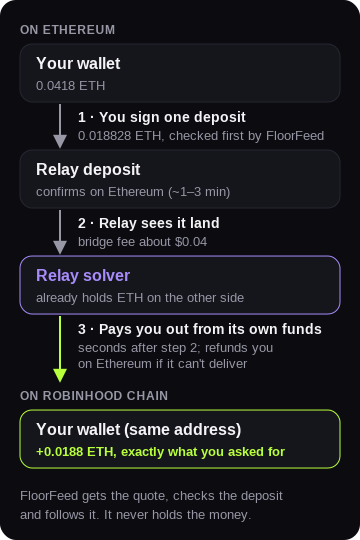
- Pick where the money should go. From a buy or a mint, that's already set.
- Pick where it comes from. FloorFeed lists the networks where you have a balance and a wallet that can sign: the same coin first, then by what each balance is worth.
- Enter how much should arrive. FloorFeed asks Relay for an exact-output quote: the amount you type is what lands, and the fees are added to what you send.
- Read the quote: what you send, what you receive, Relay's fee, the network fee, and the expected time.
- Before the button appears, FloorFeed checks your balance and runs the deposit against the chain as you. A deposit that would fail is caught here.
- Confirm the one deposit in your wallet.
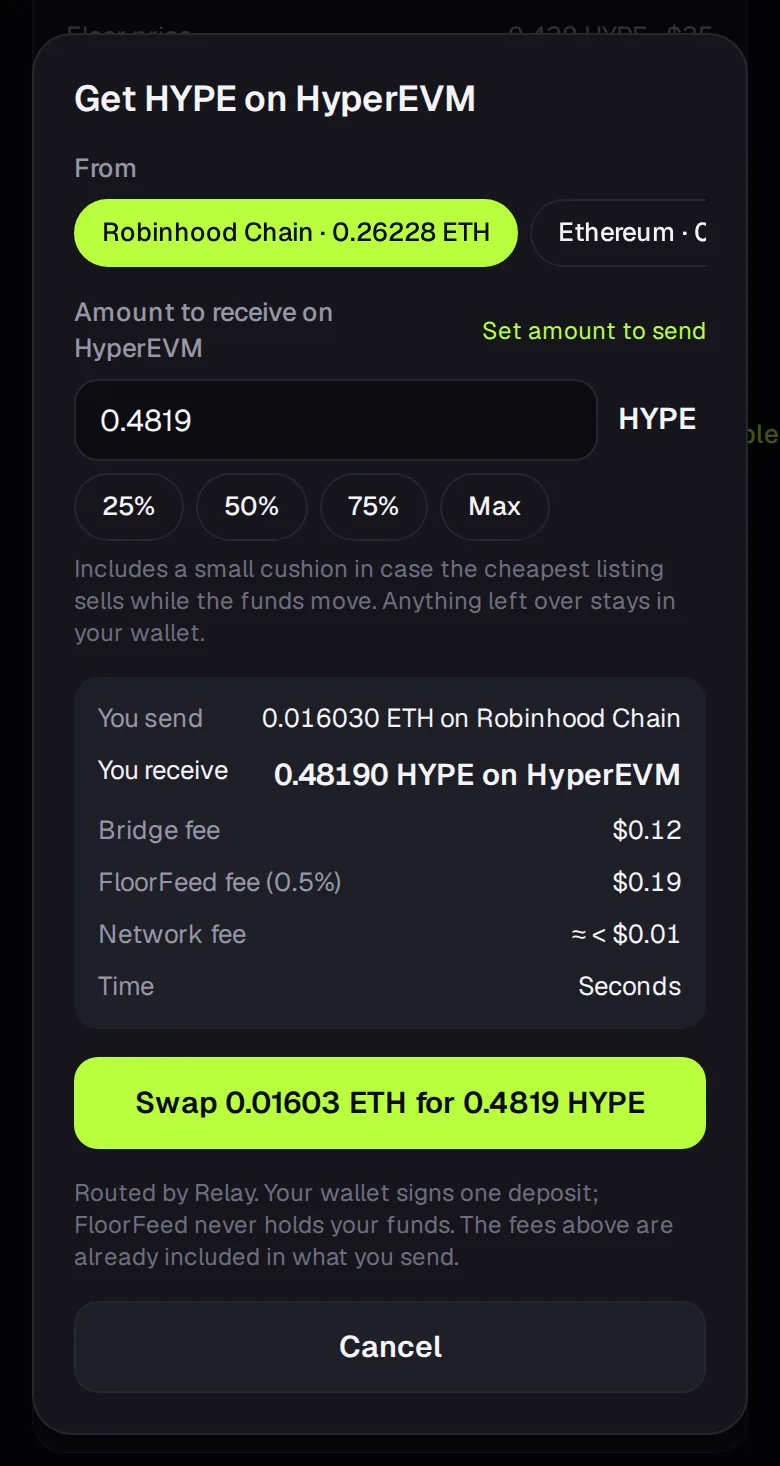
After you confirm, the sheet follows the transfer through its stages: waiting for your deposit to confirm, delivering on the other network, then arrived. If it came from a buy or a mint, you go straight back to it with your new balance, ready to tap Buy.
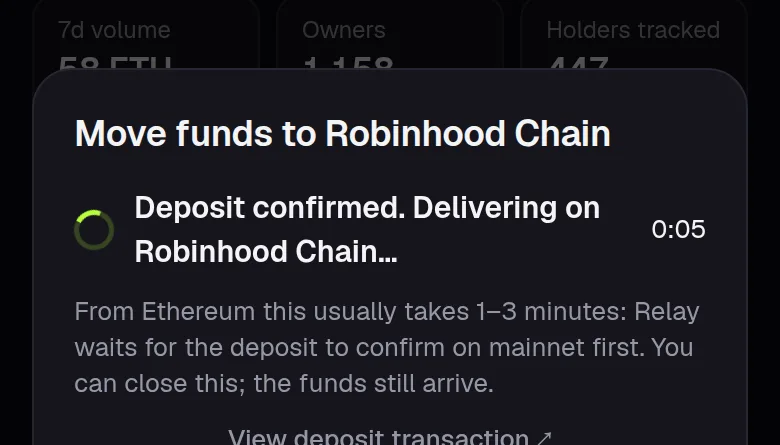
- How long
- From Ethereum, usually 1–3 minutes: Relay waits for the deposit to confirm on mainnet first. Between faster networks, and from Solana, it's usually seconds. You can close the sheet; the money still arrives.
- Why move a bit extra
- When a buy or a mint opens the transfer, it suggests a little more than you're short (10% of the price for a buy, 5% for a mint). Cheap listings sell fast, and if the cheapest goes while the money moves, the next one still fits. Whatever's left stays in your wallet on that network.
- Changing coins
- Moving between networks with different coins is a swap and a transfer in one step: SOL to ETH on Base, or ETH to APE on ApeChain. The quote shows what arrives.
- From Solana
- Relay hands FloorFeed the deposit as Solana instructions. FloorFeed assembles them into one transaction where your wallet is the only signer and pays the fee, checks it against the chain, and your Solana wallet signs it. These quotes expire after about a minute, so FloorFeed fetches a fresh one if you wait too long before confirming.
- If something goes wrong
- If your deposit fails on the chain, nothing was moved and only the network fee was spent. If your wallet says it sent the deposit but it never reaches the chain, FloorFeed tells you after a minute and a half; nothing left your wallet. If Relay can't deliver, it refunds you on the network you sent from.
Selling for real
Holdings on the Portfolio lists your NFTs from tracked collections, valued at the estimated bid, with what you paid and your profit so far. A collection you hold several of is one card with how many and what they're worth together; tap it to see them. Tap Sell on one.
Offers on your NFTs: FloorFeed checks what you hold for offers and alerts you when someone makes a better one. They're in Offers (from your wallet menu) and in the Your NFTs panel under Offers, Received. Accept opens the same sell sheet as below, already set to that offer. A collection offer that fits several of your NFTs shows once.
On Ethereum and its networks you sell in FloorFeed, into the best offer on OpenSea for that NFT. That might be an offer on the item itself, on one of its traits, or on the whole collection; FloorFeed takes whichever pays most. The sheet shows the offer, the fees and royalty that come off it, and what you receive. If the offer is far below the floor, it says so, because that's usually a lowball bid.
- The first time you sell from a collection, approve OpenSea to transfer NFTs from it. It's one transaction, needed once per collection.
- FloorFeed waits until the chain shows the approval, then the Sell button appears.
- Confirm the sale in your wallet. The NFT leaves and the payment arrives in the same transaction.
Offers are paid in WETH, wrapped ETH (see the next section). On Solana, Sell to the best offer sells into the best Tensor offer for the collection: the sheet shows the offer, the royalty and Tensor's fee that come off it, and what you receive. FloorFeed can cover the small network fee and take it from the sale.
Listing several NFTs at once
List several lists up to 20 NFTs on OpenSea with one signature, instead of one signature per NFT. It's free: a listing is a signed message, not a transaction.
- Open Portfolio, then Listings, and tap List several.
- Tick the NFTs to list (all on one network; others grey out). Each starts at its collection's floor.
- Change any price, or set them all with At floor, Floor −2%, Floor +5% or Floor +10%. Pick 1, 7 or 30 days.
- Tap List N with one signature and sign once in your wallet. Each listing goes to OpenSea, and the sheet shows the ones that listed (their pictures, the total asking price) and says why any didn't.
Limits: up to 20 NFTs per signature, on one network. Each collection needs OpenSea's one-time approval first: if one isn't approved yet, list one NFT from it with its own List button (that sheet does the approval), then come back. A price more than 20% under the floor is flagged; under a quarter of the floor, FloorFeed asks you to confirm it's on purpose before listing. It asks the same for a price under a floor it last read over 2 hours ago, since that floor may have moved. NFTs already listed aren't shown here: change those from their row.
The trade screen: waiting, done or didn't go through
Every trade you sign on FloorFeed opens one full screen that follows it to the end: buying, sweeping, paying from another network, selling into an offer, Feed it, listing, making or cancelling an offer, minting, swaps and moves, and claiming soulbound tokens. It's the same on a computer and a phone.
- Check your wallet
- While your wallet is asking you to approve, the screen says so. Nothing is sent until you approve. If you turn it down in your wallet, the screen closes and the sheet says nothing was sent.
- On its way
- Once your wallet sends it, the screen shows the network and a Transaction link to the explorer (Etherscan, Basescan, Solscan…), and waits for the network to confirm it. Keep going, it'll confirm closes the screen; the trade carries on, and it's in Portfolio → Activity. A listing or an OpenSea offer has no transaction: the screen says it's handing your signed order to the marketplace.
- Done
- The Chomper bites and a card shows what you bought, sold, listed or offered: the NFT's picture, the price, FloorFeed's fee (Waived: Blur move when the Blur move waiver applies), the network, the total and the Transaction link. Tap Done to go back to where you were.
- Quest progress
- When the trade finished a quest badge (your first listing, your first Feed it sale), a second card under it says how many quests you've done. Tap it to open Quests. It doesn't show when the trade didn't move one.
- Didn't go through
- If the wallet or the network refuses it (not enough to cover the network fee, a transaction the network dropped or turned down), the screen says why in plain words. Try again presses the same button again; Close goes back to the sheet.
- Reduced motion
- If your device asks for reduced motion, the light streaks and the Chomper stand still.
- Limits
- Approvals, wrapping and unwrapping are steps on the way: the sheet shows those, and the screen opens again for the trade itself. Short of the network fee, the top-up offer opens instead.
Add to wallet: see your NFT in MetaMask and other wallets
An NFT you win in a Feeding Frenzy, buy, mint or send to yourself is in your wallet as soon as the network confirms it, but many wallet apps don't list a new NFT by themselves. Add to wallet asks your wallet to show it. It's never a signature or an approval: nothing moves and nothing is spent.
- Find the NFT: in Portfolio, NFTs tab, tap the wallet button next to Send (or ⋯ → Add to my wallet app…); on the NFT's own page, tap Add to wallet; after a Feeding Frenzy you won, it's on the Your prize is in your wallet card.
- With a browser wallet connected (MetaMask and others), FloorFeed asks it to switch to the NFT's network, adding the network first if your wallet doesn't know it (Base, Ethereum, Arbitrum, Polygon, Ronin, ApeChain, Abstract, Robinhood Chain and the rest). Approve the switch.
- Then your wallet asks to add the NFT. Approve it, and it's in the wallet's NFTs tab. The line under the button says Added to MetaMask (or It's already in it).
- If your wallet can't add NFTs from a website (Coinbase Wallet, Rabby, Phantom, the FloorFeed wallet, the phone app), or you say no, the See it in your wallet sheet opens instead: that wallet's steps, the network and chain ID, the contract address and token ID with Copy buttons, Switch my wallet to …, and links to the NFT on OpenSea and the explorer.
- My wallet doesn't show my NFT?
- The same sheet, from the Feeding Frenzy prize cards, the Portfolio when it has no NFTs, and the Send sheet once an NFT is sent. Pick your wallet (MetaMask, Coinbase Wallet, Rabby, Phantom or another) to see its steps.
- MetaMask
- Pick the NFT's network, open NFTs, choose Import NFT and paste the contract address and token ID. If it still doesn't show, turn on Autodetect NFTs and Display NFT media in Settings → Security & privacy: MetaMask hides NFTs it hasn't checked.
- Coinbase Wallet, Rabby, Phantom
- They find NFTs by themselves on the networks they support and can't import one by hand. Refresh, and look under Hidden: new NFTs can be hidden as possible spam. On a network they don't show, use OpenSea or the explorer.
- Your FloorFeed wallet
- An NFT held by the wallet that comes with your FloorFeed account shows in Portfolio. MetaMask and other apps only show what their own address holds: to have it there, send it to that app's address (Portfolio → Send).
- Limits
- Ethereum-style networks only: Solana wallets list their NFTs by themselves. Your wallet must be open on the account that holds the NFT; if it's another, the sheet says so. FloorFeed only ever adds networks from its own list, with their official RPC and explorer.
Feed it: sell many NFTs into their best bids
Feed it sells several NFTs at once into the best bids waiting for them, like Blur's bid-accepting tool: up to 20 on Ethereum and its networks (OpenSea bids) and 10 on Solana (Tensor bids), with one signature per network.
- Open Portfolio, NFTs tab, and tap Sell several to bids. (Or tap Feed it: sell to the best bids on the Sell everything now card.)
- Tick the NFTs to sell, or Select all. Under Skip bids under, pick the lowest share of the floor you'll take: 50%, 70%, 80% (the default) or 90%.
- Tap Find best bids for N. Each NFT shows its best bid (on that NFT, a trait or the collection, or a Tensor bid or pool) and what you get after the marketplace fee, the creator royalty and FloorFeed's fee. Untick any you'd rather keep.
- Left out lists the ones that can't be sold now and why: no bid, a bid under your minimum, a floor FloorFeed last read over 2 hours ago (your minimum can't be checked against it, so try again shortly), a bid already used by the others in the batch, or a bidder without the money to pay it.
- On Ethereum and its networks, a collection you've never sold from needs a one-time approval first: tap Step 1: approve, confirm in your wallet, and wait for it to confirm. Then tap Sell N on (network) · one signature. On Solana, tap Sell N on Solana and approve every sale in one wallet prompt.
- The sheet shows what was sent, with links to check each transaction, and anything that didn't go through, with the reason.
FloorFeed tests every sale before your wallet opens, and checks each bid still pays at least what you were shown. If a bid is filled or withdrawn before your transaction lands, that sale fails and you keep the NFT; on Ethereum the batch is one transaction, so a failure there means nothing in it sold and you only lose the network fee. Your own offers are never used.
Limits: you pay the network fees yourself (one fee per network, or a small fee per sale on Solana). OpenSea pays in WETH (or the network's wrapped coin): unwrap it from Wallets whenever you like. Bids that can only be accepted on their own, and compressed Solana NFTs, are left out: sell those from the NFT's own Sell button.
Trading from the keyboard
On a computer, a collection page's trade box takes keys, so you can trade without reaching for the mouse.
- B
- Buy: opens the buy sheet for what the trade box shows (the floor, a sweep, or your budget). You still check it and confirm in your wallet; a key never signs anything.
- O
- Make an offer on the collection.
- 1 to 9, and 0
- How many to sweep: 1 is the floor, 0 is 10.
- T
- Switch between By count and By budget.
Keys are ignored while you're typing in a box, while a sheet is open, and with Ctrl, Cmd or Alt held. They're listed under the trade box.
Cancel all your listings or offers
On Portfolio, Your listings and Your offers each have Cancel all when you have two or more on Ethereum and its networks. It cancels every one of them in one transaction per network, so your wallet asks once instead of once per order.
- Open Portfolio. Under Your listings (or Your offers), tap Cancel all.
- Read what it'll do, then tap Yes, cancel all. Tap Keep to back out.
- Confirm the transaction in your wallet: one per network your orders are on.
Limits: up to 50 orders per network at a time. It's an on-chain Seaport cancel, so it costs a network fee; Cancel on a single row is free on OpenSea (you sign a message instead) but asks once per order. Solana offers are cancelled one at a time, since each returns its own SOL. Orders that sold or expired in the meantime are skipped.
Leaving Blur
Blur's website closes on 12 November 2026, but its contracts stay on Ethereum: ETH left in the Blur Pool, Blur listings and bids you signed, and Blur's permission to move your NFTs all stay with no Blur page to manage them. Leaving Blur (floorfeed.io/blur, or the link on the For traders page) shows what's left for any wallet and lets the owner undo it.
- Open Leaving Blur. Paste any wallet and tap Check: that needs no account. Your connected wallet is checked by default.
- To undo anything you need a free FloorFeed account with that wallet connected (use the wallet menu at the top of the page). A wallet you only paste is read-only.
- ETH in the Blur Pool: tap Withdraw and confirm in your wallet. All of it comes back to the same wallet as ETH.
- Open Blur listings and bids: tap Cancel all on Blur Exchange, and Cancel all on Blur Exchange v2 if you traded there too. Each makes every order you signed on that exchange invalid.
- Collections Blur can still move: tap Remove access on each one. Blur's contracts can no longer move your NFTs in that collection.
- Blend loans: open loans of your connected wallet and every wallet linked to your account show here, with Repay, Call loan or Take the NFT (see Blend loans below).
- Trade them on FloorFeed: tap List to list your NFTs from Portfolio, or Bid again to make a collection offer.
Every step is a transaction you sign in your own wallet, on Ethereum, with a small network fee; FloorFeed never holds your ETH or NFTs. Only the wallet's owner can undo anything: a pasted wallet is read-only. Approvals are checked on the collections the wallet holds on Ethereum and the ones FloorFeed tracks, up to 60, and CryptoPunks has no approvals to check. If the check couldn't read some of them, or hit the limit, the page says so instead of reporting nothing; revoke.cash lists every approval a wallet has given. FloorFeed can't read Blur's listings and bids themselves (they're on Blur's servers), so it doesn't copy them over; Cancel all covers them without knowing which ones exist.
Feeding Frenzy: bite for an NFT, or take a free bite
A Feeding Frenzy puts up one NFT or several. People buy bites, or take 1 free bite with the same odds, and when the Frenzy ends Chainlink VRF picks the winning bite at random. Two things make it different. It's non-custodial: the prize is locked in the Frenzy contract on Base, not with FloorFeed, and nobody can move it except to the winner (or back to the creator if the Frenzy falls short). And the winner is picked by Chainlink VRF, verifiable on-chain: the result page links the request, Chainlink's answer and the sum anyone can redo. Play opens on the Feeding Frenzy card, which features the open Frenzy ending soonest with a countdown; while one is open the Feed shows a Feeding Frenzy · Live strip too. Or open floorfeed.io/frenzy.
- To join: open a Frenzy. Signed out, type your email in the Join the Frenzy box, tick I'm 18 or older and I agree…, tap Email me a code and type the 6-digit code: your account and its wallet are made, and your free bite goes in by itself (or use Google, X, Discord or a wallet under the box). Every bite, free or bought, needs a FloorFeed account and a wallet linked to it (Settings → Your wallets). Pick how many bites and tap Buy, or tap Take 1 free bite (one free bite per person per Frenzy). Your bites and your odds show under the prize.
- To start one: tap Feeding Frenzy in the bar at the top (the Win tab on a phone), then Start a Frenzy (or Start a Feeding Frenzy on Win's Feeding Frenzy card, or Feeding Frenzy on Create), then Choose from Your NFTs: one NFT or up to 100, as prizes in tiers. Or start from the NFT: right-click it (long-press on a phone) in Your NFTs or on Portfolio and pick Put up in a Feeding Frenzy…, or tap Put up in a Feeding Frenzy on its NFT page, and the form opens with it as the grand prize (only on a Frenzy network, and only from the wallet that holds it). The steps are in Feeding Frenzy with several prizes below.
- Once it's created, Share it opens: Post on X (the post is written from your Frenzy's settings: the prize, free or the bite price, the limit per wallet and the end time in ET), Copy link, Copy rules reply (post it as a reply to your own post) and Save share card. The same card is the link's preview. Share it stays on your Frenzy's page.
- When the Frenzy ends (at its end time, or as soon as every bite is taken), FloorFeed asks Chainlink VRF for the winner. Anyone can also tap Draw the winner. The result page says Drawn by Chainlink VRF and shows the winner, the random number, the request and Chainlink's answer, and the formula.
- The prize goes to the winning wallet and the creator is paid the bite money minus FloorFeed's fee, in one step FloorFeed sends for them. The winner can claim a Frenzy Winner badge on the result page.
- Non-custodial
- The prize and the bite money sit in the Frenzy contract. FloorFeed has no way to move them: the contract only pays the winner, the creator (after the prize is delivered) or refunds. Every Frenzy page links the contract.
- Chainlink VRF
- The random number comes with a proof the contract checks before using it; the winning bite is that number modulo the bites taken. Nobody, FloorFeed included, can pick or change the winner. Chainlink and Chainlink VRF are trademarks of their owners; FloorFeed uses Chainlink VRF and isn't affiliated with Chainlink.
- Under the minimum
- No winner is drawn: everyone who paid gets back exactly what they paid (FloorFeed sends refunds; Take back my ETH is always there too) and the NFT goes back to the creator.
- If the draw stalls
- If Chainlink doesn't answer within 12 hours anyone can ask again; with no winner 7 days after the end, refunds open. A prize that can't be delivered for 30 days opens refunds too.
- Creator and odds
- The creator can't join their own Frenzy and can cancel only before the first bite. Your odds are your bites divided by all bites taken; free bites count the same.
- Fees
- FloorFeed's fee is 5% of the bite money (half for Floor Feeders holders), paid by the creator. A free bite costs nothing; FloorFeed pays its network fee when it can.
- Paid bites
- They may not be open yet: until they are, every Frenzy is free to join, and the Feeding Frenzy page says so. Like free bites, they need a FloorFeed account and a linked wallet.
- What can be a prize
- One NFT per Frenzy for now, on Base. The picker greys out a soulbound NFT (it can't move) and one that's already the prize in a Frenzy, and says why. A listed NFT can be picked, with a warning: its listing stops working once it's locked in the Frenzy. Not in the picker? Not listed? Enter its contract and token id.
- Ask @FloorFeed to share it
- A box on the create form, off unless you tick it. Ticked, @FloorFeed may post your Frenzy on X with its rules as a reply, after FloorFeed's own check: up to 3 Frenzies a day, free ones only while paid bites aren't open, never if it's cancelled or full before it posts.
- Who can join
- 18 and older, where this kind of promotion is legal. Each Frenzy has its own official rules (Official rules on its page). Base only for now.
On the House: give NFTs by link, they press Claim
On the House puts NFTs you own into a gift and gives you a link (floorfeed.io/gift/…). Whoever opens it signs in, presses Claim, and the NFTs land in their wallet. FloorFeed pays their network fee, so a newcomer with an empty wallet can claim. One gift can hold several NFTs, from several collections and on several networks; the recipient claims everything in one press. It's non-custodial: until it's claimed, your gift waits in the gift contract on its network, never in a FloorFeed wallet, and you can take it back at any time.
- Tap your picture at the top right, then On the House (or go to floorfeed.io/gifts), and tap Give an NFT. Or, on an NFT you hold, tap Give as a gift (its page, or Give as a gift… in its ⋯ / right-click menu in Your NFTs and Portfolio): it opens with that NFT already ticked. Portfolio's NFTs tab has a Give an NFT button too.
- Tap Choose from Your NFTs and tick the NFTs to give, on each network you want (switch networks with the chips above the list). Up to 50 per network and 100 in all; for an ERC-1155, set how many.
- Under Who can claim it, pick First to claim (anyone with the link), an X handle, a FloorFeed member, or a wallet. Then pick how long the link lasts (1 to 365 days, 30 by default) and, if you like, add a short note.
- Tap Make the gift link. Your wallet signs one approval for each collection you haven't approved for the gift contract before ("Approval 1 of 2: Raving Apes"), then one Put in the gift for each network. Several NFTs on one network go in together.
- Copy the link or tap Share on X (the post says who it's for, with #FreeNFT #NFTGiveaway). The link's preview shows the NFT and "<your name> sent you a free NFT".
- They open the link, sign in (an email is enough; for a gift locked to an X handle, Sign in with X) and tap Claim. You get a note in your Alerts inbox, and a push if they're on, the moment it's claimed.
- Taking it back
- In My gifts, tap Take back on any network's part that hasn't been claimed: it comes back to the wallet that put it in, and that network's part of the link stops working. After the date you picked, an unclaimed gift goes back to you by itself (FloorFeed sends it; it can only go to you).
- Who can claim
- First to claim: the first signed-in person to press Claim gets everything (they need an email or social login, and pass a quick human check). An X handle: only an account signed in with that X account. A FloorFeed member: only that account. A wallet: written into the contract itself, so only that wallet can ever receive it. Your own account and wallets can never claim your gift.
- Bundles on several networks
- Each network's NFTs are a part of the gift, put in with their own transaction. The link works once every part is in. The recipient's one Claim sends every part to the same wallet; My gifts shows each network's state (claimed, waiting, taken back).
- Fees
- Putting NFTs in costs you the network fee (under a cent on Base). Claiming is free for the recipient: FloorFeed pays it on Base and its other low-fee networks. FloorFeed takes no fee.
- What can't go in a gift
- Soulbound (non-transferable) NFTs, collections that only let their own marketplaces move them (enforced royalties, Courtyard), and collections FloorFeed has taken off the site. FloorFeed says which before anything is signed: send those to the person directly instead.
- Where it is right now
- Open to every member on Base, Arbitrum, Polygon, Ronin, Robinhood Chain and Ethereum (on Ethereum the recipient pays the claim's network fee). Claiming is open to everyone with a link. Not on Solana, and not in the App Store or Google Play app: use floorfeed.io.
Feeding Frenzy with several prizes: NFTs from your collections, drawn in tiers
A Feeding Frenzy can put up several NFTs at once, up to 100, from any of your collections on Base, Arbitrum, Ronin and Robinhood Chain, as prizes in tiers: a grand prize, then the rest. One Chainlink VRF random number picks a different winning bite for each prize, the grand prize first. It's non-custodial like every Frenzy: the NFTs are locked in the Frenzy contract, not with FloorFeed, and each one only ever goes to its prize's winner or back to you. Open Play → Start a Feeding Frenzy, or floorfeed.io/frenzy/new.
- Tap Choose from Your NFTs. Tap NFTs to tick them, or use Select all … shown (with the collection filter on, that's every NFT of that collection), and on a computer shift-click to tick a range. Search, sort and Hide listed work as for one NFT. Tap Use … NFTs as prizes. Not in the picker? Not listed? Add one by its contract and token id.
- Arrange the prizes. They start as one tier per collection, the most valuable first, named Grand prize, then each collection; every NFT is its own prize. Rename a tier, move it with ↑ and ↓, tap Move… on a prize to put it in another tier (or + New tier), or tick prizes in one tier and tap Bundle … prizes into one: one winning bite then takes the whole bundle (up to 10 NFTs). Split undoes a bundle. The line under the tiers says what you've made: "21 winning bites: 1 grand prize, 20 others".
- Set the bites: the price (0 makes it free to join), how many bites, and under If the minimum isn't reached, Return the prizes to me (then set the minimum bites and minimum wallets; blank: one per prize) or Still give them to the biters (free Frenzies: no minimum, it draws with however many bite). Then the bites per account, and Most prizes one wallet can win (1, 2 or No limit). Choose when bites open (now, in 1 hour, in 1 day) and how long it runs.
- Tap Create Frenzy. Your wallet signs one approval for each collection you haven't approved for the Frenzy contract before ("Approval 1 of 3: Raving Apes"), then one create that moves every NFT in. Before any approval, FloorFeed checks that every collection lets the Frenzy contract move its NFTs (a collection that enforces creator royalties doesn't until its owner allows Feeding Frenzy, and one whose contract refuses every approval, like Courtyard's cards on Polygon, never does; it names the collection before you sign anything), then checks the whole Frenzy with the contract before you sign the create and says in words what it would refuse, naming the prize.
- People join from its page with a free bite or bought bites, as in any Frenzy. When it ends, FloorFeed asks Chainlink VRF for the random number, picks every winning bite from it and sends each prize to its winner within minutes. The page shows every prize by tier as a gallery, with its winner and its delivery, and how the winners were picked; tap a prize's picture to see it full screen and page through all of them.
- How winners are picked
- One Chainlink VRF number shuffles the bites; each prize, in order, goes to the next bite drawn. Every bite has the same chance at every prize. With Most prizes one wallet can win set to 1, a wallet that already won is skipped for the rest. Anyone can recompute the winners from the number on the page, and anyone can send the pick step: the result is the same whoever does.
- The bite tank
- At the top of a Frenzy's page a swarm of Chompers circles a pile of its prizes: asleep until bites open, hungry while it's open, stuffed once the winners are drawn, sad if it ended without a draw. Under the bites taken, the tank fills with one Chomper per bite (one per group of bites in a big Frenzy, as its caption says); the ringed spot is the draw minimum. Once the minimum bites and wallets are both in, the Chompers glow and Draw unlocked shows. The exact numbers are always in the text above and below it.
- A prize nobody can win
- If there are more prizes than wallets that can still win, the prizes left go back to you.
- Under the minimum
- With Return the prizes to me (and always in a paid Frenzy): fewer bites or wallets than the minimums and nothing is drawn: every NFT goes back to whoever put it in, and every buyer gets back exactly what they paid. In a paid Frenzy only paid bites count toward the minimum (free bites still have the same chance at every prize), and the minimum can be at most half the bites.
- Still give them to the biters
- A free Frenzy can instead draw with whoever bit, however few: the contract gets a minimum of 1 bite and 1 wallet. Each account has one bite and a bite wins at most once, so with more prizes than biters everyone who bit wins one (the grand prize is still drawn first, at random among them) and the prizes left over go back to you. If nobody bites, everything goes back. The Frenzy's page says which rule it has (If the minimum isn't hit, prizes go to: the biters, or back to the creator) before anyone bites, and nobody can change it after the Frenzy is created: the minimums are fixed in the contract.
- Delivery
- Prizes are sent automatically: winners don't need to do anything, and Take my prize now lets a winner take theirs to the connected wallet sooner. A prize that can't be delivered is retried, and after 30 days it's voided and returned.
- When you win
- FloorFeed congratulates every winner by itself: a You won … note in your Alerts inbox (and a push, if you turned them on), a post from @FloorFeed on X that links the Chainlink VRF draw on the explorer, and the winner post in the FloorFeed Discord. They name you by your X handle when the X account linked to your FloorFeed account is the winning wallet's (Settings → Your wallets), else by your FloorFeed name, else by the short wallet the Frenzy's page already shows. To be only the short wallet, hide that wallet's trader profile before the draw: Settings → Your wallets, tap Profile next to the wallet, pick Hidden and tap Save (or Claim wallet). Jack's Crew prizes aren't posted by @FloorFeed.
- A prize that didn't arrive
- Some smart wallets can't take every kind of NFT. On the Frenzy's page, under You won prize …, tap Send it to another wallet, paste the address of a plain wallet (one that's only an address and a key, like a new MetaMask account) and tap Send my prize to this wallet. If the prize's own contract refuses even that, nothing moves and the Frenzy contract records it: the last try, 30 days after the draw, goes to that wallet.
- If a prize's own contract won't let it move
- In a paid Frenzy, when a prize is voided because its own contract refused to move it, everyone who bought bites gets back exactly what they paid (Take back my ETH; FloorFeed sends the refunds too), the creator isn't paid, and prizes already delivered stay with their winners. If it was the winner's wallet that refused the prize and no plain wallet was tried, the prize goes back to the creator and the Frenzy pays out as usual.
- Allowlist spots (giveaway / allowlist mode)
- Under Allowlist spots (optional), type how many to give out besides the NFTs (up to 5,000) and What they're for ("Genesis mint allowlist"). They aren't on chain: after the draw, Chainlink's same random number shuffles the bites again (a separate shuffle, tagged floorfeed.allowlist) and each bite drawn gives its wallet a spot until they run out, one spot per wallet, so every bite is a ticket. With fewer wallets than spots, everyone who bit gets one. The page says + … allowlist spots, tells each wallet whether it got one, and has Download the list (CSV) for the creator once it's drawn. You can add or change them on the Frenzy's page until the first bite, never after. A Frenzy still needs at least one NFT prize; if it ends without a draw, nobody gets a spot.
- Approvals
- One per collection, once: the Frenzy contract can only take NFTs from your wallet while you create a Frenzy, and only the ones you picked. You can revoke it afterwards in your wallet or at revoke.cash.
- Limits
- Up to 100 NFTs and 100 prizes, bundles of up to 10, ERC-721 and ERC-1155 on Base, Arbitrum, Ronin and Robinhood Chain (coming soon: Polygon, Ethereum): one network per Frenzy for now (pick it with the network chips above the picker; the picker then shows that network's NFTs), and bites are paid in its own coin. Picks on each network are kept when you switch chips (a chip says Base · 2 picked), and with NFTs on several networks the form makes one Frenzy across them (see One Feeding Frenzy on several networks). Soulbound NFTs and NFTs already in a Frenzy are greyed out. A collection that enforces creator royalties can't be a prize until its owner allows Feeding Frenzy (see Use a collection with enforced royalties); paid Frenzies never take one. An account can run 3 Frenzies at once. A paid Frenzy only takes collections on FloorFeed's approved list, kept by hand, and your own collection needs FloorFeed's go-ahead; a free Frenzy takes any collection.
- On Robinhood Chain
- Robinhood Chain has no Chainlink VRF of its own, so its Frenzies are drawn by Chainlink VRF on Arbitrum, and Chainlink CCIP (Chainlink's cross-chain messaging) carries the number to the Frenzy contract on Robinhood. Everything else is the same: the same non-custodial Frenzy contract, the same pick, and anyone can check it. A draw takes about 40 minutes instead of a few (CCIP waits for each network to finalize), and the Frenzy's page shows where the number is: on its way to Chainlink, being drawn, on its way back. If it has arrived but the Frenzy doesn't have it yet, anyone can press Finish this draw on the Frenzy's page (it costs a little Robinhood gas). For now Frenzies on Robinhood are free bites only, with prizes worth up to $500 in all at their floors.
- Cancel and adding prizes
- You can cancel before the first bite (every NFT comes back). While it's open you can add prizes, never remove them, and added prizes can't rank above the ones already in.
- Admin test Frenzies
- Before a new network opens to members, a FloorFeed admin runs one free Frenzy there and takes its bite from another of their own wallets, so Chainlink's draw and the delivery are tested end to end. That's only possible on a network members can't see yet, never in a paid Frenzy and never in yours. Such a Frenzy says ADMIN TEST on its page, isn't listed or promoted, and isn't posted by @FloorFeed.
- Start from a link
- A link to Start a Feeding Frenzy can come filled in, for example one a teammate sends you: the prizes and tiers, the bites, the minimums, the limit per account, and exact times for when bites open and when it ends (shown as From the link). It fills in only your own form, from the NFTs your connected wallet holds; any it doesn't hold, or that can't be a prize, are left out and named. You can change anything, tap a When button to pick other times, and nothing happens until you tap Create Frenzy and sign.
One Feeding Frenzy on several networks: prizes on Base, Robinhood Chain and more
A Feeding Frenzy can hold prizes on several networks at once (Base, Arbitrum, Ronin and Robinhood Chain): for example two Raving Apes on Base and two Floor Feeders on Robinhood Chain, on one page, ending together. NFTs never cross between networks: each network's prizes are locked in the Frenzy contract on that network, the same non-custodial contract as any Frenzy, and only ever go to their winner or back to you. For now it's winners per network: each network's prizes are drawn by Chainlink VRF from the bites taken on that network. One draw across every network's bites is being built.
- Open Start a Feeding Frenzy (floorfeed.io/frenzy/new). Pick the first network with its chip, tap Choose from Your NFTs and pick its NFTs.
- Tap the next network's chip and pick its NFTs too. Your picks on the first network stay (its chip says Base · 2 picked), and a note shows: One Frenzy across these networks (the default) or A separate Frenzy on each.
- Arrange the prizes, set the bites and choose when it ends, as for any Frenzy. Tap Create Frenzy and sign this network's approvals and create in your wallet.
- The form then opens the next network with its NFTs and the same times, so every network's Frenzy ends together. Tap Create Frenzy again and sign there (your wallet switches network). Repeat for each network.
- When the last one is made, the Frenzy's page opens: floorfeed.io/frenzy/multi/<number>, with every network's prizes grouped under On Base, On Robinhood Chain and so on, each network's bites, and links to the Frenzy contract on each network's explorer.
- Joining
- On the Frenzy's page, each network has its own Join on … button: it opens that network's Frenzy, where you take its free bite. A bite on Base can win Base prizes, a bite on Robinhood Chain the Robinhood Chain prizes, so join on each network for a chance at all of them (one free bite per account on each). Each network's own page says Part of one Frenzy on … and links to the others.
- The draw
- Each network's Frenzy is drawn by its own Chainlink VRF number when it ends (Robinhood Chain's by Chainlink VRF on Arbitrum, carried over by Chainlink CCIP, about 40 minutes), with the same pick and the same proof as any Frenzy. The page shows every network's result, each with Chainlink VRF answer ↗ on that network's explorer. One network can't change another's winners.
- Minimums and returns
- Each network's Frenzy keeps its own minimum: one can draw while another under its minimum gives its NFTs back to you.
- Limits
- One Frenzy per network, up to 6 networks, all made from the same FloorFeed account and ending within 15 minutes of each other. Each network's Frenzy has the usual limits (100 NFTs, 100 prizes) and counts toward the 3 Frenzies an account can run at once.
- Coming: one draw across every network
- A later version draws every prize from every network's bites with one Chainlink VRF number, so a bite on any network has the same chance at every prize. It needs a new contract and an outside security audit before it holds anyone's NFTs, so it isn't live yet.
Chef's Pick: a collection of the week, and one of its NFTs free to win
Once a week FloorFeed picks one collection that's doing well and has good fundamentals, buys one of its floor NFTs and gives it away in the Chef's Kiss Frenzy, a free Feeding Frenzy. Open floorfeed.io/pick, tap Chef's Pick in the Win group at the top (the Win tab on a phone), or tap the Chef's Pick card at the top of the Feed while one is on. Signed out, the page and the reasons are open to read; joining needs a free FloorFeed account.
- Open floorfeed.io/pick. The top card shows this week's pick: the collection, the AI's one-line reason in full with Read the Deep Dive › under it, the NFT that's up for grabs and when its Chef's Kiss Frenzy ends.
- Read Why it's the pick: one point each on the sales trend, holders, liquidity, the team's recent activity and the wash-trade check, written by FloorFeed's AI from its own data and the pick's own AI Deep Dive. Key stats has the numbers as they were when it was picked, and how the floor has moved since.
- Read From the AI Deep Dive: what the collection is, the team and what holding one gets you, holders and market, what's in its favour, the risks and what to watch, from research done fresh for this pick. Read the full AI Deep Dive › opens the collection's research tab with every point and its sources.
- Tap Join the Chef's Kiss Frenzy ›. On the Frenzy's page, sign up or sign in (an email, or a Google, X or Discord login), and tap Join the Frenzy: 1 free bite. FloorFeed pays the gas.
- When the Chef's Kiss Frenzy ends, Chainlink VRF picks the winning bite and the NFT is sent to the winner's wallet automatically. The result shows on the Frenzy's page and under Past picks on /pick.
- How a pick is chosen
- FloorFeed shortlists collections on a network with Feeding Frenzy whose floor is under that week's budget (in dollars, $20 by default, at the coin's live price), and scores each out of 100: sales trend (the 7-day floor move), holders (how spread out the supply is and how much the top 10 wallets hold), liquidity (sales and real, unwashed volume) and safety (the risk check and the share of volume that looks washed). The AI weighs the top ten with their Deep Dives, then a person makes the call. FloorFeed's own collections, ones picked in the last 12 weeks, ones that barely trade, ones whose volume is mostly washed and ones the risk check rates high are left out.
- Researched first
- Every pick gets a fresh AI Deep Dive of its own before it goes up: the team, utility, community and news from the web, and holders, wash trading and risk from FloorFeed's data. It stays private until the pick is public, and a pick can't go up without it. Lines with links or handles from what the AI read are left off this page.
- Never early
- The pick only appears once FloorFeed has bought the NFT and its Frenzy is on chain, so nobody can buy ahead of it. The shortlist and the pick's research are never public before then.
- Who can join
- One free bite per person, with a FloorFeed account that has an email or a Google, X or Discord login (a wallet-only account can't, and throwaway email addresses don't count), the human check, and a limit on new accounts from one network a day. Bites are free only: there's nothing to buy. 18+, where it's legal; the official rules are on the Frenzy's page.
- Non-custodial
- The NFT waits in the Frenzy contract, not with FloorFeed, and can only go to the winner. Every contract, token and delivery links to the network's explorer.
- Past picks
- Every earlier pick with its week, the floor when it was picked, the floor now (or when its Frenzy ended) and the change, and who won it. Right-click a row (long-press on a phone) to open the collection or its Frenzy, or check the contract on the explorer.
- Not financial advice
- The pick is a giveaway and a spotlight, not a tip: FloorFeed never tells you to buy, sell or hold, and floors move.
Use a collection with enforced royalties in a Feeding Frenzy
A collection that enforces creator royalties through OpenSea's royalty registry (FloorFeed launchpad collections with Enforced royalties, and other ERC721-C collections) only lets approved marketplaces move its NFTs, so the Frenzy contract can't take them as prizes. The collection's owner can add the Frenzy contract to the collection's list without turning enforcement off: OpenSea still charges the royalty on every sale, and every other marketplace that skips it is still blocked.
- Open the collection's launch page and tap Manage (Create → your collection), or start a Frenzy with it: when FloorFeed says it enforces creator royalties, the message shows Allow Feeding Frenzy.
- Connect the wallet that owns the collection's contract. In the Feeding Frenzy card under Royalties, tap Allow Feeding Frenzy.
- Sign three transactions in your wallet, all to OpenSea's royalty registry, none to your collection: 1 of 3 makes your own copy of OpenSea's list, 2 of 3 adds the Frenzy contract to it, 3 of 3 switches the collection to your list. Each costs a small network fee. The card says which one is next if you stop part way.
- When the card says Feeding Frenzy can use this collection, go back to Start a Feeding Frenzy and tap Create Frenzy again.
- What stays the same
- Enforcement stays on. OpenSea's sales still pay the royalty: your list keeps OpenSea's own authorizer and marketplace contracts. Any other marketplace contract is still refused, and wallet-to-wallet sends work as before.
- Free Frenzies only
- A paid Frenzy never takes a collection with enforced royalties, allowed or not: selling bites for a prize would be a sale that skips the royalty.
- If OpenSea changes its list
- Your copy doesn't follow OpenSea's list. If OpenSea adds to its list later, the card says Your royalty list is behind OpenSea's and offers the same three signatures for a fresh copy.
- Undo
- Back to OpenSea's list (one signature) puts the collection on OpenSea's own list again; the Frenzy contract can't take its NFTs after that. Prizes already in a Frenzy are still delivered.
- Limits
- Only the collection's owner (or an admin of its contract) can sign it. It works for collections on OpenSea's registry; a collection on another validator has to turn enforcement off to be a prize.
How a free Feeding Frenzy gets seen: Discord, holders and partner links
Every free Feeding Frenzy is announced for you. When it opens, FloorFeed posts it in the FloorFeed Discord's #announcements, and in the collection's own channel there if it has one. It posts again on the last day (for Frenzies longer than 36 hours) and in the final hours (unless every bite is taken), and congratulates the winner by name once the prize is delivered. Members whose linked wallets hold the prize's collection get one note in their Alerts inbox and a push, between 9 AM and 9 PM Eastern, at most one a day per collection.
- Partner links
- FloorFeed can hold some bites for a partner community, such as the prize collection's own Discord, until a set time. Their link opens the Frenzy's page with a code: the page says You came through … and how many bites are held for its members. Anyone else sees … bites are held for partner communities until … (in Eastern time). Once that time passes, or the held bites are taken, anyone can take them. Partner members still sign up the usual way: one free bite per person.
- What isn't promoted
- Paid Frenzies, and Jack's Crew prizes, which Jack's account shares itself. Outside FloorFeed's own Discord and inbox, the only thing posted by itself is the winner's congratulations on @FloorFeed (every Frenzy, free or paid, except Jack's Crew prizes).
- Replies on X
- @FloorFeed may answer a trending NFT post on X (a free mint, a giveaway, people talking about the market) with an open free Frenzy, Chef's Pick or another FloorFeed feature that fits that conversation, with its link: a few a day at most, 20 minutes apart, never twice to one account in a month, each read by FloorFeed before it goes out. Never under scams, paid raffles or blind boxes, token promotions, politics or Jack's Crew posts, and never saying anyone can pay to enter.
- For admins: trending replies
- Admin → Switches → Trending X replies turns them on or off (on by default; off also holds back replies already approved) and shows today's drafts and posts against the daily cap (TREND_REPLIES_PER_DAY, 8 unless set). The homelab scout (x_scout.py --trend) reads X's Top posts about NFTs three times a day; each draft shows in Discord #ff-social and posts 20 minutes later unless you react ❌, or sooner with ✅.
- For admins
- Admin → Marketing → Frenzy kit lists each open free Frenzy: what was sent, a tagged link per channel (X, Farcaster, Discord, Reddit, NFTCalendar, newsletters, email), Cast on Farcaster (opens Farcaster with the cast filled in), the NFTCalendar listing for Frenzies of 5 days or more, and Hold spots for a partner, which makes the partner's link and a note to send them. Under it, Which channel brought them counts Frenzy visitors, codes asked for, verified accounts and bites by source. The Discord posts and Holder news each have a Turn off.
Moving from Blur: 30 days with no FloorFeed fee
A wallet that used Blur gets 30 days with no FloorFeed fee on its trades. Only FloorFeed's own fee goes to zero. Marketplace fees, creator royalties and network gas stay, and so do launchpad mint fees.
- Open Leaving Blur (floorfeed.io/blur) and sign in. The card is at the top of the page.
- Connect the wallet you used on Blur from the wallet menu at the top of the page. If it isn't linked to your account yet, tap Link a wallet: your wallet signs a message, which proves it's yours and costs nothing.
- Tap Claim 30 days. FloorFeed reads the wallet's history on Ethereum and your 30 days start right then.
- Trade as usual from that wallet. Your buy, sell and swap screens show the FloorFeed fee as waived, with what it saved. The card shows the days left.
Who qualifies: a wallet that traded on Blur, bid with Blur Pool ETH or approved Blur to list its NFTs, on Ethereum, up to 6 November 2026. Activity after that date doesn't count. A wallet that only bought through another app that uses Blur's listings may not show up.
- One window per wallet
- 30 days, once. It can't be paused, restarted or moved to another wallet, and each wallet you link is checked and claimed on its own.
- What it covers
- The wallet that claimed it, on every EVM network: buys, sweeps, selling into offers, Feed it and Relay swaps. Listing and making offers have no FloorFeed fee to begin with. Neither do Solana trades.
- Unlinking
- If you unlink the wallet from your account, the waiver stops, and the clock keeps running.
- Last day to claim
- 12 December 2026 UTC. A window that has started runs its full 30 days.
Blend loans (Blur lending wind-down)
Blur says: "Blend will stop matching new loans on November 12, 2026. Borrowers have until then to repay their loans or allow them to default." It also says it will provide a tool afterwards to help users withdraw their assets from Blend, with no date yet (x.com/blur_io/status/2109735871377289375). So if you have a loan, work to that date. On the contract itself a lender can call a loan at any time, and the borrower then has the loan's call window (9,000 blocks on every open loan, about 30 hours) to repay. After that the loan has defaulted and the lender can take the NFT. Leaving Blur shows the open loans of your connected wallet and every Ethereum wallet linked to your account (Settings → Your wallets), whether you borrowed or lent.
- Open Leaving Blur (floorfeed.io/blur) and connect the wallet that borrowed or lent. Scroll to Blend loans. Each loan shows the collection and token, what was borrowed, the rate, what's owed now, and whether it's open, called (with the time left) or defaulted.
- Borrowed: Blend takes repayment from your Blur Pool balance. If it's short, tap Add … to repay and confirm: that moves ETH from your wallet into your own Blur Pool balance. Once it lands, tap Repay … and confirm. The NFT comes back to your wallet; anything left over stays in the pool, and Withdraw at the top of the page sends it back.
- Lent: tap Call loan to start the call window; the borrower can still repay until it ends, and the ETH lands in your Blur Pool balance (Withdraw sends it to your wallet). If the window ends unpaid, tap Take the NFT (or Take all N NFTs to take several in one transaction).
- Lent on Blend: tap Cancel all my loan offers, so none of the offers you signed can still be taken.
Want a new lender instead of repaying? Blend's own refinancing runs on Blur's loan offers, which end with its website, so repay here and borrow against the NFT elsewhere (Gondi or NFTfi, linked on the card). FloorFeed never lends, borrows or holds your ETH or NFTs: every step is a transaction you sign, on Ethereum, with a network fee. Before any button works, the loan's terms are checked against Blend's own record on chain; a loan that changed in the last few minutes shows without buttons until FloorFeed catches up. A pasted wallet is read-only. A defaulted loan can't be repaid: Blend's contract refuses it.
Sweeping by budget
Instead of picking how many NFTs to buy, you can say how much to spend. FloorFeed buys as many of the cheapest listings as fit, in one transaction, on Ethereum and its networks.
- Open a collection. In the trade box, tap By budget.
- Type Spend up to: the most you'll pay in all, FloorFeed's fee included. Optionally type a Top price each, so no listing above it is bought.
- The line under it says how many fit right now and their price range. Tap Buy, check the sweep in the sheet, then tap Sweep and confirm in your wallet.
Limits: up to 100 NFTs per sweep, OpenSea listings in the network's own coin (or the collection's listing token, like USDG on Robinhood Chain). A sweep bigger than one transaction holds (about 40 on Robinhood Chain, about 55 elsewhere) goes in parts, each confirmed in your wallet; the sheet says so before you start. The listings are checked again when you tap Buy, so the count can change if some sold. FloorFeed won't send a sweep that costs more than your budget, and any listing that sells before yours goes through is skipped and refunded. Network fees (gas) are on top.
The bid ladder
The bid ladder shows how much buying interest a collection has, like an exchange's order book. It's at the top of a collection's Offers tab.
- Price
- Each level groups the offers that take any NFT in the collection (collection offers on OpenSea, bids and buying pools on Tensor), best first, with how far it is from the floor.
- Size
- How many NFTs the offers at that level still take. The bar compares the levels.
- Bidders
- How many different wallets are bidding at that level, so one big bidder doesn't look like a crowd.
- Sell down to here
- How many NFTs could be sold into this level and every one above it.
Trait offers and offers on single NFTs aren't on the ladder (only some NFTs can sell into them); they're in the list below it. Prices are before the fees and royalty a seller pays. To sell into the best offer, open your NFT and tap Sell.
The order book
A collection's whole market on one screen, like an exchange's order book. Open a collection and, at the top of the price chart, switch Price to Order book (Floor history to Order book for collections FloorFeed tracks by floor only). The book shows in the chart's place, and FloorFeed remembers the switch: on your account when you're signed in, in this browser otherwise. Switch back to Price for the chart.
- Listings (above)
- NFTs for sale, grouped by price, with the floor at the bottom. A level holds the listings at or under its price.
- Offers (below)
- Offers that take any NFT in the collection (collection offers on OpenSea, bids and buying pools on Tensor), best first. A level holds the offers at or over its price.
- NFTs, Orders, Total
- How many NFTs and orders are at each level, and how many NFTs (and how much in all, before fees) you'd reach going from the middle out to that level.
- Floor and spread
- The middle row: the cheapest listing, the best offer, and the gap between them.
- Depth chart
- The same totals drawn as two steps: offers rising to the left, listings to the right. Hover it for a level's totals; tap a step to trade that level, the same as tapping its row.
- You
- Levels with your own listings or offers are marked, for the wallet you have connected.
- To buy: tap a listing level. The trade box switches to By budget with that level as the top price each and a budget for the listings up to it (up to 100, fees included). With Real on, the buy sheet opens to confirm.
- To sell: tap an offer level. Feed it opens with your NFTs in this collection ticked, and leaves out any offer under that level. Check the review, then sign in your wallet.
When the marketplace is slow, the book shows the last offers it read with "Updating offers…" and how old they are, and asks again by itself (after a few seconds, then every minute while the page is open). Only if nothing can be read after that does it say so, with a Retry button.
Limits: it's a view of the marketplaces, not an exchange. Trades go to OpenSea, Magic Eden or Tensor and you sign each in your own wallet. It reads the cheapest 200 listings (OpenSea on Ethereum and its networks, Magic Eden on Solana) and the offers on the Offers tab, refreshed every few minutes; the source and time are under the book. Trait offers and offers on single NFTs aren't in the book (only some NFTs can sell into them): see the Offers tab. Real Solana buys are one NFT at a time.
Trait floors and rarity on listings
A collection's floor is its cheapest NFT. Most traders care about the cheapest NFT with a trait: a gold background, a crown. FloorFeed shows that floor for every trait value, and lets you sort and filter listings by rarity. Ethereum and its networks (OpenSea) and Solana (Magic Eden) both work.
- Traits tab
- Open a collection and tap Traits. Pick a trait type (Background, Hat…) to see each value with how many NFTs have it, its floor and the best trait offer on it. Rarest first sorts by how rare the value is; Cheapest floor sorts by price.
- Cheapest with a trait
- Tap a floor price to open that NFT. Listings › shows every listing with that value in the Listings tab.
- Listings tab
- It's the first tab, and a collection opens on it. Tap Rarity filters (or the Listings tab itself) to read the ranks. Cheapest sorts by price, Rarest by rarity rank. Rare+, Epic+ and Legendary keep only NFTs in the rarest 15%, 5% or 1% of the collection. Each listing shows its rank and tier. With a trait filter on, Clear ✕ removes it. If the page shows a copy older than 2 minutes while a new read runs, it says how old; Buy always checks the live price.
- On an NFT's page
- Each trait card shows that trait's floor (cheapest ›, or (this one) when this NFT is the cheapest) and its best trait bid.
Limits: floors come from the 200 cheapest live listings, refreshed every few minutes. A rare trait whose cheapest listing costs more than those shows “none in cheapest 200”, not a floor. Ranks are OpenSea's (OpenRarity) on Ethereum-style networks and FloorFeed's own on Solana; an NFT without a rank is left out by the rarity filters. Trait bids are OpenSea trait offers in WETH; Tensor has no trait bids. Nothing here buys or sells: open an NFT to buy it.
Top-bid alerts
Get a notification when someone bids higher on a collection you watch, or on one of its traits.
- Open the collection and tap Floor alerts to open it (it stays open once you've set one).
- Under New top bid, tap Any NFT to hear about any new top collection offer (OpenSea collection offers on Ethereum and its networks, Tensor bids and pools on Solana).
- Under New top bid on a trait, tap Pick a trait…, search, and tap the trait. It alerts when that trait's best bid rises, whether it's a trait offer or a collection offer.
- Tap Save alerts. Saving stars the collection: alerts follow your watchlist.
Alerts land in Alerts (the bell) and as a notification if you turned them on there. Your own bids never alert you. FloorFeed checks every 10 minutes; the first check only records the current top bid. After an alert, the same rule waits 6 hours before the next one (1 hour for Floor Feeders holders), and a bid that's cancelled and posted again at the same price doesn't alert twice in a day. One trait per collection. Offers on NFTs you hold already alert on their own (see Offers).
What your NFTs would really sell for
Floor value is what most trackers show, but you can't sell a whole bag at the floor. Sell everything now, on Portfolio, shows what your NFTs would pay if you sold them this minute, next to their floor value.
- Sold into offers
- Each collection's NFTs go down its offers, best first (OpenSea collection offers on Ethereum and its networks, Tensor bids on Solana), after the fees a seller pays.
- Hard to sell
- Whatever the offers can't take would have to be listed. It's counted in NFTs and in days, not in money nobody has offered. The days assume you sell about one NFT a day to each of the collection's recent buyers, since other sellers' listings take the rest.
Tap By collection to see each one. It's an estimate of today's market, not a sale: nothing happens until you sell an NFT yourself.
Making offers
On Ethereum and its networks you can bid below the asking price. On an NFT's page, tap Make an offer, listed or not. From Buy floor, Make a collection offer bids on any NFT in the collection: whoever accepts first sells you one. Want several? Set How many NFTs (up to 50): one signature, and holders sell into it one at a time until you have them all.
An offer is a signature, not a payment. No gas, and nothing leaves your wallet until someone accepts. The fees come out of your offer, so if it's accepted you pay exactly what you offered.
- Offers are made in WETH. If you don't have enough, FloorFeed wraps the ETH you need first (one transaction).
- Once per network, allow OpenSea to use your WETH when an offer is accepted. Nothing is spent then.
- Sign the offer. It's on OpenSea right away, for 1 to 30 days.
On Solana, offers are Tensor offers, on one NFT or on the whole collection (up to 50 NFTs, each at your price). Unlike Ethereum offers, the SOL moves into the offer when you place it and stays there until a seller accepts or you cancel; cancelling returns all of it, plus a small account deposit. The seller pays the royalty and Tensor's fee out of your price. Your Solana offers are in Portfolio → Offers.
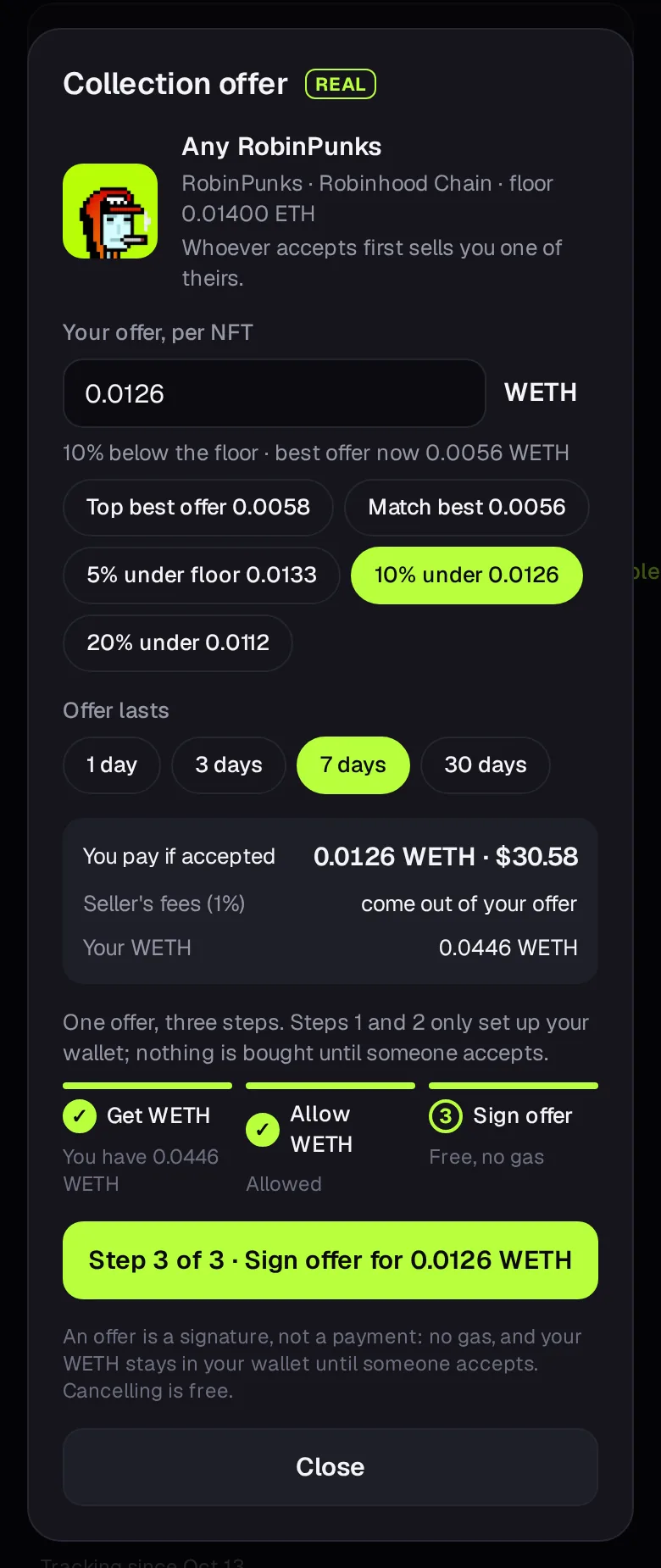
The price ideas are real prices: each one shows what it signs. OpenSea takes offers in steps of 0.0001, so at a very low floor the 5%, 10% and 20% prices can land on the same step: you then see one idea, with its true distance from the floor. When a collection's floor is in a different coin than its offers (Axie on Ronin: floor in ETH, offers in WRON), there are no floor ideas, because the number wouldn't mean the same thing.
Your offers on the Portfolio (and the Offers tab of the Your NFTs panel) lists every live offer; Edit places a new price and cancels the old one. Cancelling is free for offers made on FloorFeed; a few older ones cost a small network fee, and the sheet says so. When an offer is accepted, FloorFeed tells you and the NFT appears in your holdings. History keeps every offer with its outcome: accepted, cancelled or expired. If your offer reaches the asking price, the sheet suggests buying instead, because that's instant.
Offer guard: alerts on your offers
FloorFeed watches the collection offers you've made on Ethereum and its networks, and tells you (in Alerts, and as a notification if they're on) when:
- The floor reaches your offer
- Buying the floor now costs no more than your offer would, so lower it, cancel it, or just buy.
- You're outbid
- Someone's collection offer is higher, so sellers fill theirs first. The alert says the new top offer.
Open Portfolio → Offers once and your live offers are watched from then on, checked every few minutes. An offer that's filled or cancelled never alerts, and each warning comes once, not on every check.
WETH and unwrapping
WETH is ETH in token form, always worth exactly 1 ETH. Offers on OpenSea are made in WETH, so money from a sale arrives as WETH. Plain wallet balances often don't show it, which can make it look like the sale paid nothing.
"Money by network" shows WETH next to the ETH on each network. Buys and gas need plain ETH, so tap Unwrap: one transaction turns the WETH back into the same amount of ETH, on the same network. You only pay gas, which is cents on Base, Ink and similar networks.
Quests: badges for your first actions, with real perks
Quests are six first steps on FloorFeed. Each earns a soulbound badge on Base and a time-limited cut of FloorFeed's own fee. Free to enter, no purchase necessary. It runs only while FloorFeed has it switched on: if you don't see it, it isn't on right now.
- Open floorfeed.io/quests (also linked from My NFTs and your profile).
- Do a step: its row has a button that takes you there. FloorFeed checks what really happened, so progress updates by itself.
- When a row says Done, tap Claim badge. There's no age switch: your account already confirmed you're 18 or older when you agreed to the Terms. It goes to your connected wallet, which must be linked to your account.
- If Claim badge is dimmed, the line under it says why: claims aren't open yet (your progress is kept, so there's nothing to do), or connect a wallet first.
- FloorFeed pays the network fee and the badge arrives in a few minutes. If free claims are off, the page says why and your own wallet sends it for a few cents.
- The perk starts when you claim. It shows under Your perks with its end date, and on the confirm line when you trade.
- Plugged In
- Link a wallet: 5% off FloorFeed's fee for 7 days.
- First Call
- Make a Floor Call (one you don't withdraw): 10% off for 14 days.
- First Listing
- List an NFT through FloorFeed: 10% off for 30 days.
- Drafted
- Join a Floor League league: 10% off for 14 days.
- Fed the Floor
- Sell with Feed it, once the sale confirms: 25% off for 30 days.
- Launched
- Deploy a collection: 25% off for 30 days.
- Limits
- One of each per account and wallet, a verified account, and a daily limit per network. Perks cut only FloorFeed's own fee, not marketplace fees, royalties or gas. The best one perk you have applies, holder perks included; they don't add up. FloorFeed can end a promo at any time.
- Allowlist priority
- A creator can give badge holders an early mint: Create → Mint phases → Holders, with the Quest badges collection's address (shown on the Quests page). Only launches that choose to do this take part.
Streaks: weekly habits, soulbound badges and Pro perks
Do the same thing every week and your streak grows: a Floor Call, a Floor League lineup, or opening FloorFeed signed in. Weeks run Monday to Sunday, UTC. Free to enter, no purchase necessary. It runs only while FloorFeed has it switched on: if you don't see it, it isn't on right now.
- Open floorfeed.io/quests and scroll to Streaks. Each one shows your current weeks and whether this week is done.
- Keep going: a streak ends only after a whole week goes by without the action.
- At 4, 12, 26 and 52 weeks, tap the milestone's Claim badge button. If it's dimmed, the line under it says why. A reached milestone stays claimable even if the streak later breaks.
- Pro perks
- Half FloorFeed's fee, for a limited time from when you claim: 14 days at 12 weeks, 30 days at 26 weeks, 60 days at 52 weeks. 4 weeks earns the badge only.
- Limits
- Only FloorFeed's own fee changes. The best one perk you have applies. Visits count from when the promo starts.
Gas covered by FloorFeed
Some transactions from your FloorFeed wallet on Base go out with the network fee (gas) paid by FloorFeed. You still check and confirm every one yourself in the FloorFeed wallet window, and it covers only the gas: never a price, a mint's cost or a fee. When it applies, the confirm window ends with Gas covered by FloorFeed, and the screen after it shows Network fee: Gas covered by FloorFeed. When it doesn't, nothing changes: your wallet pays the gas as usual.
- Use your FloorFeed wallet (not MetaMask or another outside wallet) on Base.
- Mint on a FloorFeed launchpad collection, claim a badge or a Moment, take a free Frenzy bite, or buy a listing worth about $25 or less in ETH.
- Confirm in the wallet window. If it ends with Gas covered by FloorFeed, you pay no gas for that one.
- Who it's for
- Signed-in accounts that passed the one-time account check. FloorFeed's own team wallets pay their own gas.
- Limits
- Base only. Up to 5 covered transactions a day and 20 a month per person, a small daily budget for everyone, and only while FloorFeed's credits last: past any of them, you pay the gas as usual, with no error.
- Your wallet on Base
- The first covered transaction turns your FloorFeed wallet on Base into a smart wallet (EIP-7702), which is how the network fee can be paid for you. It's the same wallet, address and NFTs; listings and offers keep working. Other networks are unchanged.
Swap & continue: pay in any token you hold
When a purchase asks for a token you don't have enough of (WETH for a listing on Polygon, USDC.e for a Courtyard listing, WETH or another token for an offer, USDG on Robinhood Chain), you don't have to leave FloorFeed to get it. Swap & continue swaps what you hold, on any network, into exactly that token, then you carry on. FloorFeed never holds your money and adds no fee of its own.
- Open Buy (or Buy floor, a sweep, or Make an offer). If you're short of the token it's priced in, the sheet says how much more you need and shows Swap & continue.
- Press Swap & continue. FloorFeed picks the best source for you: the same network first when it covers it (POL on Polygon, say, or USDC or USDT there), otherwise a token or coin on another network (ETH on Base, USDC on Arbitrum…). To use something else, press Pay with something else and pick from the list.
- Check the quote: You pay, exactly (and from which network), You get on the network the purchase is on, Relay's fee (inside the total), FloorFeed's fee (none), the network fee, and roughly how long it takes.
- Press Swap … for …, and sign in your wallet. Paying with a token (from another network, or USDC or USDT on Polygon) needs an approval first, for exactly this amount. FloorFeed gets a fresh price before you sign: if it went up, nothing is sent and you see the new one.
- When the token has arrived, press Continue to buy (or Continue to your offer). The sheet re-reads your balance, and the Buy button is back. Sign the purchase as usual.
What arrives. Exactly the amount you're short, plus 0.5% in case the price is re-read, in the exact token the listing asks for, checked by its address (USDC.e is bridged USDC, a different token from Polygon's own USDC). Anything left over stays in your wallet.
What FloorFeed checks before your wallet sees anything. From another network: that Relay's order pays your own wallet at least that amount of exactly that token, that your deposit pays that very order at Relay's real contract, and that any refund comes back to you. On the same network: that the swap goes to Relay's own contract, spends exactly what's shown, and, in a dry run as your wallet (approval included), gives you at least the amount and takes nothing else. A route that fails a check isn't shown. Approvals are always for the exact amount, never unlimited, and only to Relay's deposit contract or, for USDC or USDT on Polygon, Relay's approval proxy, which only you can spend an approval to.
Limits. The token has to be one Relay routes on that network (USDC, USDC.e, USDT, WETH and most dollar coins are; Polygon's WETH, which its NFTs are priced in, too). On the purchase's own network, only its coin can be swapped, plus USDC, USDC.e and USDT on Polygon (another token there would need an approval to a contract FloorFeed doesn't allow). The network fee is paid in that network's coin: on Polygon, keep a little POL for the swap and the buy. Wrapped coins, POL, RON and memecoins on other networks can't pay. A token FloorFeed has no price for isn't offered, and neither is a route whose fee is out of proportion. If nothing you hold can be swapped, the sheet says so and offers the listing on OpenSea instead. If it can't complete on the way, Relay refunds you, less its network cost.
Trading cards: graded cards as NFTs
Some NFTs stand for a real, graded trading card: Pokémon, sports, One Piece and more. The issuer (Courtyard on Polygon; Collector Crypt on Solana, Base and Robinhood Chain; Phygitals on Solana) keeps the card in its vault, and the token is how you own and trade it. To hold the card itself, you redeem the token with the issuer, who ships it to you. FloorFeed doesn't hold cards, tokens or money: it shows these markets and builds trades you sign in your own wallet.
- Open Cards: on a computer, More → Cards at the top (or the Cards tab in Radar, on the left); on a phone, Markets → Cards at the top.
- Each collection shows its card floor (the cheapest card listed, merchandise left out), 24h volume, 24h sales, owners and its last sales. Press Buy, offer or list › to open the collection's page, where Buy floor, Make an offer and listing work as for any NFT (Courtyard's prices are in USDC.e: Swap & continue gets it for you).
- Under Browse, pick a collection: its cheapest cards show first, each as a big card-shaped picture with its grade, the whole slab in view. Filter by Game or Grade (More filters adds Grader and Year). Floor by grade, under the cards, lists the cheapest listing of each grade with at least 3 listed (PSA 10, CGC 9.5…); press a grade to see only those cards.
- To look closer, press the corner button on a card's picture (or right-click it, or long-press on a phone, → View full screen): the NFT viewer opens to zoom in and page through the cards. Press the card itself for its NFT page. On a card's own page, press the big picture (View) to zoom every copy of that card.
- Search a card at the top of Cards (its name, set or number). Each result is one card across every issuer, shown with its picture and its cheapest listing; press it for the card's page: every grade with what collectors paid (the median of the last sales), what the issuer paid buying it back (kept apart: that's the issuer's own price), the cheapest listings on each issuer, and the last sales.
- Press a card NFT to open it: The card shows its set, number, grade and certificate, with Verify on PSA ↗ or Verify on CGC ↗ to check the slab with its grader. Sold prices shows what the same card at the same grade sold for, and Same card, same grade, listed elsewhere. Buy now and Make an offer work there as for any NFT.
- Best way out (on a card's page) compares what you'd keep after fees: the issuer's buyback, its own marketplace, listing on OpenSea through FloorFeed, or redeeming the card and selling it on eBay. Type the issuer's buyback offer if you have one, and change any figure.
- Price alert (on a card's page, signed in): pick a grade and a price in dollars. You get a notification when that card at that grade is listed under it on any issuer FloorFeed reads.
- Tools → What are my cards worth? values any wallet's cards with no account: paste the address and press Value, and each card shows with its picture and value. Tools → Listed under the last sales lists cards at least 15% under what collectors paid for the same card at the same grade.
- Your cards (signed in) lists the tokenized cards in your wallets, each worth what collectors paid for the same card at the same grade where FloorFeed has sales, else the cheapest listing of its grade, else the collection floor. Your NFTs shows them as one Trading cards line.
- Getting the card out (on Cards) has short redemption steps per issuer: cost, time and what happens to the token.
Limits. Grades, games and years come from each issuer's own details on the token; a card whose issuer doesn't say them can't be filtered. Floors by grade come from the 200 cheapest listings of each collection, so a grade whose cheapest copy is pricier than those shows no floor, and neither does a grade with only one or two listed. Merchandise the issuers sell beside cards (Collector Crypt's Moonbirds collectibles and hats) and listings priced hundreds of times above the rest are left out. Sold prices start on Nov 15, 2026, when FloorFeed began storing every card sale; a card matches across issuers by its game, year, number and name (about 86% of Courtyard's cards; sealed packs and cards without a printed number don't). A sale to Courtyard's buyback wallet is FloorFeed's reading of which wallet buys cards back, not an address Courtyard publishes. Collector Crypt's buybacks don't happen on a marketplace, so its insured value on each token is shown instead. Search and card pages know the cards FloorFeed has seen sold or listed. Fees in Best way out are as the issuers and eBay published them, and some sources differ. The same card on eBay is a plain search link. The card's condition, storage, insurance and redemption are the issuer's: read their terms before you buy.
Launch your own collection
Creators can launch a whole collection on FloorFeed: upload the art, set prices and mint phases, and launch from their own wallet on Base, Robinhood Chain, Ethereum and Arbitrum. Start from Create, on the website.
- Details: name, symbol, network, your earnings on resales (0 to 10%), whether the art is revealed after the mint or right away, and a cover, banner and placeholder image.
- Art: pick a folder of images numbered 1, 2, 3… (up to 10,000), or a .zip. Traits come from the JSON files most generators write next to each image (1.json), or from one CSV with a "file" column and a column per trait. From the JSON, each artwork's own description, external_url, background_color and number traits (display_type) carry into its metadata; a CSV can have a "description" column. Without one, a token gets the collection's description. You see a preview and how rare each trait is before uploading. The files go to IPFS, or fully on-chain in the contract itself, with the cost shown before you commit. A stopped upload picks up where it left off. Names: a title without a number ("The Headless One") is always kept. A numbered name ("Cool Cat #12") is kept only when the art is revealed right away, renumbered to match its token; with a reveal after the mint it's left out, because the reveal shuffles which art each token gets, and marketplaces show the token number instead.
- Mint phases: up to four, each public, allowlist, FloorFeed members (anyone signed in, with a per-account limit the contract enforces), holders (wallets holding any of up to five NFT collections or tokens you pick, on any supported network, checked when they mint or from a snapshot, with the limit per holding wallet) or, on networks with the newest contracts, an airdrop claim (free and with no FloorFeed fee, only for the winners of your airdrop sign-up link, one each), with its own start and end, price and limit. Paste allowlist wallets into the phase or upload a CSV; ENS names work, and anyone can check whether their wallet is on the list.
- Payouts (optional): split the mint money and your resale earnings between up to 10 wallets. Each one sees what it was paid and claims its share from the collection's Payouts page.
- Launch: a checklist, then FloorFeed pins your metadata and your wallet sends one transaction. That wallet owns the contract and pays only the network fee to launch.
- Manage: follow the mint (revenue in coins and dollars), mint a free reserve or airdrop to a list of wallets (counted on the mint page, so collectors see it), change phase dates, prices and limits, update the description, images and links, withdraw what you've earned (or send it to the split), reveal when you're ready, swap in new artwork after the reveal (a new metadata folder with the same file numbering) until you freeze the metadata for good, and see a warning if OpenSea pays its creator earnings to a different wallet than your contract.
- Grow it with a free airdrop: Manage → Airdrop sign-up link. Pick how spots go (first come, or a random draw at a time you set), how many, and optionally holders only (any NFT collection or token), or on first come, holder priority: spots held for holders of a collection or token you pick and/or a head start before everyone else. Share the link: people need a FloorFeed account with an email or social login to qualify, so every sign-up is a real new member, not a wallet. Then send to whoever got a spot, up to 100 per transaction, with no FloorFeed fee; you pay only the gas. Or, if the collection has an airdrop claim phase, pick "Winners claim it": they mint their own for free and pay the gas themselves. Download every sign-up as CSV.
Collectors find new launches in the Launched on FloorFeed section at the top of the Mint tab. Each collection has a mint page with every phase, whether their wallet is on the list, and the total before they pay. If they're short on that network, Move tops them up. FloorFeed adds a small fee per NFT minted (0.0001 ETH), paid by the collector and shown before they mint; creators receive the full price they set.
- Fair reveal
- With reveal after the mint, everyone sees a placeholder until the creator reveals. The reveal shuffles which artwork each token gets, so nobody, the creator included, can steer rare pieces to particular numbers. On collections launched since October 30 the shuffle is drawn from a block mined just after the reveal, so nobody can pick the moment to get a better one; the Manage page shows Revealing for the minute it takes FloorFeed to finish it. Reveal once the mint ends.
- Reward your holders
- Under Manage, Reward your holders with a badge ↗ opens FloorFeed Badges, where you can make a soulbound badge to award them. Only you see the link, once the collection is live.
- Fixed promises
- After launch the art and allowlists are set, supply can only be lowered, and the fee per NFT can never change. Prices and phase dates can still be adjusted.
- Your contract
- The collection is a standard NFT contract owned by the creator's wallet. FloorFeed never holds the keys or the mint money, and every mint is checked against the contract before the collector's wallet sees it. Once it's out, the collection trades on OpenSea like any other.
Launching on Solana: splits, enforced royalties and holders
Solana launches aren't switched on yet. When they are, pick Solana under Network in the launch wizard. A Solana collection is a Metaplex Core collection with a Core Candy Machine. Your Solana wallet signs every launch transaction in one approval, and it owns the collection. FloorFeed never holds the money.
- In Details, pick Creator earnings on resales and, if you want them, Enforced under Enforce creator earnings.
- Under Who gets the mint money, leave it to one payout wallet, or tap + Split the mint money and add 2 to 5 wallets in whole percents adding up to 100%.
- In Mint, add phases. Pick Holders on a phase, paste a Solana collection or token address (or pick another network and paste its contract), and set how many a wallet must hold. Tap + Another collection or token for up to four more.
- Under When holdings are checked, pick When they mint, Snapshot at deploy or Snapshot at a set time. Set Most this phase mints in all to keep supply for later phases.
- In Launch, press Launch on Solana and approve once. If a transaction doesn't land, Finish the launch asks you to sign what's missing.
- After the launch, a split's Payouts page shows each wallet's share. Press Claim or Pay everyone. Manage has Enforce royalties or Stop enforcing royalties for a collection with one payout wallet.
- Splits
- Mint money goes to a Metaplex Hydra wallet, which only pays the split's wallets. It isn't paid out with each mint: anyone can press Pay everyone, and whoever does pays only the network fee. Hydra keeps 0.5% of the mint money for Metaplex. Each payout rounds down, and a lamport or two stays behind. Resale royalties skip Hydra and go straight to each wallet at the marketplace. After a split's launch, nobody can change the shares, the phases or the collection's royalties, including whether they're enforced, so the mint can't be ended early either. Every wallet must be a plain wallet, not a program's account, and should stay funded: a sale can fail if its royalty is too small for an empty wallet. The rent adds about 0.01 SOL to the launch.
- Enforced royalties
- Only plain wallets, Tensor and Magic Eden can hold or move the NFTs, so a program that skips your royalty can't sell them through its own account. Limits: two wallets can still deal directly, which pays no royalty, and a program can get around the list by using an address it doesn't own; a marketplace on the list decides how much royalty it charges; and a marketplace that isn't on the list can't trade them until you stop enforcing.
- Holders phases
- FloorFeed checks the holding, then co-signs that one mint. Solana holders are read through Helius; only NFTs verified in the collection count. A limit per holding wallet means one minting wallet: a wallet linked to your account can mint for your vault, and another can only take over if the first has minted nothing and three minutes have passed. The phase limit is kept on chain. Up to 4 phases fit when each has a price, dates, a limit, a gate and a phase limit.
- What your wallet can still do
- With a split, nothing: the launch's last transaction gives up the mint's, the guard's and the collection's authority, so its phases, art and supply can't change, the mint can't be ended early, and no NFT can get its own royalty. With one payout wallet your wallet keeps the collection, so it could change the art or the royalties, give an NFT its own royalty, mint past the supply, or stop holders moving their NFTs, and edit the mint on chain, including skipping FloorFeed's fee on its own mint site. FloorFeed checks the chain, stops building mints when it sees one of these, and says so on the mint page, but it can't undo them or stop mints made elsewhere. Collectors: a collection with one payout wallet trusts its creator.
Tip: On FloorFeed, collectors of a Solana launch can buy from Tensor listings. Listing, and selling into an offer, are done on Tensor or Magic Eden for now.
Holders phases: snapshots, several collections and phase limits
A holders phase lets wallets holding an NFT collection or token mint, on any supported network. Set it up in the launch wizard: Mint, pick Holders on a phase.
- Paste the contract and pick its network. FloorFeed checks it and shows its name and picture, then set how many a wallet must hold (2 for holders of 2 or more).
- Tap + Another collection or token to add up to four more: holding any one of them counts, so "Floor Feeders or Raving Apes holders" is one phase.
- Under When holdings are checked, pick When they mint, Snapshot at deploy, or Snapshot at a set time (before the phase opens).
- Optional: Most this phase mints in all keeps part of the supply for later phases. It works on holders and FloorFeed members phases.
- Save phases and continue. With a snapshot, the wizard and Manage show when it's taken and how many wallets made it.
- When they mint
- FloorFeed reads the wallet's balance when it mints. Anyone who buys in before the phase counts, but one NFT passed from wallet to wallet can mint again in each.
- Snapshot
- FloorFeed records every wallet holding enough at the time you pick (or right after deploy) and only those wallets can mint. Contracts holding 20 or more (marketplaces, floor vaults) are left out; smart wallets count. Snapshots work for NFT collections (ERC-721); ERC-1155 and token holders are checked when they mint. If a network read fails, FloorFeed tries again every few minutes, and nobody can mint the phase until it's taken.
- Phase limit
- The contract has no per-phase limit, but every mint in these phases needs a pass FloorFeed signs, so FloorFeed stops signing once the phase reaches its limit. A pass it signs holds a spot for 10 minutes. The mint page shows how many are left, and the phase closes early when it's full.
Tip: Free phase for your community? A snapshot with 1 per wallet and a phase limit keeps part of the supply for the public sale.
Talk to your holders
Launched a collection on FloorFeed? Manage → Your holders shows who holds it now: holders, NFTs held, how much the top 10 hold, how many of your holders are on FloorFeed and, on Ethereum and its networks, how many of the wallets that minted still hold.
- Open Create, then open your collection under Your collections.
- Under Your holders, write your news: plain text, up to 500 characters.
- Tap Send. It lands in your holders' Alerts and as a notification.
One post a day, so it stays news. It reaches holders who have a FloorFeed account with the holding wallet linked. Your posts also show on your collection's community page.
Your collection's community site
Every collection launched on FloorFeed (on Ethereum and its networks) gets a community site: its own website at a short address like nightowls.floorfeed.io, with your theme across the whole page and none of FloorFeed's menus. It opens to everyone once the mint sells out (or when you choose); until then the address goes to your mint page. FloorFeed keeps the live parts up to date: holders, top holders, the trait census, your holder news and Eat the Floor. A Mint or Buy button takes visitors to your collection on FloorFeed.
The first time the page opens, AI themes it from your collection: the colors and heading font come from your cover art, and it drafts a tagline, a short story and the order of the sections. Anything you write replaces its draft.
- Open your collection's page on FloorFeed and tap Edit community site (below the mint).
- Keep the AI theme, tap New AI theme (3 a day), or pick a preset. It colors the whole site and sets its heading font.
- Write your tagline and story, add your Discord invite, Telegram link and up to 8 more links, your roadmap steps and up to 13 featured NFTs by number.
- Move sections with the arrows, or hide the ones you don't want. Write a message only holders can read.
- Choose when the site is public (when the mint sells out, now, or hidden) and tap Save. The site shows your changes within a minute.
Holders' things stay on FloorFeed, where holders sign in: on your collection's page, For holders has their own NFTs to download and your message, and Holder votes is where they vote. The site shows the votes and their results and sends holders there.
Holder votes: from Edit community site, under Start a holder vote, ask a question or pick an action vote. Eat the Floor votes: pause or resume buying, keep or burn what the vault buys, the most it spends per buy, or locking the vault forever. Collection votes: new artwork, the reveal time and freezing the metadata (only while the metadata isn't frozen), or cutting the supply of a collection that hasn't sold out. Votes run 1 to 30 days.
- Who can vote is fixed when the vote starts: each NFT held then gets one vote, from wallets linked to a FloorFeed account. NFTs bought later can't vote in it.
- Question votes: the choice with the most votes wins. Action votes: at least a tenth of the NFTs must vote and the winner needs more than half. Locking the vault or freezing the metadata can't be undone, so a fifth must vote and two thirds must agree.
- When an action vote passes, tap Do what holders voted: FloorFeed builds that exact transaction and you sign it in your wallet. The vote then shows it was done, with the transaction (FloorFeed checks on chain that it's your transaction to the collection or its vault). Or post a reply saying what happens next.
- Holders who hold at least 1% of the NFTs (at least 1) can start their own question vote, which runs 14 days. One at a time each, two a day per collection, up to 3 votes running at once. You can take one down.
A vote never moves money or changes the contract by itself: FloorFeed is non-custodial, so you sign every change. The page keeps a public record of what you did.
Tip: Links are checked: Discord takes discord.gg or discord.com/invite links, Telegram takes t.me links, and every other link must start with https://. The site shows where each link goes next to it.
A short address and your own domain
Every collection's community site gets a short address out of the box, made from its name (Night Owls gets nightowls.floorfeed.io, if nobody else has it). That address is the site. You can change it, and point a domain you own at it: your domain forwards visitors to the short address.
- Open your collection's page and tap Edit community site.
- Under Short address, you'll see the one FloorFeed made for you. To change it, type a name and tap Change. The site moves to it within a few minutes.
- To use your own domain, tap Use your own domain ›. Copy the address shown, then follow the steps for your registrar (Cloudflare, Namecheap, GoDaddy, Squarespace or another) to forward your domain and www to it as a permanent (301) redirect.
Names are 3 to 32 letters, digits and single hyphens. One per collection, first come, changed at most once a day. FloorFeed's own words, marketplace and wallet brands, and other collections' names can't be claimed. Giving a name up frees it for others.
Tip: Use plain forwarding, not masking or framing: wallet sign-in doesn't work inside a frame. Your domain forwards rather than hosts, so the site always stays on floorfeed.io, holders sign in only on floorfeed.io itself, and a domain can't later be swapped for a look-alike.
Activity: did it go through?
Every buy, sale, approval, transfer between networks, unwrap, mint and send you make in FloorFeed is logged in Activity on the Portfolio the moment your wallet hands back the transaction. FloorFeed then follows each one on the chain and updates it: Pending, Delivering (a transfer on its way to the other network), Confirmed, Failed, Dropped (never reached the chain) or Refunded. Every row links to the transaction on the network's explorer.
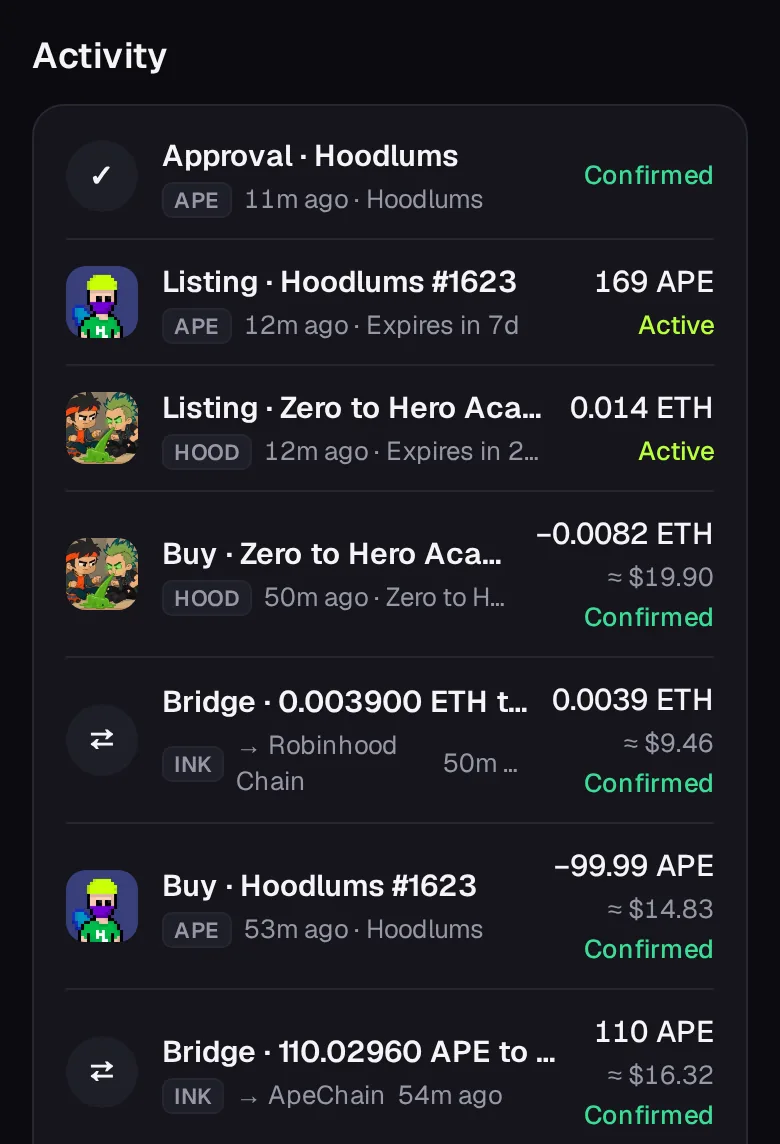
Your keys stay yours
FloorFeed never holds your keys, your funds or your NFTs. A connected wallet asks before signing anything, and the built-in wallet's key is secured by Privy, not by us. Every purchase, sale, mint and transfer is checked against the chain before your wallet sees it, so a failing transaction shows up before you pay gas.
Withdraw any time: Send moves SOL, ETH (or a network's own coin) or an NFT on Ethereum's networks from your FloorFeed wallet to any address, and Export hands you the wallet's key so you can open it in Phantom or MetaMask with everything in it. There are no holds or limits.
Minting
Find a drop, check it and mint it: on the Mint tab, on a drop's page, and on collections launched on FloorFeed.
The Mint tab
Minting means buying a brand-new NFT straight from the collection's contract, at the creator's price, before it trades anywhere. The Mint tab gathers what's minting across networks, so you can find a drop, check it and mint it without leaving FloorFeed.
- Launched on FloorFeed
- Collections creators launched here, at the top. They always show whatever the filters: live and upcoming first, then the ones that sold out (marked Sold out). A launch that ended without selling out drops off.
- Live now
- Drops minting right now, fastest first. Each card shows how much of the supply is minted, how fast it's going (mints in the last 10 minutes and the last hour, read from the chain every 2 minutes) and how many proven flippers have minted. Base drops lead.
- Upcoming
- The next stages, grouped by day, with their time and price.
- Ended recently
- What just sold out or closed. A sold-out collection is bought from holders on its collection page.
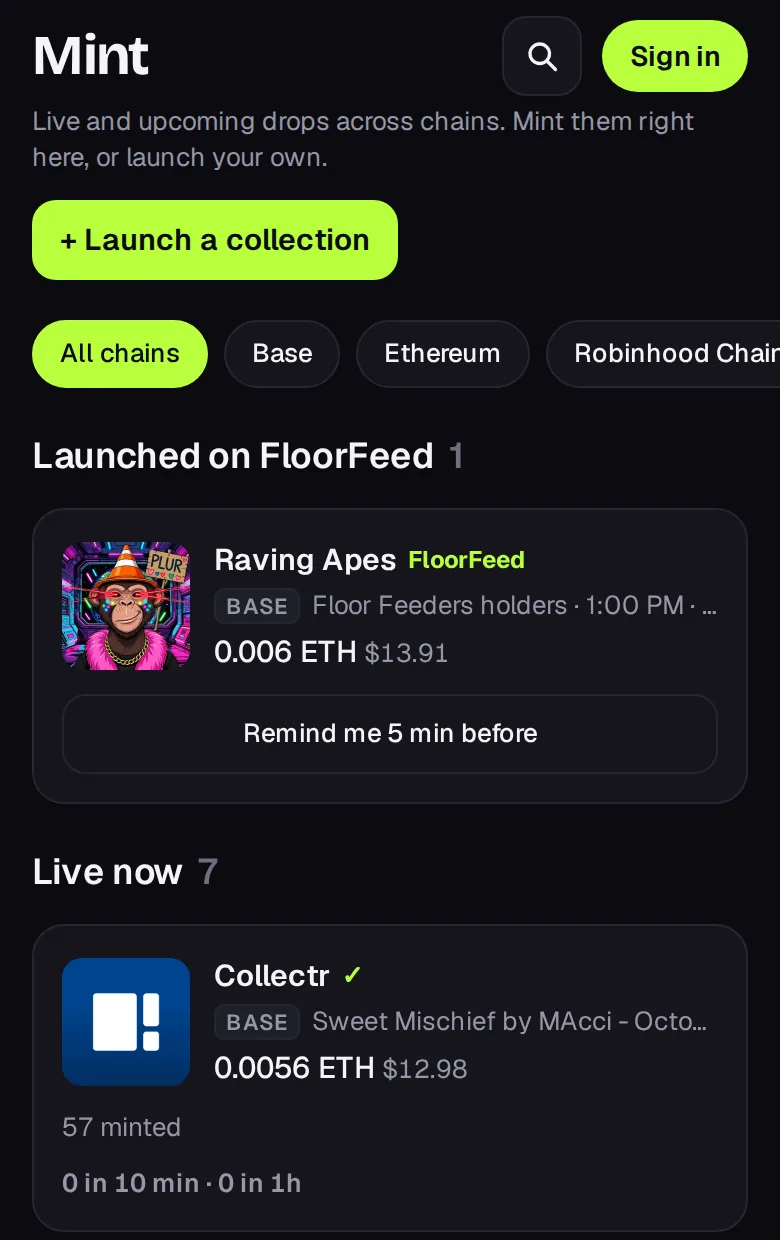
Filter by network and by price (free, under $10, paid). Verified only is on by default: it shows collections OpenSea has reviewed. Unverified drops can be copies of a real collection, and every Solana drop is unverified, since FloorFeed finds those on chain itself; they're one tap away under the list.
Tip: Tap Remind me on an upcoming stage and FloorFeed sends a notification 5 minutes before it opens. Allow notifications for FloorFeed in your browser, or the reminder can't reach you.
Drops come from OpenSea, and on Solana from Metaplex candy machines minting right now. A card opens the drop's own page, where the mint happens.
Minting a drop
Each drop has its own page with the art, every stage with its times, price and per-wallet limit, how much is minted and how fast, and how many proven flippers are in.
- Pick a quantity (up to the stage's per-wallet limit). The page shows the total, your coin on the drop's network and about what the network fee will be.
- If you're short on that network, it says by how much, counting the network fee: even a free mint needs a little gas. "Move ETH to <network>" opens a transfer with the shortfall plus a small cushion. While you're short, the page checks your balance by itself (it says Checking your balance, with Check now beside it) and Mint appears as soon as the funds arrive, however you sent them. No reload needed; it checks again when you come back from another app or tab, and pauses after 10 minutes until you do or press Check now.
- Tap Mint. OpenSea builds the mint transaction and FloorFeed runs it against the chain as you first, so a mint that would fail shows up before you pay gas. Allowlist stages are checked against your wallet here.
- Confirm in your wallet. Activity follows the mint, and the NFT appears in your real portfolio when it confirms, usually within a minute.
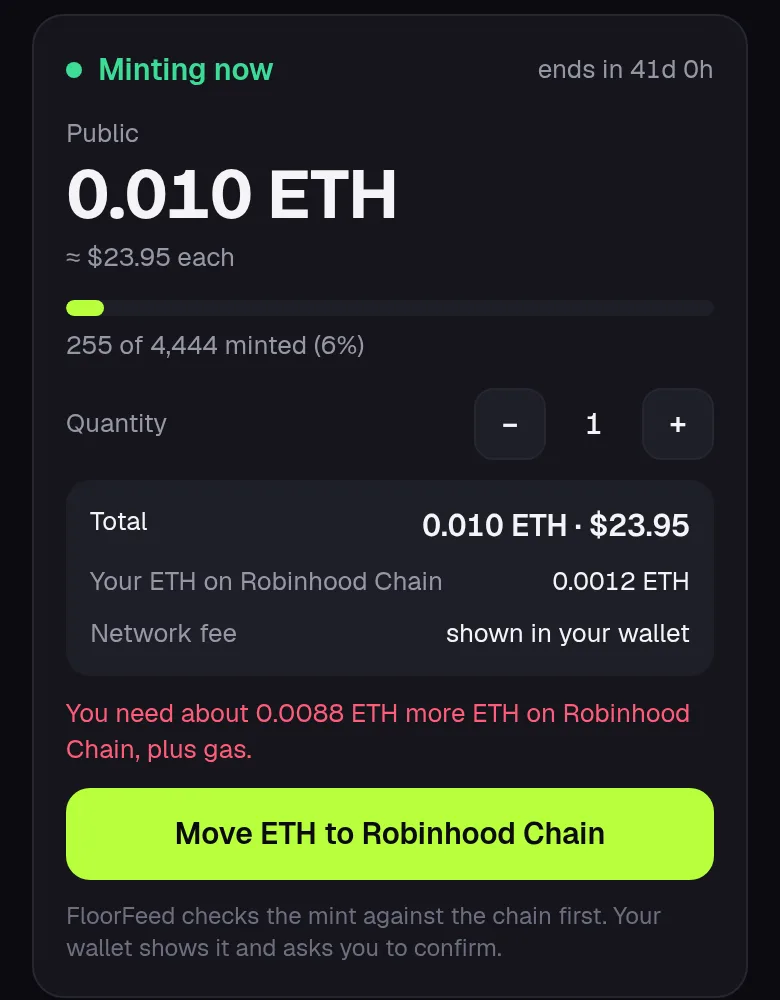
- Networks
- Minting works in FloorFeed on every network it trades on, Robinhood Chain included. Drops on other networks, or stages priced in another token, get the same page and finish on OpenSea.
- Solana drops
- Minted with your Solana wallet, one at a time. FloorFeed builds the candy machine mint and checks it against Solana; your wallet confirms it and FloorFeed sends it. The cost includes the new NFT's rent (about 0.003 SOL) on top of the price. Stages with allowlists, token gates or other rules FloorFeed can't meet from your wallet finish on the project's own site.
- FloorFeed's fee
- None on drops: you pay the creator's price and the network fee, nothing more.
Minting a FloorFeed launch
Collections launched on FloorFeed have their own mint page, built for the launchpad's contracts: progress, every phase, whether you can mint in it, and the total before you pay. Floor Feeders and Raving Apes were both launched this way.
- Public
- Anyone, up to the phase's limit per wallet.
- Allowlist
- Wallets the creator listed. The page tells you whether yours is on it before you try.
- FloorFeed members
- Anyone signed in to FloorFeed with an email or social login (a wallet alone doesn't count, no throwaway emails, and one email or login mints once per phase), and the human check if it appears. A brand-new account can mint right away. A few accounts per network a day. The limit counts per account, not per wallet, and the contract enforces it.
- Holders
- Wallets holding an NFT collection or token the creator picked, on any supported network: Raving Apes' first phase is for Floor Feeders holders on Robinhood Chain. A phase can name several collections or tokens: holding any one counts. Most are checked when you mint, so buying in before the phase still counts; a phase that uses a snapshot only lets in the wallets that held at the snapshot time, shown on the mint page. Signed in, your linked wallets count too, and the limit is per holding wallet.
- Left in this phase
- Some holders and members phases have a limit on how many they mint in all, so part of the supply waits for later phases. The mint page shows how many are left; when it reaches 0 the phase is full, even if it hasn't ended.
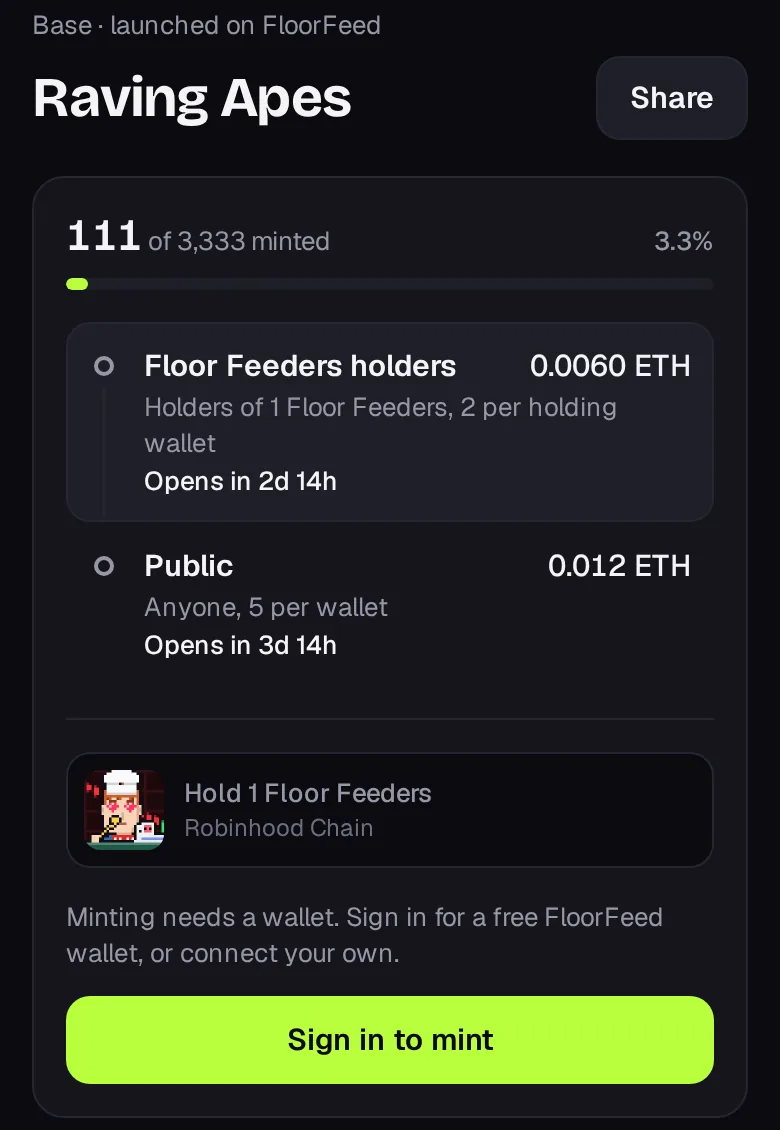
The page picks the open phase you can use; tap another phase to see its terms. If a phase isn't for you, it says why: not on the list, not holding enough, signed out, or at your limit.
- Pick a quantity. The price shows per NFT, plus FloorFeed's fee of 0.0001 ETH per NFT minted (in the network's coin), which the collector pays. The creator gets the full price they set.
- Short on the collection's network? FloorFeed finds where you do have enough (ETH on another network, or SOL in your Solana wallet) and you pay from there in a single signature. You see what you'll pay, transfer fees included, and it completes on the collection's network, usually in seconds, or you're refunded. Moving the coin over first still works too.
- Tap Mint. FloorFeed builds the mint and checks it against the contract as you, then your wallet confirms it.
- Your NFT lands in your wallet and shows in your Portfolio (and Your NFTs) shortly, with its art read from the collection's own contract, even before OpenSea lists it. Until the creator reveals, it shows the placeholder art. Until the collection's first sale it has no floor, so its value reads No sales yet and it isn't counted in your totals.
- Reveal
- With reveal after the mint, everyone sees a placeholder until the creator reveals (or a set date arrives). The reveal shuffles which artwork each token gets, so nobody, the creator included, can steer rare pieces to particular numbers.
- Royalties
- The creator earns a share of every resale (up to 10%). Optional royalties let OpenSea buyers choose whether to pay. Enforced royalties are written into the contract: marketplaces that skip the creator can't move these NFTs, OpenSea and FloorFeed sales work, and sending your own NFTs to any wallet always works (on collections launched since October 30, even if the creator tightens the rules later). The mint page says which one a collection uses.
- Eat the Floor
- A creator can send part of the royalties to a vault that buys the floor of a target (this collection, another collection on the network, or a token) and burns or holds what it buys. The card on the mint page shows what's been raised, what's waiting, what's been eaten and burned, and every buy, with a link to the vault's contract. A locked vault can't be emptied or changed by the creator. Vaults made since October 30 also cap themselves: they spend at most three times their per-buy limit a day and swap at most 0.1 ETH of royalties a day, a locked one takes buys only from FloorFeed's keeper, and any change that would let the keeper do more (a new marketplace or swap contract, a new keeper, a higher limit) is announced on chain 48 hours before it applies. An older vault shows "A safer vault is available" on its collection's Manage page: Move to the new vault makes one with the same settings, then Point royalties at the vault switches the royalties over (the old vault stays, and anything in it can still be withdrawn unless it was locked). A vault only buys on its own network, so a collection elsewhere can still feed it: FloorFeed bridges that collection's royalties to the vault every half hour, with no FloorFeed fee. Chompers' royalties on Base feed the Floor Feeders vault on Robinhood Chain this way.
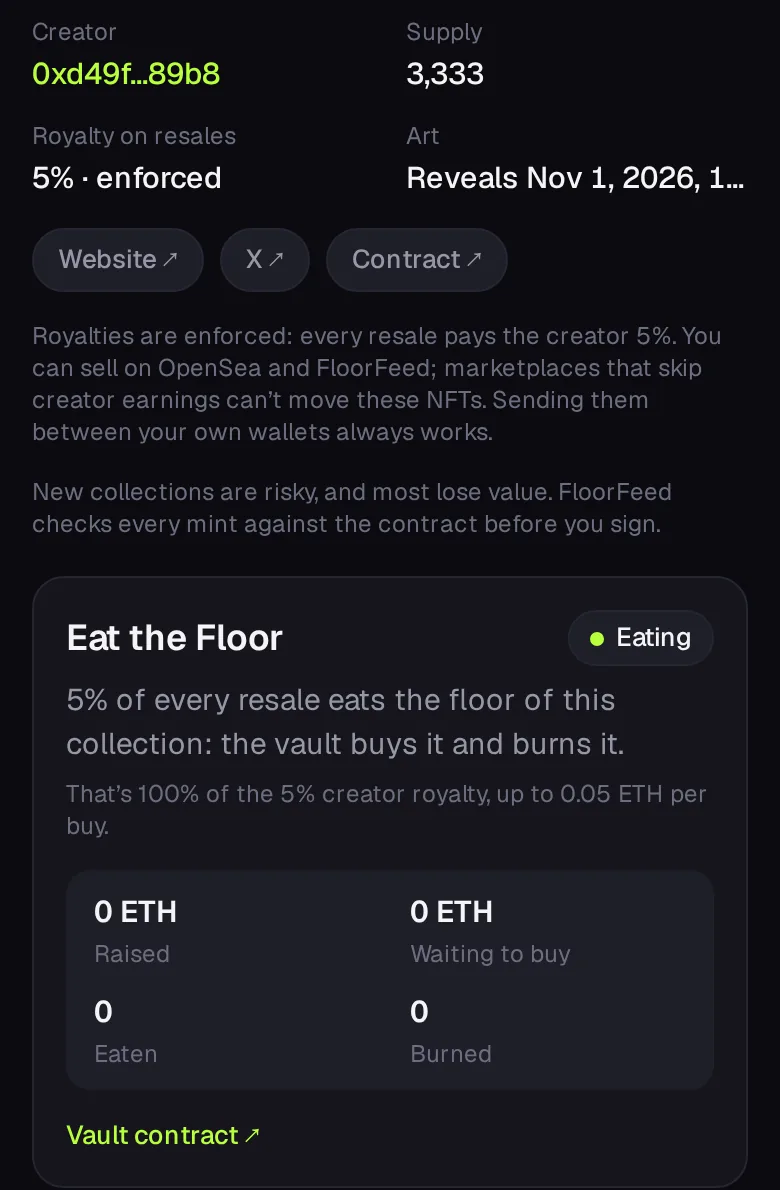
When everything is minted, the page says Sold out and Buy on FloorFeed opens the collection's market, where you buy from holders like any other collection.
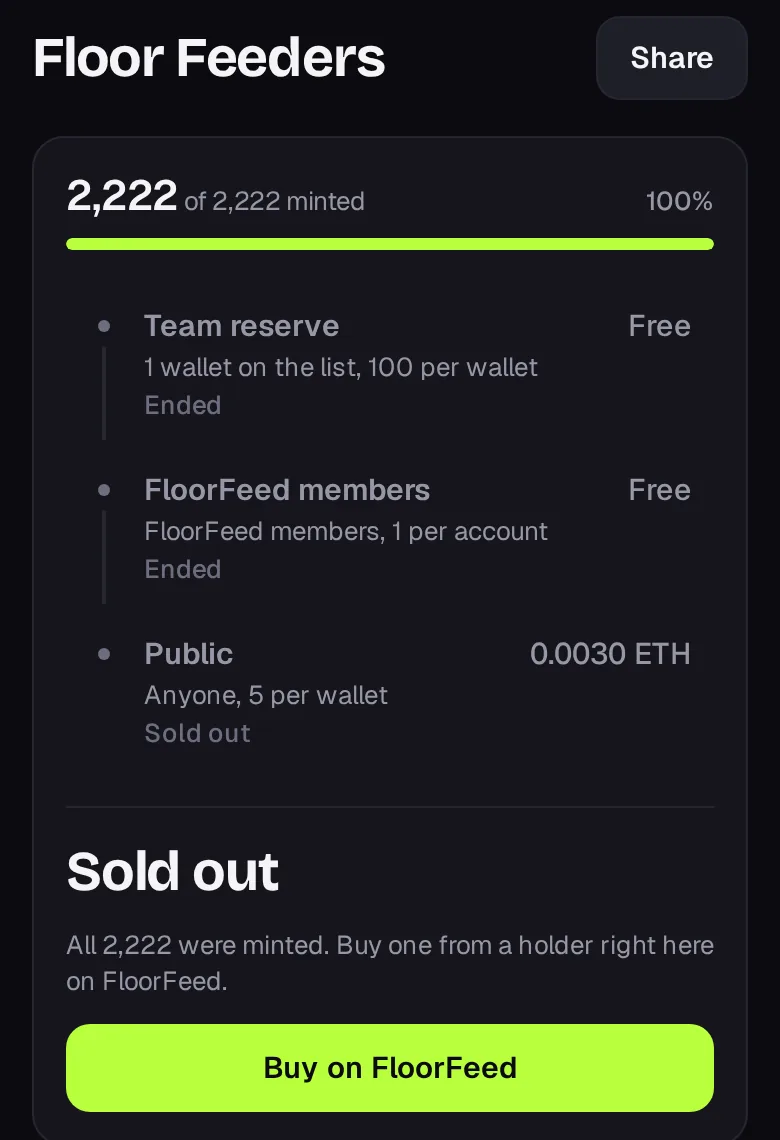
Gas-free first mint
If your account is new and has never minted on FloorFeed, your first launchpad mint can have its network fee covered. FloorFeed sends the fee to your own wallet just before you sign. You still sign the mint yourself, and it covers only the network fee, not the mint's price or FloorFeed's mint fee. It runs only while FloorFeed has it switched on: if you don't see it, it isn't on right now.
- Open a collection's mint page. If you qualify, it says Your first mint's network fee is on FloorFeed.
- Tap the mint button and finish the human check if it appears.
- If your wallet can't pay the network fee, the fee arrives first, then your wallet asks you to confirm the mint.
- Who qualifies
- An account under 30 days old, with a real email or social login, that has never minted here. A brand-new account qualifies.
- Limits
- One per person, account and wallet, and a few per network a day. The wallet must already hold the mint's own cost. Cheap networks only (not Ethereum), and a daily budget that pauses when it's used up: then you pay the fee as usual.
Launch promo: no FloorFeed mint fee for 30 days
While the banner shows on Create, a collection you launch on the networks it names pays no FloorFeed mint fee. The banner shows the end date. Network fees, your own price and royalties work as usual. It runs only while FloorFeed has it switched on: if you don't see it, it isn't on right now.
- Open Create and check the banner for the networks and end date.
- Launch as usual, before the end date, on one of those networks.
- Optional: open Manage → Eat the Floor and set up a vault. During the promo, FloorFeed covers those setup transactions' network fees if your wallet can't pay them.
- How long the 0 lasts
- It's fixed in your collection's contract when you launch, so it stays 0 after the promo ends.
- Limits
- Not on Solana. Vault setup gifts come from a limited daily budget, on networks where gas is cheap; if it's used up, you pay the network fee.
Eaten: every floor NFT and token a vault bought and burned
Eat the Floor vaults buy a collection's cheapest NFT (or a token the creator picked) with its royalties and, unless the creator chose to hold, burn it. floorfeed.io/eaten is the public record of every one, on every network, open to anyone without an account. Find it from an Ate the floor card in the Live rail, from See everything it's eaten on a mint page's Eat the Floor card, or from the Eaten tab on the collection's page.
- Open floorfeed.io/eaten. The totals at the top count NFTs eaten, what the vaults paid across NFTs and tokens (in each coin, with its dollar value at the time) and the supply removed (the burned NFTs), overall and for each collection. Tokens burned is its own number, per token: token buys never count as NFTs.
- Narrow it with the chips: All, NFTs or Tokens, then All networks or one network, then All collections or one collection (for a token, the collection whose royalties paid for it).
- Each card is one bite: the NFT's picture as it was on the floor, stamped Eaten once it's burned (Held if the vault keeps it), its name and collection, what the vault paid, the floor before → after, and when. Burn transaction ↗ opens it on the network's explorer, and the vault's address links to its contract.
- A token card says how much went, like Burned 12,345 $XYZ (Bought when the vault holds it), with the token's logo stamped Burned or Held, its name, what the vault paid and links to the transaction and the token's contract. A token has no floor, so there's no floor line. Check the contract: anyone can name a token anything.
- Tap Share on a card for its own link (floorfeed.io/eaten/<network>/<transaction>), which unfurls on X, Discord and Farcaster into a card with the NFT and the price. Right-click (or long-press) a card for Open NFT, Open collection and the explorer links.
- On a collection a vault eats, or one whose royalties pay for a token vault, open the Eaten tab: just that collection's bites, and its vault: what it holds, the most it spends per buy, what today's limit still allows, and Next bite, which says whether it can afford the floor now or how much it's still saving (a token vault just spends what it holds).
- Live
- New bites appear on their own: the page checks every 15 seconds, and a new card gets a lime edge. They also show in the Live rail on the Feed for a day.
- Pictures that last
- FloorFeed keeps its own copy of each NFT's picture and name from just before the bite, so a card still shows the art after the burn, when the NFT's own metadata may stop loading.
- Floor after
- Read from the next floor snapshot at least 5 minutes after the bite (FloorFeed records floors every 10 minutes), so it fills in a few minutes later. A floor moves for many reasons; the before and after show what happened, not that the burn alone did it.
- Next bite
- The keeper checks each vault every 10 minutes and buys the cheapest listing once the vault can pay for it within its per-buy limit and today's limit, and the gas is under 5% of the price.
- Limits
- Only vaults made through FloorFeed are shown, on networks where Eat the Floor runs (Base and Robinhood Chain today). A token's logo shows when FloorFeed can find one; otherwise its first letter. Bites from before FloorFeed started reading a vault are included when the network's records allow it.
Mint with any token, from any network
You don't need the mint's own coin on its own network. On a mint page, pay with what you already hold: USDC on Arbitrum, ETH on Base, SOL, and the other tokens Relay takes directly on each network FloorFeed supports. FloorFeed never holds your money, and adds no fee of its own.
- Open a mint and connect your wallet. On a collection launched on FloorFeed, press Pay with another token under the Mint button. On an OpenSea drop or a Solana mint, you'll see it when you're short of the mint's coin.
- Pick a token. The list shows what your wallets hold on other networks that can pay for this mint.
- Check the total. You pay, exactly is what leaves your wallet, with Relay's fee inside it. The network fee on the network you're paying from is separate, and shown beside it.
- Press the button and sign. A token needs an approval first, for exactly this amount and never more. FloorFeed gets a fresh price before you sign. If it's gone up, or the mint's price changed, nothing is sent and you see the new total first.
- Wait a few seconds. On a FloorFeed launch, the NFT lands in your own wallet. On an OpenSea drop or a Solana mint, the coin lands in your wallet: press Mint now, then sign the mint yourself.
How it ends, and what you'll see. Minted: the usual confirmation. Sold out, or the phase closed, on the way: Relay refunds you, normally on the network you paid from and in the token you paid with, less its network cost for the refund, with the reason shown. On an OpenSea drop or a Solana mint the coin is already yours, so it simply stays in your wallet. If Relay ever can't refund automatically, you'll see that and who to ask.
Slippage. There's none for you to carry: Relay delivers the exact amount the mint needs, the payment is fixed once you sign, and it's checked against FloorFeed's own prices first. FloorFeed won't offer a route whose fee is out of proportion to the mint.
Why two signatures on OpenSea drops and Solana mints? Those mints check who is sending them, and Relay isn't you. FloorFeed's own collections name the wallet that receives, and apply the allowlist, your wallet limit and any member pass to it, so one payment does it all.
What FloorFeed checks before your wallet sees anything: that Relay's order mints exactly FloorFeed's own call to your wallet, that the deposit pays that order and Relay's real contract, and that any refund comes back to you. A route it can't prove isn't shown. The money does sit with Relay between your payment and the mint, so Relay's solver has to do its part: that's the trust you take on, for the seconds it takes.
Limits. Tokens that need a swap or an unwrap on the way in aren't offered, because their refunds can't be proved in advance. That covers most memecoins, wrapped coins like WETH, and POL and RON. A token FloorFeed has no price for isn't offered either. Tokens on the mint's own network need swapping first, in Move and swap: a swap on one network can't be checked in advance the way a payment between networks can. Mints priced in a token, not the network's coin, finish on OpenSea. If you approved a token and didn't pay, the sheet offers Take the approval back.
Free airdrops (sign-up links)
Creators who launched on FloorFeed can give NFTs away through a sign-up link they share on X or anywhere else (floorfeed.io/airdrop/…). There's no mint: you sign up, and the creator sends the NFT to your wallet. You pay nothing, not even gas, and FloorFeed takes no fee.
- Open the link. It shows the collection, how spots are given out, how many are left or when the draw is, and whether it's for holders of something.
- Sign up to FloorFeed with an email or a Google, X or Discord login (a wallet alone doesn't count). You get a free FloorFeed wallet with it.
- Enroll a wallet on the collection's network: your FloorFeed wallet, a connected one, or any address you paste. You can change it until it's on its way, and leave the airdrop until then (on a random draw, until the winners are drawn).
- The creator sends from their side, up to 100 wallets per transaction. The link then says Sent, with the transaction, and the NFT shows in your Portfolio. On collections with an airdrop claim phase, winners can instead tap Claim when it opens and mint their own: free, with no FloorFeed fee, paying only the network fee.
- First come, first served
- The first people to sign up get the spots, and sign-ups close when they're gone (or at the creator's end time).
- Holders go first
- On first come, the creator can give holders of an NFT collection or token priority: some spots held for them, a head start before everyone else can sign up, or both. Holders can still take the open spots, and everyone else is guaranteed the rest. The link shows how many holder and open spots are left and when sign-ups open to everyone. A holder's holding is checked again before the airdrop goes out, across every wallet linked to the account (as on Holders only, below).
- Random draw
- Anyone can sign up until the deadline. Then the winners are drawn from the hash of the network's latest block once sign-ups have closed, a number nobody, FloorFeed and the creator included, can choose. The seed and block are shown on the link, and anyone can rank the sign-ups again: keccak256(seed + account id), lowest first.
- Holders only
- The creator can require holding an NFT collection or token, on any supported network. A wallet linked to your account (your FloorFeed wallet or one you connected) must hold it when you sign up, and again right before sending: anyone who sold in between is dropped, and on first come their spot opens up again. Every wallet linked to your account counts, and a balance FloorFeed can't read at that moment never drops anyone: it checks again on the next pass. If your sign-up was dropped and your linked wallets hold again, open the link: you're back in while a spot is free (and before the draw, on a random one). Holding only in the wallet you signed up with, not one linked to your account? The creator can put you back from Manage → Airdrop sign-ups → Restore, once that wallet holds.
- Dropped sign-ups (creators)
- In Manage → Airdrop sign-ups, an airdrop with holders only or holder priority lists its Dropped sign-ups: every sign-up dropped for not holding, oldest first, with its full wallet (Copy, and a link to the explorer), when it was dropped (not recorded for drops before Nov 1, 2026) and Holds now: what that wallet holds right now, or "couldn't read" when the network didn't answer. Restore next to one puts it back, as the Restore field does: the wallet must hold, read twice, and a spot must be free. Restore all that hold does that for every one still holding, one at a time and oldest sign-up first, until the spots run out, and shows what happened to each wallet. Check again reads the balances once more (they're kept for a minute). Sent sign-ups, and random draws once drawn, can't come back. Only the collection's creator sees this list.
- Like + repost on X
- Some links count only people who liked and reposted an X post by @FloorFeed or the collection's account, with X connected to their FloorFeed account. The link shows a checklist of what's done; see Airdrops that ask for X likes and reposts.
- One per person
- One email, social login or sign-in wallet per airdrop (Gmail dots and +tags are one inbox, throwaway domains don't count), one account per wallet, the human check, and a few sign-ups per network a day. A wallet sign-in counts as well as an email or a Google, X or Discord login.
Tip: Airdropped NFTs come out of the collection's supply like any mint, and they're counted on the mint page as owner mints, so collectors see how many were given away.
Airdrops that ask for X likes and reposts
A creator can make an airdrop sign-up link count only people who liked and reposted one X post: a post by @FloorFeed or by the collection's own X account. FloorFeed reads who liked and reposted it straight from X (no one types in a handle), so only the X account connected to your FloorFeed account counts.
- Open the airdrop link. A "To count: like and repost" box lists what's done: ✅ FloorFeed account, ✅ X connected, ✅ liked, ✅ reposted.
- Sign up to FloorFeed (email or a Google, X or Discord login). If X isn't connected yet, tap Connect X in the box and approve it on X: it links your X account to your FloorFeed account.
- Tap Open the post on X, or Like and Repost, and do both with that same X account.
- Enroll a wallet as usual (Enroll in the airdrop). It stays greyed out as "Connect X to enroll" until your X account is connected.
- Liked and reposted turn ✅ after the next check: FloorFeed reads the post about every 30 minutes while sign-ups are open, once more in the last 15 minutes and once after they close. The box says when it last checked ("Checked 12 min ago").
- First come
- Your spot is held while you finish. If a check an hour or more after you signed up still doesn't find both, your sign-up is dropped ("didn't repost the X post") and the spot opens again. Like and repost later and the next check puts you back while a spot is free.
- Random draw
- The draw waits for the check made after sign-ups close, and only sign-ups that liked and reposted are in it. The rest are dropped with the reason.
- Before sending
- Winners are checked again on the latest read right before the airdrop goes out: undoing the like or repost drops you.
- One X account per airdrop
- An X account counts for one FloorFeed account per airdrop, and the usual one-per-person checks still apply.
- Posts by the collection
- X shows who liked a post only to its author. On the collection's own post FloorFeed can't read the likes, so only the repost is checked there; on @FloorFeed's posts both are.
- Private accounts
- X doesn't list likes and reposts from protected accounts, so they can't be counted. Make your X account public while you enter.
- Creators
- Manage → Airdrop sign-ups → Change → Like + repost on X: pick "Must like + repost this X post" and paste the post's link (x.com/<handle>/status/<number>), by @FloorFeed or your collection's X account (set in Manage → Info). Once people sign up it can't change. The card then shows Count (liked + reposted), Don't count and Waiting for a check, when it was last checked, and Refresh now, which asks for a new check within about 5 minutes (at most every 10 minutes). Latest sign-ups show each X handle and why one doesn't count yet, and the CSV adds x_handle and x_eligible.
Tip: FloorFeed only reads the post: it never likes, reposts or posts anything for you.
Before you mint
- It's real money
- Practice mode can't mint: a mint creates a new NFT on chain and is paid in real coins. Switch to Real to mint.
- You need a wallet
- Sign in for a free FloorFeed wallet, or connect your own. FloorFeed never holds your keys, your coins or your NFTs, and never holds the mint money: it goes from your wallet to the collection's contract.
- Checked first
- Every mint is run against the chain as you before your wallet sees it, and FloorFeed only hands your wallet mints it can verify. Anything else finishes on OpenSea or the project's site.
- What you pay
- The price, the network fee, and on FloorFeed launches 0.0001 ETH per NFT. Every amount is shown before you confirm. Holder perks cut FloorFeed's trading fees, not the launchpad mint fee.
- Free mints, no gas
- On a free FloorFeed launch phase for signed-in accounts (members, holders or airdrop claims) on Base, Robinhood Chain and the other low-fee networks, FloorFeed sends your wallet the network fee if it can't cover it, so the mint panel says "FloorFeed pays the network fee". Up to two mints a day per account and per wallet, when the fee is under 10 cents, and only for wallets linked to your account. You still sign the mint yourself.
- The risk
- Most new NFTs lose value. Check the creator, the contract and the links, and be wary of unverified drops that copy a known name.
Tip: Every mint is logged in Activity on the Portfolio, from Pending to Confirmed, with a link to the transaction.
On our other sites
Floor League and FloorFeed Badges have their own guides.
- Floor League: fantasy NFT markets
- How scoring works
- Play-by-play: how each point was scored
- Your roster: setting a lineup
- The League tab: standings, scoreboard, playoffs
- The Matchup screen
- How projections work
- The Founding Manager badge
- Captain lock-in
- Live drafts
- Your draft queue
- Collection cards
- Weekly recap and share card
- Alerts
- Streaks
- Season trophies
- Test seasons (FloorFeed admins)
- Your soulbound badges
- FloorFeed Badges for game studios
- Build your own achievements, and every developer integration
- Use FloorFeed Badges from your AI app
- Soulbound collections (badges that can't be sold)
- Claim links: earn now, claim later
- Try FloorFeed Badges: the demo
- Award a list: many badges at once
- Your trophy case and badge pages