Guides › Trading
The trade screen: waiting, done or didn't go through
The full screen every trade opens once you sign: your wallet waiting, the transaction on its way with its explorer link, a summary card when it's done, or the reason it didn't go through.
What it is
When you sign a trade on FloorFeed, one screen follows it from your wallet to the network and back. It tells you when your wallet is waiting for you, gives you the transaction on the explorer the moment it's sent, and when it confirms shows what you got or paid in one card. If something refuses it, it says why and lets you try again.
It's the same for every trade you sign: buying and sweeping, paying from another network, selling into an offer, Feed it, listing, making and cancelling offers, minting a drop or a launch, swaps and moves between networks, and claiming soulbound tokens. It doesn't change the trade: the price you saw in the sheet is the price your wallet signs.
Where to find it
It opens by itself over the page when your wallet is asked to sign a trade. There's nothing to switch on.
Done or Close takes you back to the sheet you were in, as it was. Every transaction is also in Portfolio → Activity.
Step by step
Start a trade
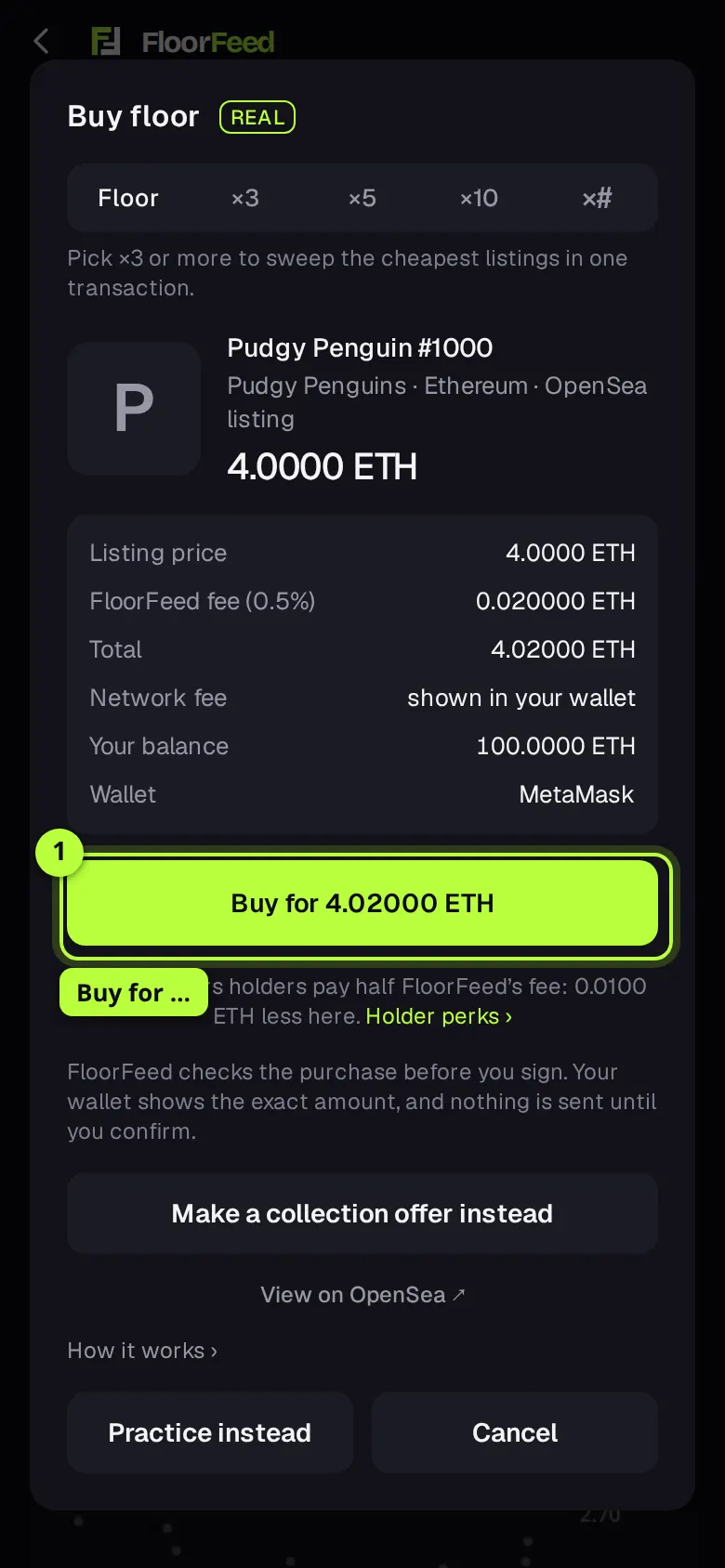
Press a trade button as usual: here, Buy for … in the buy sheet. The sheet shows the price, FloorFeed's fee and the total before anything is signed.
Check your wallet
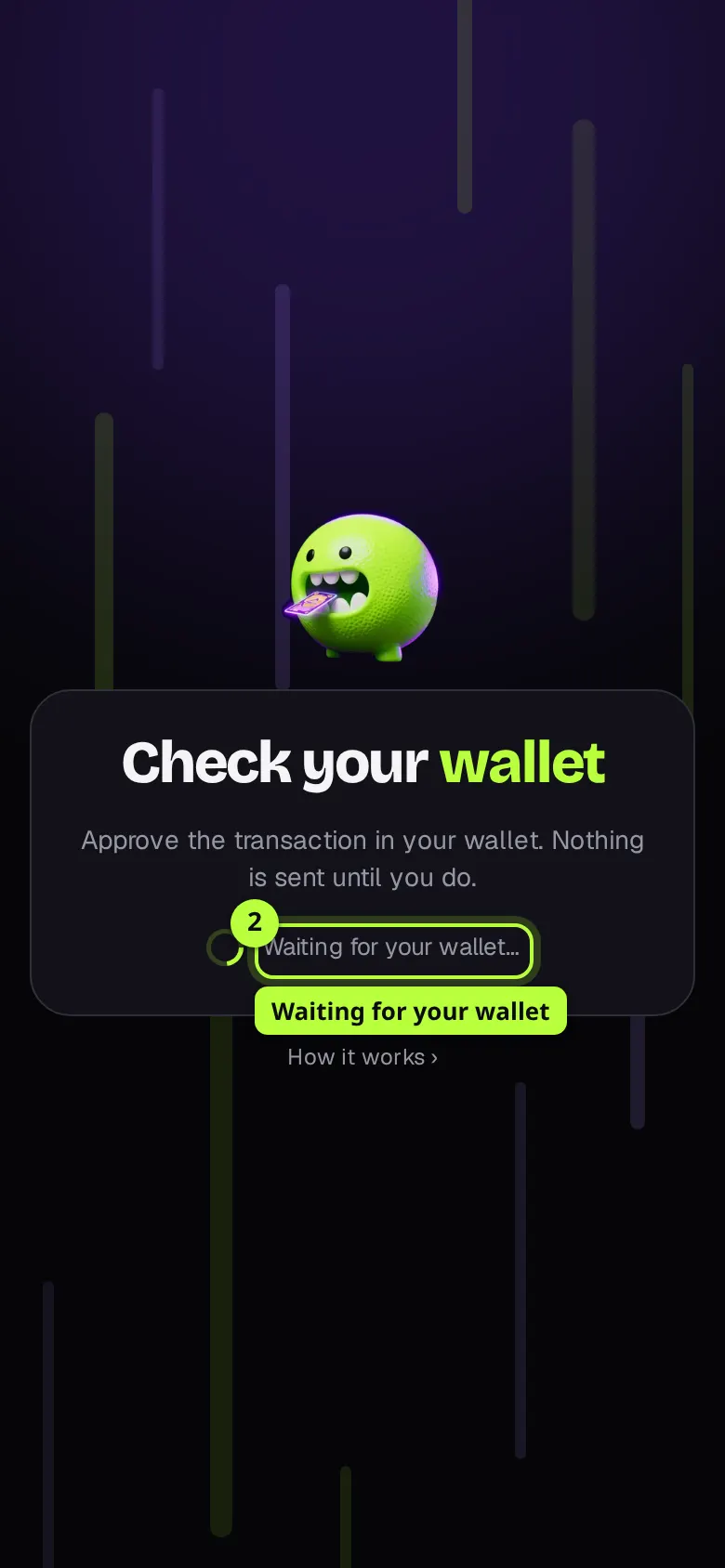
The screen opens and says Check your wallet while your wallet asks you to approve. Nothing is sent until you do. Turn it down in your wallet and the screen closes; the sheet says nothing was sent.
On its way
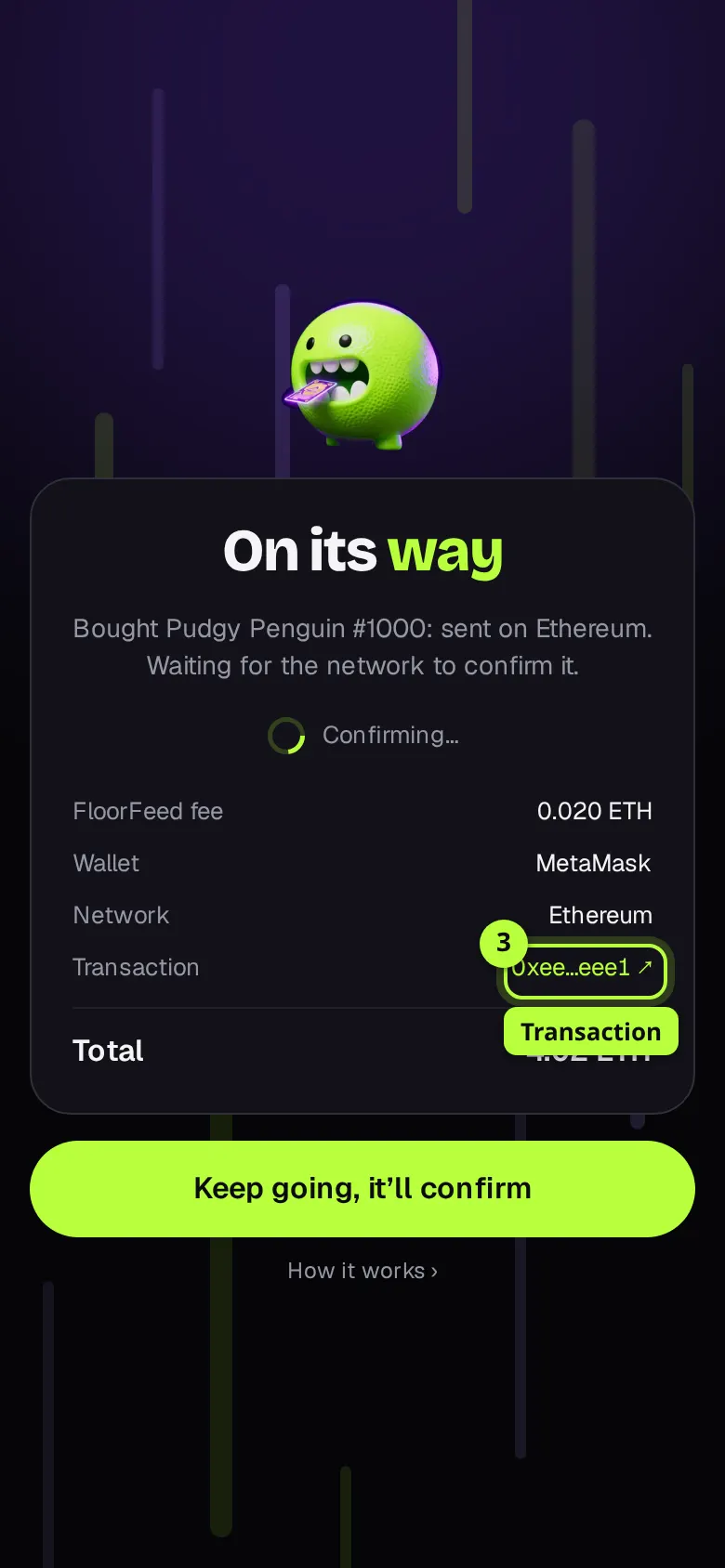
Once your wallet sends it, the screen says On its way, with the network and a Transaction link to the explorer (Etherscan, Basescan, Solscan…). It waits for the network to confirm. Keep going, it'll confirm closes the screen while the trade carries on.
Done
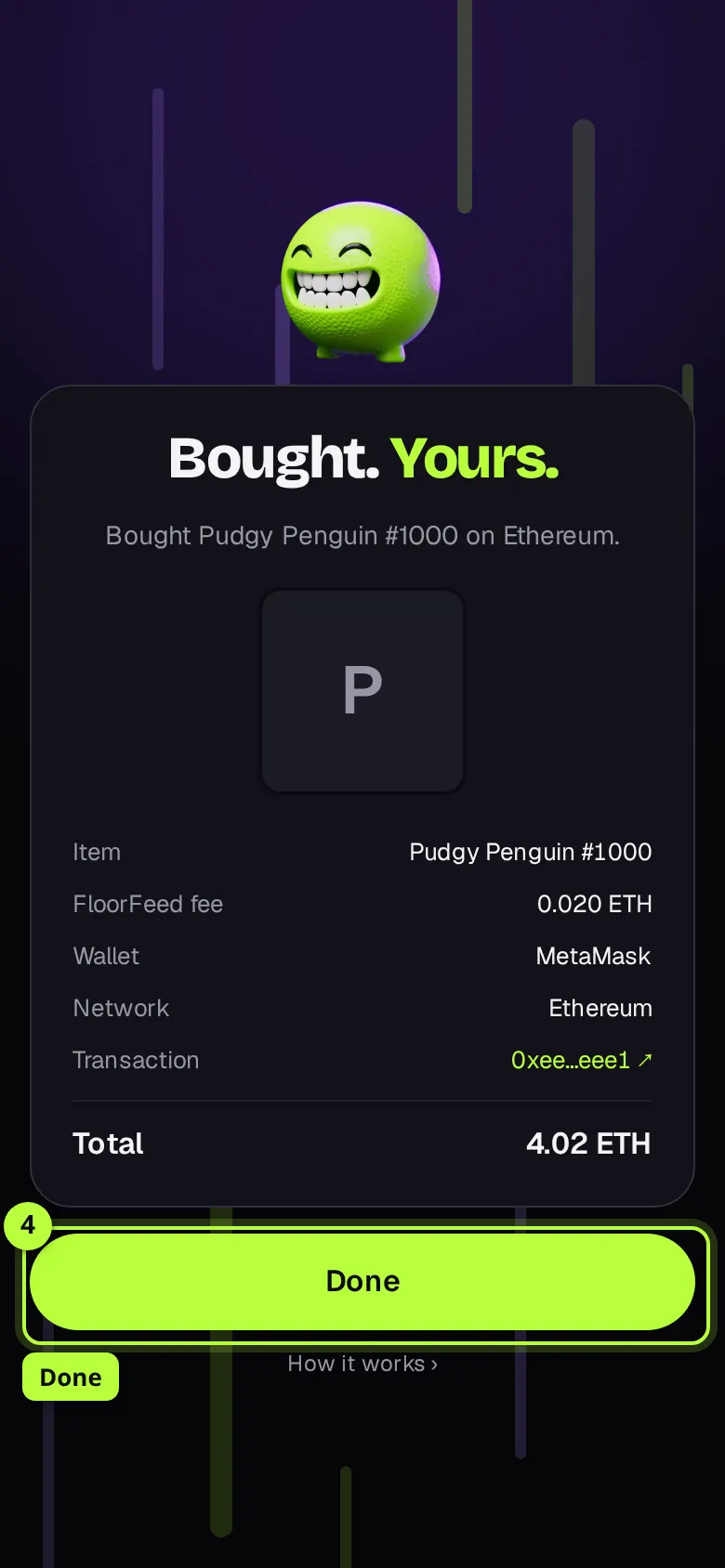
When it's done, the Chomper bites and the card shows what happened: the NFT's picture and name, the price, FloorFeed's fee, the network, the total and the transaction. A listing or an OpenSea offer is done as soon as the marketplace takes your signature. Tap Done.
Didn't go through
If the wallet or the network refuses it, the screen says Didn't go through and why, in plain words. Try again presses the same button again; Close goes back to the sheet.
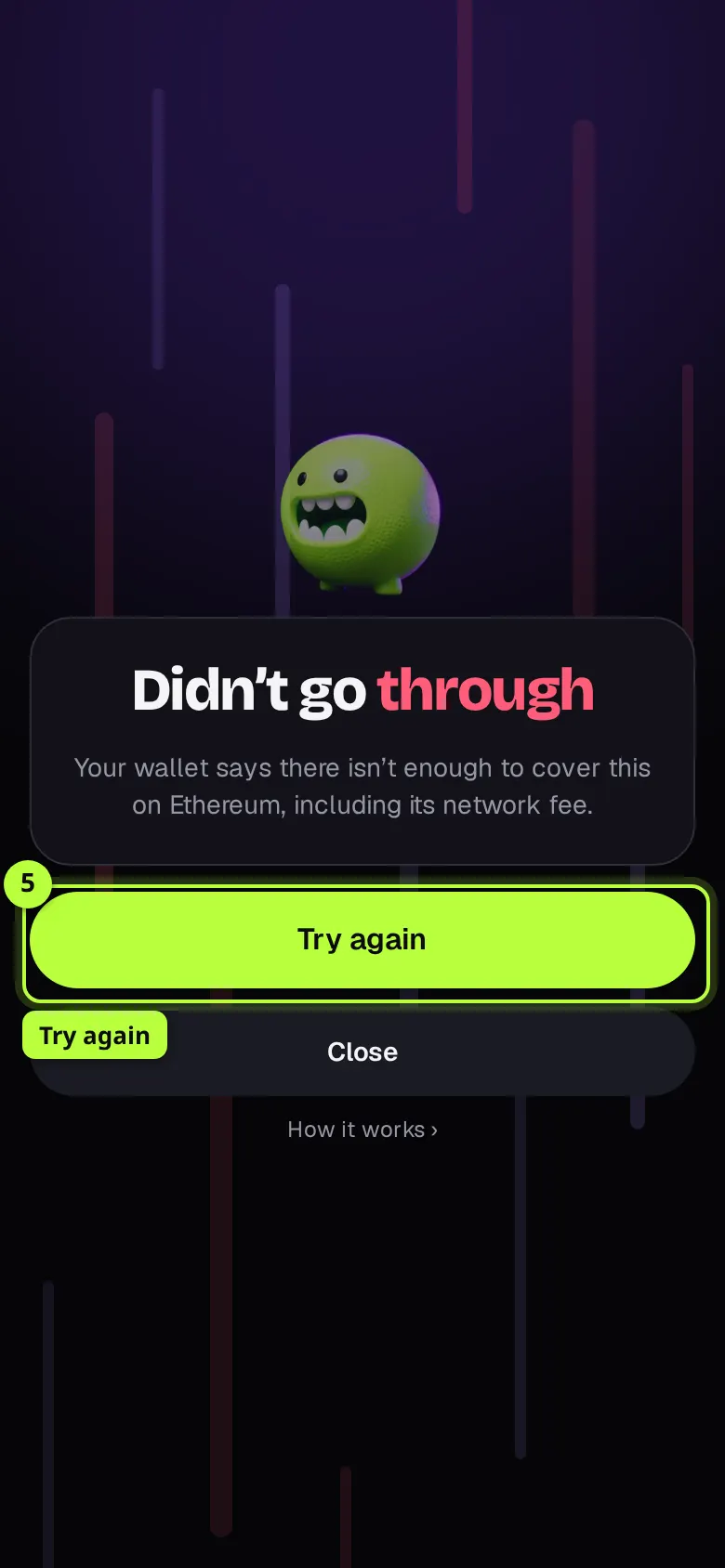
Options
- Summary card
- What you paid or got, the NFT's picture (up to four for a sweep, with +N for the rest), the network, FloorFeed's fee, the total and the Transaction link. Amounts follow Settings → Display and are blurred when you hide balances.
- FloorFeed fee: Waived
- When the Blur move or a holder perk waives FloorFeed's fee, the card says Waived: Blur move (or which holders) instead of an amount.
- Quest progress
- When the trade finished a quest badge (First Listing, Fed the Floor), a card under the summary says how many of the quests you've done and which badge you unlocked. Tap it to open Quests and claim it. It's hidden when the trade didn't move a quest.
- Keep going, it'll confirm
- Closes the screen while the transaction is still confirming. Nothing is cancelled: it's in Portfolio → Activity, and the sheet's own card keeps following it.
- Reduced motion
- If your device asks for reduced motion, the light streaks and the Chomper stand still.
Fees and limits
- All networks
- None. The screen only shows the trade; the trade's own fees are the ones the sheet showed before you signed, and the summary repeats them.
- Approvals, wrapping ETH and unwrapping WETH are steps on the way: the sheet shows those, and the screen opens again for the trade itself.
- Short of the network fee, the top-up offer opens instead of a failure.
- A Solana offer or a cancel signed without a transaction has no FloorFeed activity record to follow, so it's shown as done once your wallet has sent it or the marketplace has taken it; a soulbound claim once FloorFeed sees it confirmed.
- In the iPhone and Android apps there's no wallet signing yet, so the screen appears only on the website.
Troubleshooting
- The screen says On its way for a long time.
- The network is busy, or the network fee was low. Tap Keep going, it'll confirm and carry on; the Transaction link shows where it stands, and Portfolio → Activity updates when it settles.
- I turned it down in my wallet and the screen just closed.
- That's on purpose: you said no, so nothing was sent. The sheet says so, and you can press the button again.
- It says Didn't go through but my wallet shows a transaction.
- Open the Transaction link: if the network turned it down, nothing changed hands apart from the network fee. If it was dropped, nothing was spent at all.
- There's no quest card.
- It only shows when the trade finished a quest badge. Buys, sweeps and mints don't count toward one today, and a quest you'd already done doesn't show again.
Questions
- Does the screen change the trade?
- No. It follows what your wallet signs and sends; the trade's own code is the same, and the amounts are the ones the sheet showed.
- Can someone put a script in an NFT's name and run it here?
- No. Names are shown as plain text, and links open only on the network's explorer.
- Why a Chomper?
- He's FloorFeed's mascot: he eats the floor. He bites when a trade lands.
Related
- Buy and sweep the floor: by count or by budget
- Feed it: sell many NFTs into their best bids
- Making offers: on a collection, a trait or one NFT
- Celebrations: confetti, medal reveals and sound
Checked against FloorFeed on 2026-11-10.